Meet us at the UNBOUND26, Sep 16-18, Boston, MA>> Book a chat

Free Gmail Signature Generator by WiseStamp

Generate a professional Gmail signature free in 5 minutes. Pick a template, add your logo and social icons, and set up with a click.

Free · No Code · 1-click install to Gmail
Gmail Signature Generator

Gmail signature templates

Start from a library of ready-made Gmail signature templates, then tweak one to fit your name, role and brand in minutes.

Earn a better first impression, every time

target blue icon

Make every email look intentional

One professional signature goes out on every email you send, so a first impression stops being accidental and starts being consistent.

growth blue icon

Turn your inbox into a channel

Add banners, links and call-to-action buttons that turn routine email into a channel driving real clicks, leads and replies.

activate icon blue

Skip the designer and the code

Skip the designer and the HTML. Pick a template, add your details, and get a polished signature in about two minutes.

responsive blue icon

Keep one signature on every device

The same signature renders identically on desktop and mobile, so nothing gets clipped, resized or left looking broken on someone’s phone.

1 dark blue icon

Pick a template

Choose a design that matches how you want to look.

2 dark blue icon

Add your details

Drop in your name, logo, photo and social links.

3 dark blue icon

Customize the design

Adjust colors, fonts and layout until it’s yours.

4 blue icon

Install to Gmail

Connect your account and it’s live in one click.

Get a finished signature in 4 steps

Prefer to set it up manually in Gmail’s own settings? Here’s the full walkthrough for how to add a signature in Gmail.

Mobile uses the same connected signature automatically, no separate setup.

1 dark blue icon

Pick a template

Choose a design that matches how you want to look.

2 dark blue icon

Add your details

Drop in your name, logo, photo and social links.

3 dark blue icon

Customize the design

Adjust colors, fonts and layout until it’s yours.

4 blue icon

Install to Gmail

Connect your account and it’s live in one click.

See what’s inside the generator

Start from a professional template

A ready design library, no blank canvas panic.

Build it without touching code

Drag, drop, done. No HTML required.

Add your logo and photo

Upload once. Looks sharp on any screen.

Make your social icons clickable

Tap an icon, land on your profile.

Add a banner or CTA button

Turn a signature into a tiny ad.

Include a legal disclaimer

One line, always there, no copy-paste.

Add animated extras

GIFs, video links or a review widget.

Install to Gmail in one click

Connect your account. Signature appears instantly.

Keep a signature for each address

Different roles, different inboxes, one tool.

Match desktop and mobile exactly

Same signature, same look, every screen.

Install to Gmail in one click

Connect your Google account once and your signature drops straight into Gmail, live on every email without digging through settings.

Easy Gmail email signature installation with one click using WiseStamp
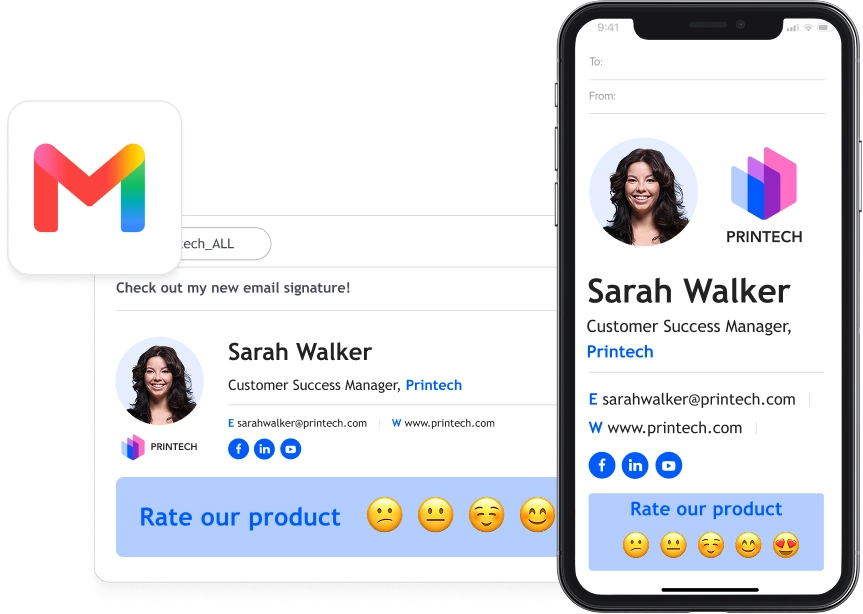
Great looking Gmail email signature on both desktop and mobile

Ensure a great-looking signature on desktop and mobile

Start from a library of ready-made Gmail signature templates, then tweak one to fit your name, role and brand in minutes.

Great looking Gmail email signature on both desktop and mobile

Add your logo and headshot in seconds

Upload your logo and photo once. WiseStamp sizes both automatically, so nothing looks stretched, pixelated or oddly cropped on any screen.

Create a Gmail signature with logo and headshot image in seconds
Create a clickable Gmail signature using WiseStamp's generator

Grow your following from every email

Link clickable icons for LinkedIn, Instagram, X and more, so every email you send points straight to your profiles.

Create a clickable Gmail signature using WiseStamp's generator

Turn every email into a marketing channel

Drop a banner or CTA button into your signature, linking to a launch, event or booking page that drives clicks.

Run banner campaigns to your Gmail email signature
Create a Gmail email signature with an email disclaimer

Include a disclaimer on every email automatically

Pick a ready disclaimer or write your own, and it appears on every email without any HTML or copy-paste work.

Create a Gmail email signature with an email disclaimer

Give yourself a professional Gmail signature

Make a professional impression with every email you send. Create your Gmail signature with WiseStamp.

Create a professional gmail signature with WiseStamp

FAQ

Creating a Gmail signature with WiseStamp takes four steps:

  1. Pick a professional template.
  2. Add your name, logo, photo and social links.
  3. Adjust colors, fonts and layout in the drag-and-drop editor.
  4. Connect your Google account to install it.

Yes, WiseStamp offers a free Gmail signature generator. The free version builds and installs a signature with a template, logo and social icons. Advanced features such as marketing banners, analytics and multiple signatures are available on paid plans. See the WiseStamp pricing page for current plan details.

No. WiseStamp builds the entire Gmail signature in a visual drag-and-drop editor, so no HTML or coding is required. You add text, images, social icons and banners by clicking, and WiseStamp generates the underlying HTML automatically.

Yes. WiseStamp lets you upload a company logo and a professional photo to a Gmail signature. WiseStamp sizes both images automatically, so they do not appear stretched or pixelated. Transparent PNG files render best in dark mode.

Yes. WiseStamp adds clickable social media icons that link directly to your profiles. Supported platforms include:

  • LinkedIn
  • Instagram
  • X (Twitter)
  • Facebook
  • YouTube

No HTML is needed to make the icons clickable.

Yes. WiseStamp lets you create and switch between multiple Gmail signatures. Common uses include:

  • A different signature for each email address
  • A lighter signature for replies and forwards
  • A second-language signature
  • A shared signature for a team inbox

You select the signature from a side panel when composing.

Yes. A WiseStamp Gmail signature renders identically on iPhone, Android and desktop. Images load, links stay clickable, and the layout does not clip or resize between devices. A dark mode preview checks appearance before you install.

Installing a WiseStamp signature into personal Gmail takes a few steps:

  1. Finish designing the signature in WiseStamp.
  2. Connect your Google account through Google Connect, or add the WiseStamp Chrome extension.
  3. Refresh Gmail, and the signature appears automatically on new emails.

Yes, WiseStamp works with both personal Gmail and Google Workspace. Personal accounts connect through Google Connect or the Chrome extension. Google Workspace accounts can push a signature to every mailbox through the admin integration.

Yes. WiseStamp lets you add a promotional banner or call-to-action button to a Gmail signature. Each banner links to any URL, such as a product launch, event page or booking link, turning routine email into a marketing channel.

Yes. WiseStamp works beyond Gmail across major email clients, including:

  • Outlook (web and desktop)
  • Apple Mail
  • Yahoo Mail
  • Mobile email apps

The same signature design carries across every supported client.

Yes. Every WiseStamp Gmail signature template opens in a drag-and-drop editor after you select it. You can change colors, fonts, layout and content, so a starting template becomes fully your own without coding.

Adding a Gmail signature manually happens in Gmail’s own settings:

  1. Open Gmail and go to Settings, then See all settings.
  2. Scroll to the Signature section under the General tab.
  3. Paste or type your signature and save.

The full step-by-step walkthrough is in the WiseStamp Gmail signature guide.

A professional Gmail signature includes a focused set of elements:

  • Full name and job title
  • Company name and logo
  • One phone number and a website link
  • Clickable social icons

Keep to one font and one accent color, and avoid clutter such as long quotes.