Home / Guides / How to Add an Email Signature in Yahoo Mail (Step-by-Step)
How to Add an Email Signature in Yahoo Mail (Step-by-Step)
Turn a plain Yahoo Mail signature into a polished brand asset. See step-by-step setup instructions, add a photo or logo, and link your social profiles.
Reading time:
2 min
Author: Dvir Gilboa
Updated: August 25, 2026
Short answer
How to create and add a signature in Yahoo Mail?
Generate a professional HTML signature with WiseStamp
Copy signature HTML to clipboard
Login to Yahoo.
Click Settings on the upper right-hand side.
Select Writing Email from the left side menu
Select your yahoo email address
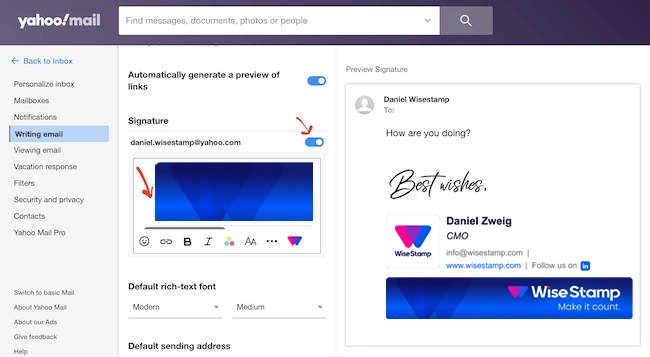
Find the Signature section > and toggle on the Signature switch to the right
Paste the HTML from WiseStamp in your signature box or type in your info as plain-text.
Making a professional signature is different from simply adding a signature. While a simple text signature will look like this:
Daniel Goalman | Marketing Manager At WiseStamp 1-800-800-800 wisestampdev.wpenginepowered.com
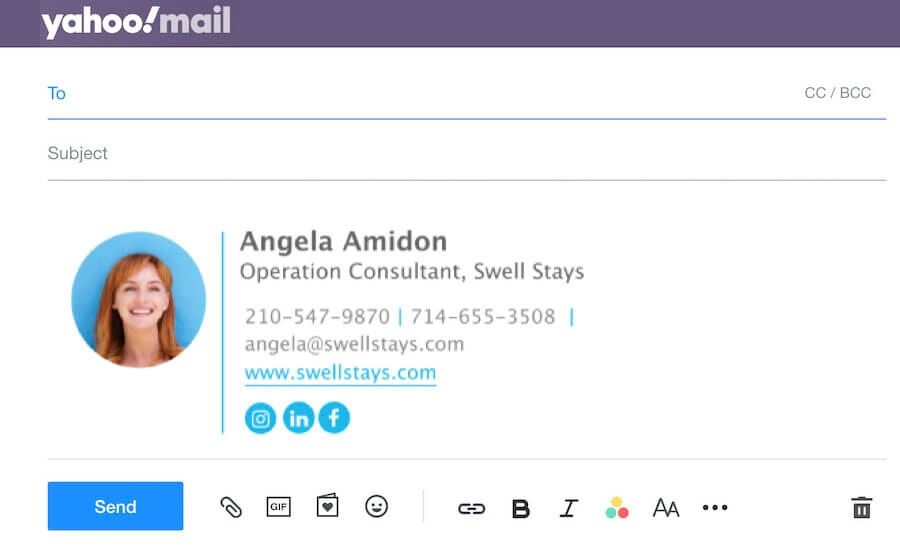
A professional signature will look like this:
To
Subject
For a professional outcome, you need to ensure a clean and responsive design as well as add basic features to your Yahoo signature.
Clean design means that you’ll need a basic information hierarchy with the more important things in bigger and bolder letters plus some kind of division between your signature’s different sections. Namely, your personal info, your contact info, and your call to action.
The basic features that make a great Yahoo Mail signature are things that will add depth and trust. These come in the form of visual elements and links.
Features that make a professional Yahoo signature:
An image of you
Social media icons (with links)
A call to action (this can be a banner, a video, a button, or some text and a link)
FAQ
Generate a professional HTML signature with WiseStamp
Copy signature HTML to clipboard
Login to Yahoo
Click Settings on the upper right-hand side
Select Writing Email from the left side menu
Select your yahoo email address
Find the Signature section and toggle on the Signature switch to the right
Paste the HTML from WiseStamp in your signature box or type in your info as plain-text
Yahoo Mail signatures support clickable images through HTML code. Generate the signature HTML in WiseStamp, which wraps the image in an anchor tag automatically, then paste the code into the Yahoo Mail signature box. Typing an image path as plain text will not create a clickable image.
Yahoo Mail supports HTML signatures pasted directly into the signature box in Settings. The editor renders formatting, links, and images from HTML code, though some CSS properties get stripped during paste. WiseStamp generates Yahoo-compatible HTML signatures ready to paste without manual coding.
Yahoo Mail applies a new-message signature by default, and replies or forwards may not include it automatically. Check the Signature section in Settings under Writing Email and confirm the toggle covers replies, or manually insert the signature when composing a reply.
Yahoo Mail supports one signature per connected email address, not multiple signatures for a single account. Users with several Yahoo addresses linked to one inbox can set a distinct signature for each address individually in the Writing Email settings.
Yahoo Mail signatures created on desktop do not always carry full HTML formatting to the mobile app. The Yahoo Mail app has its own Signature setting under its menu, and complex HTML signatures often need to be re-added there as plain text.
Yahoo Mail does not publish a fixed character limit for signatures, but very long HTML signatures can get truncated or stripped of formatting during paste. Keep signature HTML compact and test it by sending a preview email before rolling it out.
Yahoo Mail signatures can include social media icons through HTML image tags wrapped in hyperlinks. WiseStamp signature templates come with built-in social icons, including LinkedIn, Twitter/X, and Instagram, that link directly to a profile once the HTML is pasted into the signature box.
The Yahoo Mail mobile app supports a basic text signature added through its own Settings menu. It does not fully support pasting rich HTML signatures the way the desktop version does, so images and multi-column layouts may not render correctly.
Open Settings and select More Settings in Yahoo Mail
Choose Writing Email from the left menu
Select the specific Yahoo address from the account dropdown
Toggle on the Signature switch for that address
Paste or type the signature and repeat for each additional account
New Yahoo Mail moves the Signature toggle under More Settings and Writing Email instead of the separate Signature tab used in classic Yahoo Mail. The signature editor itself works the same way in both versions, accepting pasted HTML or plain text.
Yahoo Mail signatures can include a company logo by pasting HTML that references a hosted image URL. Yahoo Mail does not support uploading a local image file directly into the signature editor, so the logo must be hosted online first.
Signature images often fail to display when the image is attached rather than linked from a hosted URL. Yahoo Mail signatures need externally hosted image links, since local file paths and inline attachments do not render across recipient email clients.
Yahoo Mail signatures support hyperlinks through HTML anchor tags pasted into the signature box. WiseStamp signature templates include clickable text and button links to a website, calendar booking page, or social profile by default.
Yahoo Mail signatures can technically include animated GIFs through a hosted image link, though many recipient email clients, including Outlook, block or freeze GIF animation on the first frame. Static images render more consistently across different email clients.
Open Settings, select More Settings, then Writing Email in Yahoo Mail. Select the specific account from the dropdown and toggle the Signature switch off. This stops the signature from appending to new emails for that address only.
A professional Yahoo Mail signature should include:
Full name and job title
Company name and website link
Phone number
A professional headshot or company logo
Social media icons with links
A call to action, such as a banner or booking linkC
Table of Content
Deploy standardized email signatures company-wide in 24h
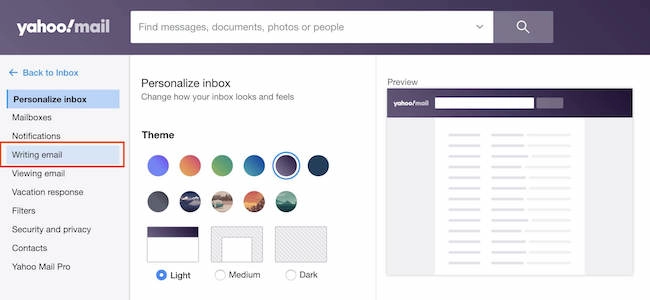
 in the upper-right corner of yahoo email, and then select More Settings.