Home / Guides / How to Add an Email Signature on iPhone and iPad
Yahoo
How to Add an Email Signature on iPhone and iPad
Reading time:
3 min
Author: Dvir Gilboa
Updated: August 25, 2026
Short answer
How to create and add a signature on iPhone and iPad?
Generate a professional HTML iPhone and iPad signature using WiseStamp
Copy email signature HTML to clipboard
Open your iPhone > tap the Setting icon
Select Mail > Scroll down to the Signature option and tap that
Scroll down to the Signature option and tap that
Choose whether to create a signature for a Specific Account or for All Accounts (this option will only be presented to you if you have more than one account)
Tap the text field and delete the “Sent from my iPhone” placeholder line.
Paste in your signature HTML from WiseStamp or type in your information as plain text.
Close settings > Open your mail app > Open a new email message to see your new signature there
Consider yourself lucky; iPhone is the only mobile device that supports HTML email signatures. So take this opportunity to remove that awful “Sent with my iPhone” default signature and replace it with something respectable.
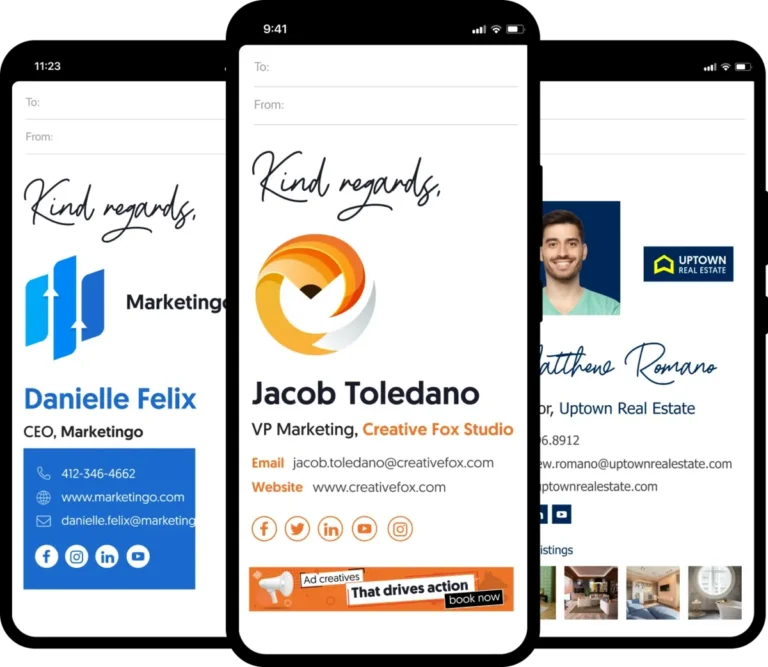
The fact your iPhone supports HTML means that you can give yourself a beautiful iPhone email signature that includes your picture, social media icons, buttons, banners, and more. Keep reading and we’ll show you how to set it up in just a few minutes.
We’ve prepared 3 simple options for you to make your signature:
iPhone and iPad email signature | Made with WiseStamp
How to add a signature on iPhone step by step?
Step
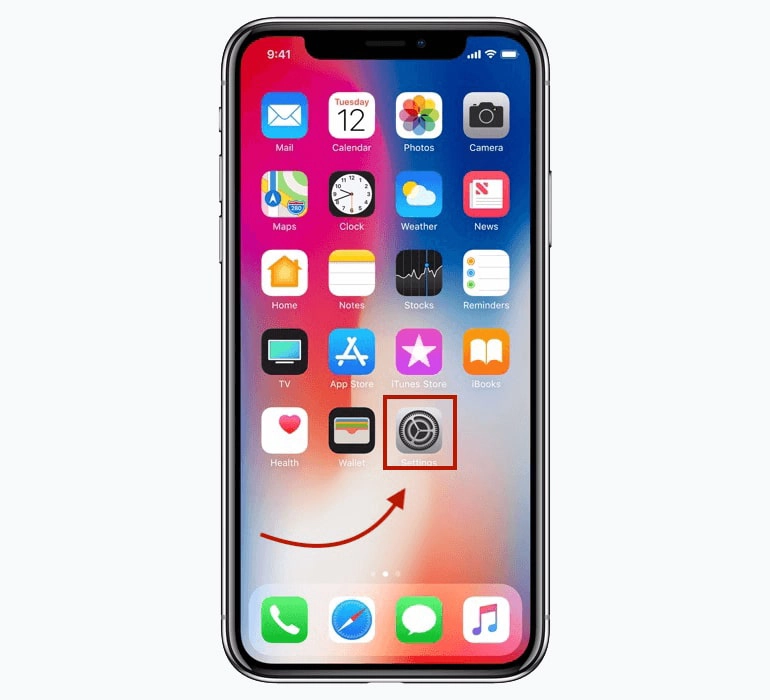
Open the iPhone iOS Settings
Simply tap the gear wheels icon on your iPhone home screen to open the iOS Settings view.
Step
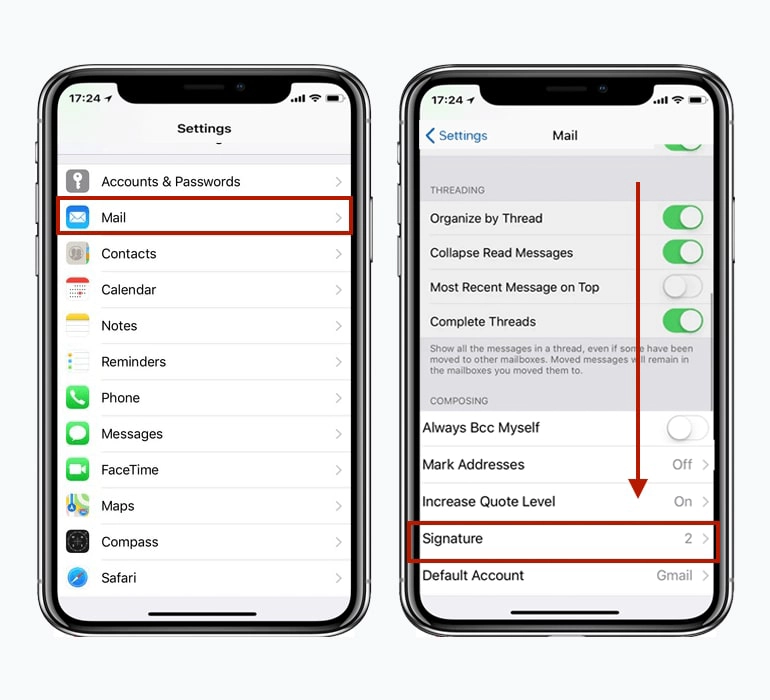
Open iPhone email signature settings
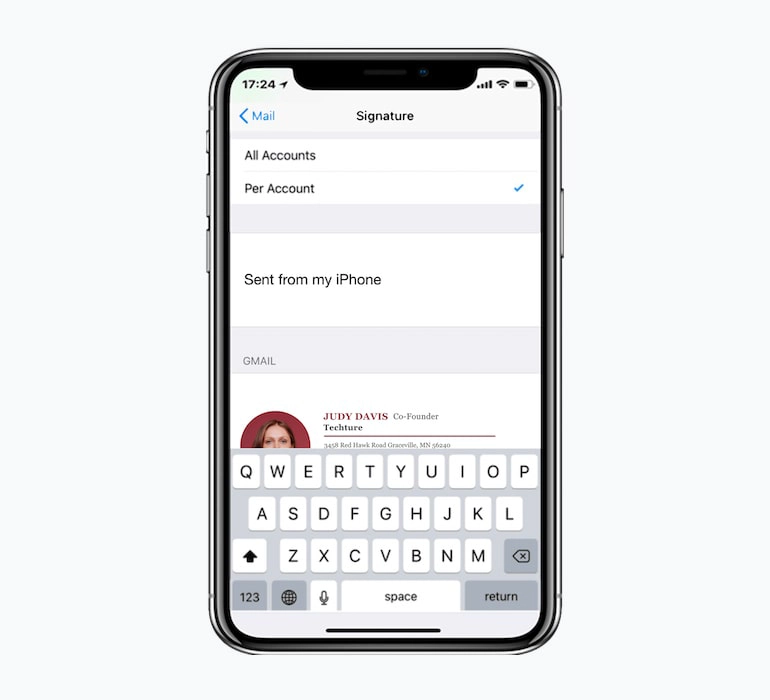
In the Settings view scroll down till you find the Mail tab then tap it > In the Mail tab scroll down till you find the Signature tab then tap that. The iPhone signature editor will open.
Step
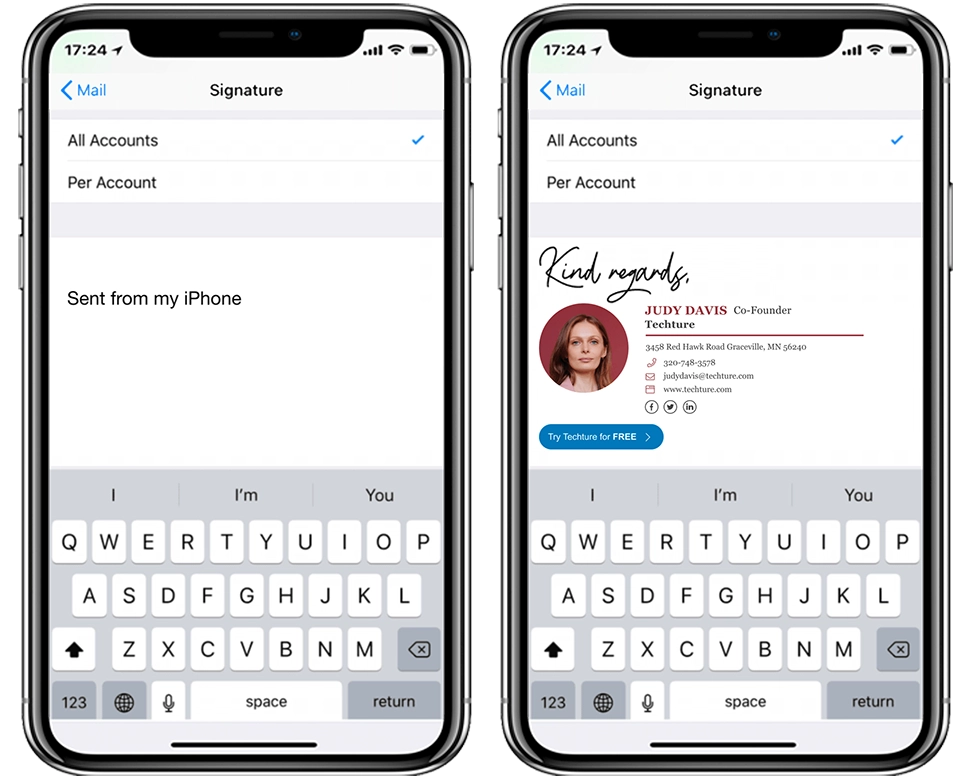
Add your HTML signature on iPhone editor
Select the default “Sent from my iPhone” signature and delete it > Paste into the text field your pre-made HTML signature (you can easily create an HTML signature on your own here).
Step
Set different signatures per account
If you have more than one email account settings on your iPhone, you can set a signature per account. Select the “Per account” option at the top of the Signature tab.
This really comes in useful if you have a private and a professional email account that requires unique signatures.
Step
Open a new email message to see your signature
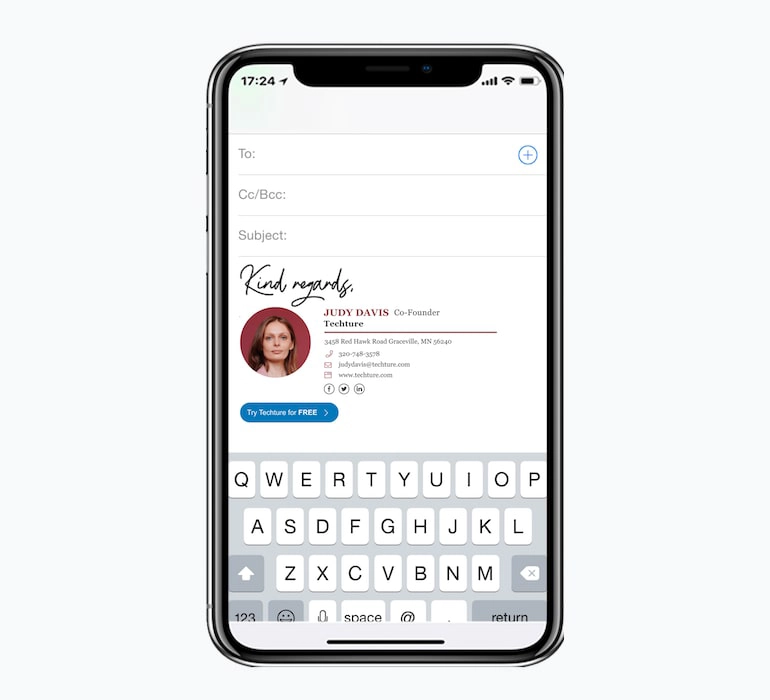
When your done editing your signature close the Settings view and open your iPhone mail app > Open a new email message to see your signature there.
how to create a signature for iPhone using a template?
How to create a signature on iPhone using a signature Generator?
The easiest way to set up a great-looking professional signature on the iPhone is by using our iPhone signature generator.
WiseStamp especially gives you all the customizability you can wish for, so you can create an exact signature according to your specifications.
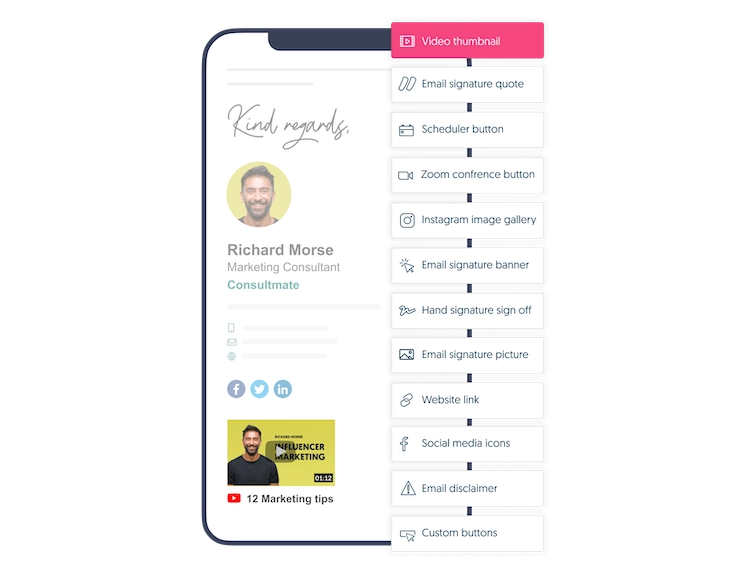
Load your signature with powerful features that improve visibility, memorability, and clickability. Things like a photo of you, social media icons, call-to-action buttons, a video thumbnail, email disclaimer, and more.
This could be your chance to upgrade the generic “Sent from my iPhone” signature and replace it with a professional signature that makes an impression.
Features you can add | Image is for illustration purposes only
Generate a professional HTML signature using WiseStamp
Copy the email signature HTML to clipboard
Open iPhone Settings and tap the gear icon
Select Mail, then scroll down to Signature and tap it
Choose Specific Account or All Accounts if more than one account is configured
Tap the text field and delete the “Sent from my iPhone” placeholder
Paste your signature HTML, or type your information as plain text
Close Settings, open Mail, and open a new email to see the signature
The Gmail app on iPhone does not accept a pasted signature in its own settings. WiseStamp signatures reach Gmail through Google Connect for automatic sync, or a copy-paste step in Gmail’s desktop settings.
Yes, the Outlook app on iPhone displays a signature automatically once the WiseStamp Outlook Add-in is installed. The add-in inserts the signature into every message sent from Outlook, including mobile.
Shake to Undo is an iOS gesture that reverses the last text edit, including reformatting Apple Mail applies after a paste. Shaking the iPhone, then tapping Undo, restores the original signature formatting.
No, an iPhone signature does not sync to an iPad automatically. iOS stores Mail signatures per device, so the signature must be pasted into Settings > Mail > Signature separately on the iPad.
Email signatures render differently because each mail client interprets HTML and CSS in its own way. WiseStamp documentation flags inconsistent rendering as a common IT support burden across:
Gmail
Outlook desktop and Outlook web
Apple Mail, iOS, and Android
No, the Employee Hub does not install a signature directly into iPhone Mail. Instead:
Open Employee Hub and select Apple Mail for iOS
Send the signature to the iPhone as an email
Copy the signature and paste it into Settings > Mail > Signature
Yes, an iPhone HTML signature can include a clickable phone number built with a tel: link. A signature generator like WiseStamp’s can add this alongside:
Social media icons
Call-to-action buttons
A video thumbnail
Yes, Gmail app signature setup is identical on iPhone and Android. Both use Google Connect for automatic sync, or a manual copy-paste through Gmail’s desktop settings, since neither mobile app accepts a pasted signature directly.
Yes, an iPhone Mail signature applies to new messages, replies, and forwarded messages by default. The “Per Account” option instead assigns a different signature to each configured email account.
Yes, a WiseStamp email signature can include a video thumbnail that links to a hosted video, since iPhone Mail cannot play embedded video directly. The thumbnail sits alongside other features such as:
A profile photo
Social media icons
Call-to-action buttons
A pasted iPhone signature turns into plain text when its HTML code is altered before pasting, often because it was copied from a word processor instead of a signature generator. Copying code directly from the HTML source keeps the original design intact.
An iPhone signature template is a pre-designed layout a person customizes with personal details and a photo. The WiseStamp signature generator instead builds a signature from selected fields, images, and features like social icons or buttons. Both output HTML ready to paste into iPhone Mail.m
Table of Content
Deploy standardized email signatures company-wide in 24h