How to Add a Gmail Signature Image (That Looks Professional)
How to add an image to Gmail signature (also Android mobile app). Insert a link to your Gmail signature image - start making a professional impression.

Any respectable Gmail signature should have an image. After all your Gmail signature is like your digital business card. It’s the last thing your email readers will see before they go on with their day, and you want them to have you in mind.
Faces are extremely effective in attention-grabbing for most people. Adding a Gmail signature image will make your signature more noticeable, and also more memorable.
How can I add an image to my Gmail signature?

Create Gmail signature image like this one | with WiseStamp
- Click the gear icon
 at the top-right corner of your Gmail > Select Settings from the dropdown menu
 - Scroll down the Settings tab till you reach the Signature section
- If you still don’t have a signature click Create new and add your personal and professional details.
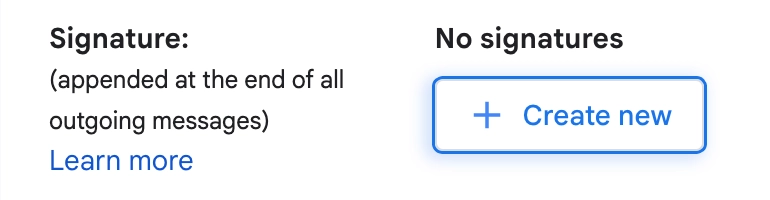
If you already have a signature select the one to which you want to add an image
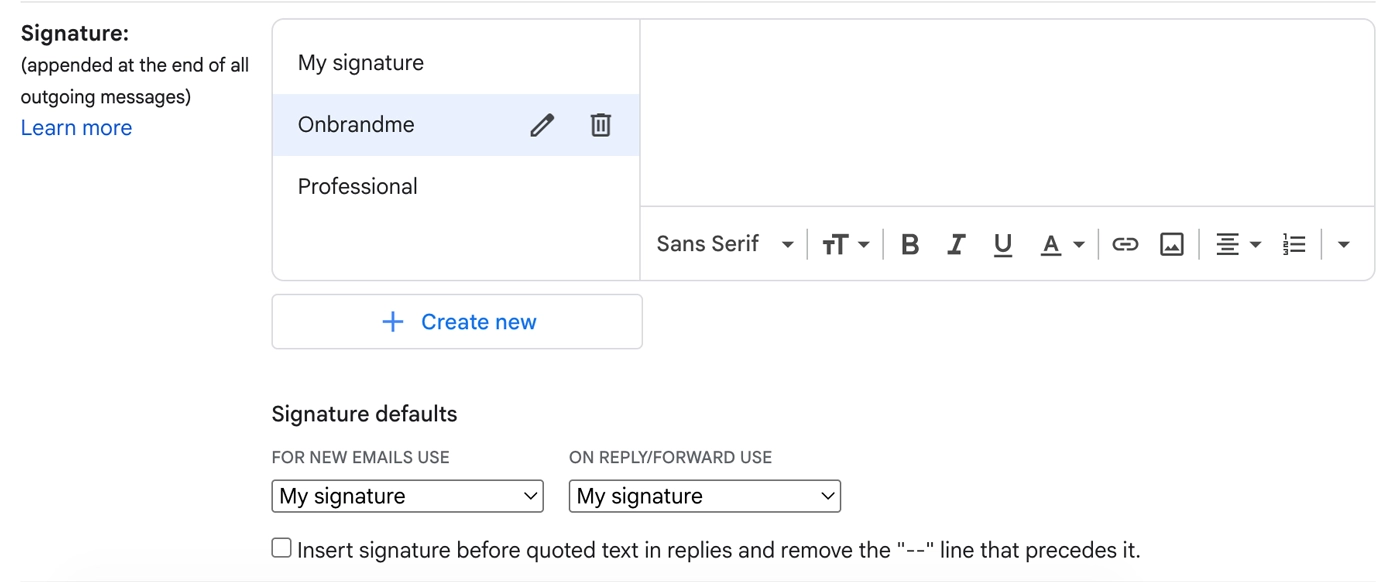
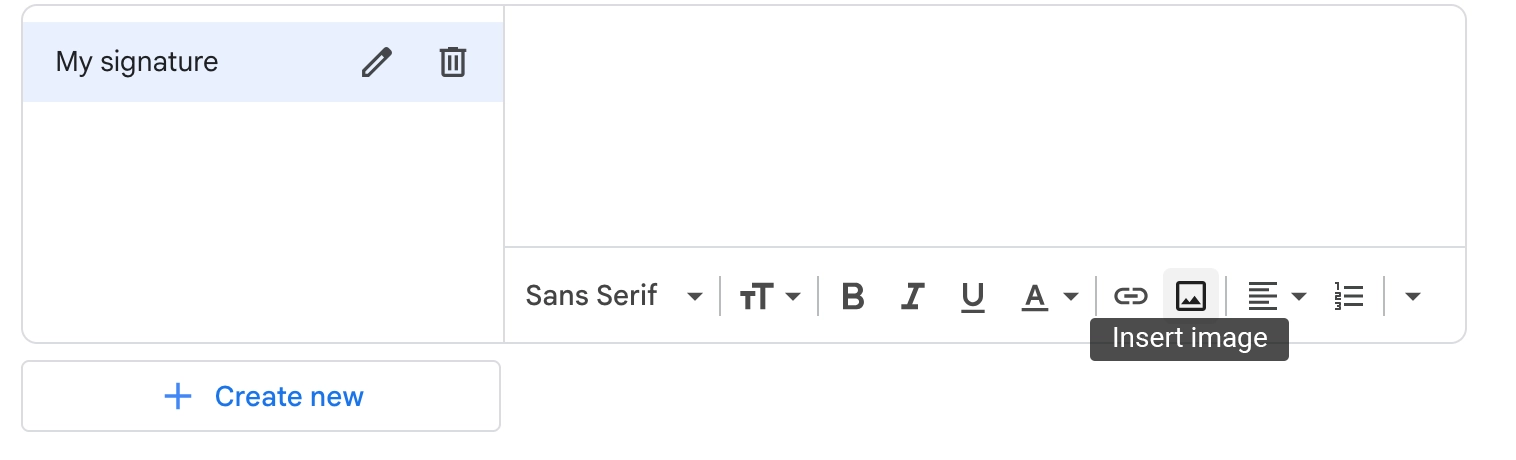
- To insert an image to your Gmail signature click on the image icon in the signature editor’s toolbar > And upload an image from your computer without using a URL or you can add an image from the web via URL
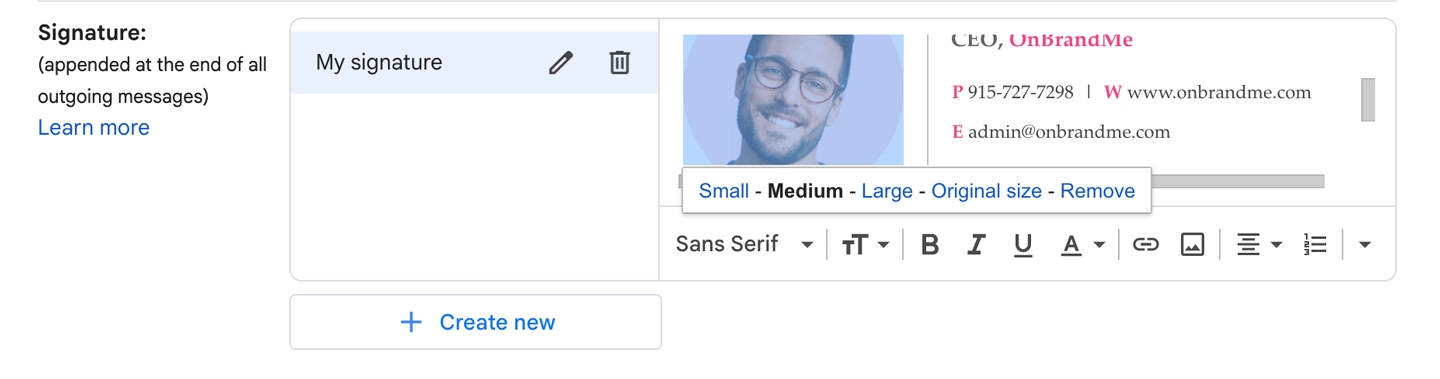
- Resize your image to fit you design with Gmail’s resizing options: Small, Medium, and Large, or choose to maintain its original size
If you choose to upload an image rather than use a URL there may be instances when Gmail will experience a bug that will show the image as a “Broken image” icon. If this happens a lot, simply revert to using a URL
- Drag and drop or copy and paste the image to where you want to place it in your Gmail signature
- If you’re done here, scroll down to the bottom of the Settings tab and click the “Save changes” button. If you’d like to make your image clickable – keep reading
Check out how WiseStamp users are getting creative using images and links in their email signature:
(jump to 3:12 for real life signature examples)
How to add a hyperlink to an image in Gmail signature
- To add a hyperlink to the image, select the image by clicking and dragging your cursor, as you would text. If you did this correctly, the image should be highlighted in blue
- With the image still highlighted, click the “Link” icon in the editor’s tool strip
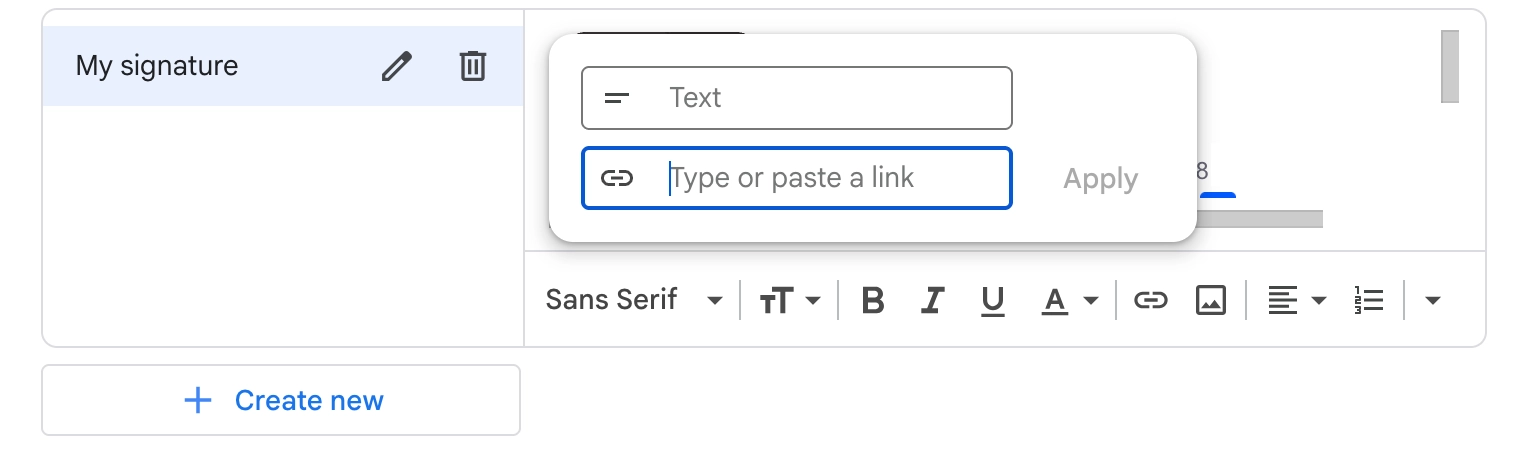
- Add the full URL you want to link to (including the https://) where it says “Web address”
- Hit “OK” and the image will become a hyperlink.
Note: You can click the image to check if the hyperlink is working well (it should show the hyperlink with a “remove” option). When you send an email with this signature, the image will be clickable to the reader.
- When you are done, scroll down to the bottom of the page and hit “Save Changes”

Gmail signature with image | Made with WiseStamp
Create a professional Gmail signature with images, buttons, and social media icons
You have a very fast and easy way to do what you came here for. Simply use our free email signature generator, and you’ll have a beautiful signature in your Gmail in 5 minutes from now.
- Open the Wisestamp custom Gmail image add-on
- Add the image you want from your computer, by direct URL, or straight from your Facebook, Instagram, or camera > And click the black arrow at the top-right corner of the screen
- Add your personal and professional details
- Click “OK, I’m done” in the bottom-right of the screen, and we’ll set up your new signature in Gmail automatically
How to add a Gmail mobile signature image
Sadly, the default Gmail mobile signature does not yet allow adding an image to your signature in its Android mobile app. It only allows for a very simple and unimpressive text signature that can’t even include a hyperlink.
This is what it looks like:
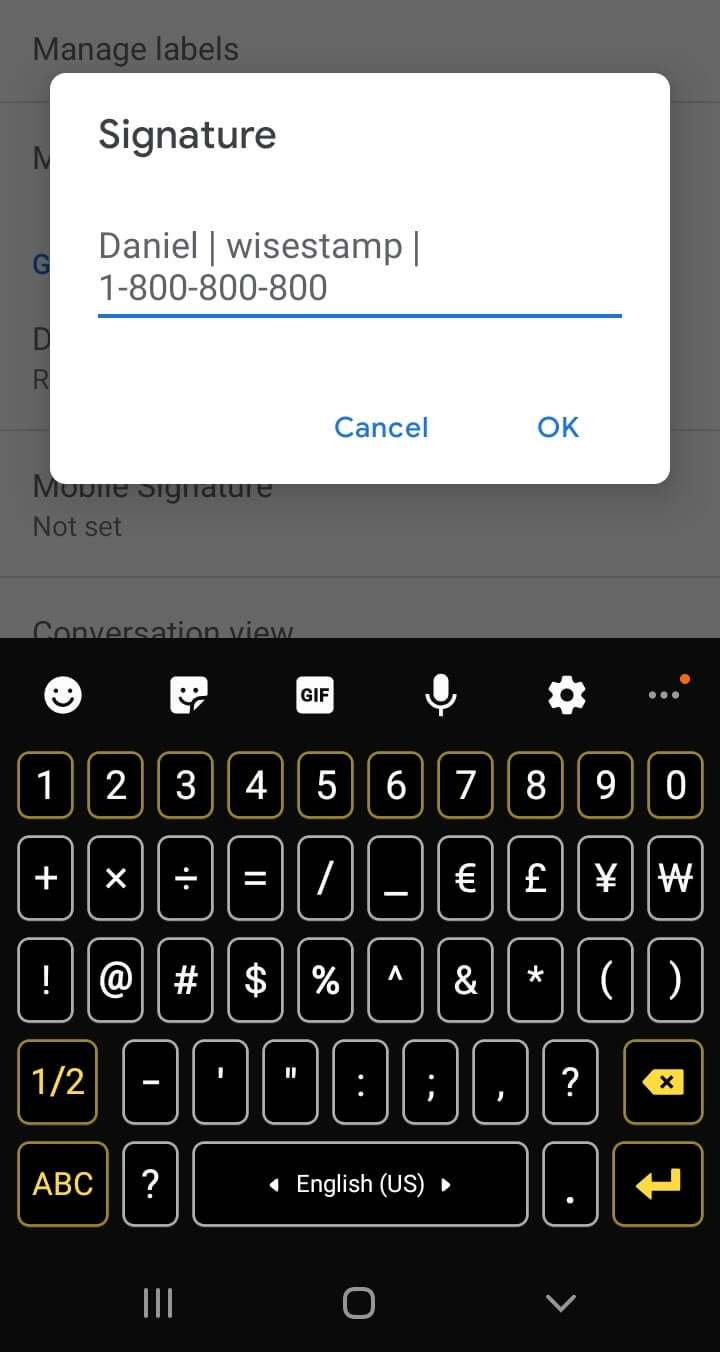
Gmail mobile signature image in Android