How to Add a Responsive HTML Signature in Gmail
How to add an HTML signature in Gmail without it breaking. A simple step-by-step guide to create a professional HTML signature for Gmail.

There are three major methods of adding an email signature to Gmail. You can create one using Gmail’s signature settings, a free email signature generator like WiseStamp, or code a custom HTML signature from scratch.
In this guide, we’ll show you how to create a responsive Gmail HTML signature and install it on Google Mail.
Key Takeaways
- A Gmail HTML signature is a rich email signature that includes images, social media links, GIFs, banners, etc.
- Gmail’s email signature settings don’t render raw HTML code.
- To add an HTML signature to Gmail, you’ll need to paste the code into an online HTML editor and then copy the rendered HTML signature. Paste the copied signature into Gmail’s email signature text box.
- Gmail’s Android and iOS apps support plain text signatures only, not HTML (rich text).
What is an HTML Email Signature?
Before getting into how to add an HTML signature to a Gmail account, let’s first understand what it is.
An HTML email signature is a signature created using HTML markup language. In other words, this is when you write strings of code with your details, including contact information, clickable links, and custom graphics.

Get an HTML signature like this one | Made with WiseStamp
An HTML email signature is a premium version of a plain text signature. Unlike a plain text signature that is text only, an HTML email signature takes things a notch higher. It lets you include fancy formatting, images, GIFs, and brand colors. This capability for superior customization to fit your business and marketing needs is what makes HTML signatures in Gmail a fantastic option for professional signatures.
Can You Use HTML in The Gmail Signature?
You can definitely insert HTML signatures in Gmail. But it involves switching between tabs in that you have to create the code in MS Word, transfer it to an HTML editor, and then copy-paste it into Gmail signature settings. It’s a bit of work, but we’ve explained the process step by step in the next section.
How to Create an HTML Signature for Gmail
While you can create an HTML signature for Gmail, you can’t do it using Gmail signature settings alone. Gmail does not have a built-in HTML signature editor, so you can’t write or edit your own signature code within Gmail’s signature text box.
There are two possible workarounds for this:
- Combine word processing software and HTML editor to generate your HTML signature.
- Let WiseStamp’s free signature tool generate the HTML code for you.
How to Add an HTML Code in Your Gmail Signature Without it Breaking
Designing a Gmail signature HTML template is easy. The challenge is ensuring that your rich text features don’t break.
Your HTML email signature in Gmail also needs to be responsive, meaning it should resize to different devices and screen sizes.
1. How to Add an HTML Signature to Gmail Manually
Create Your Signature in Word or Google Docs
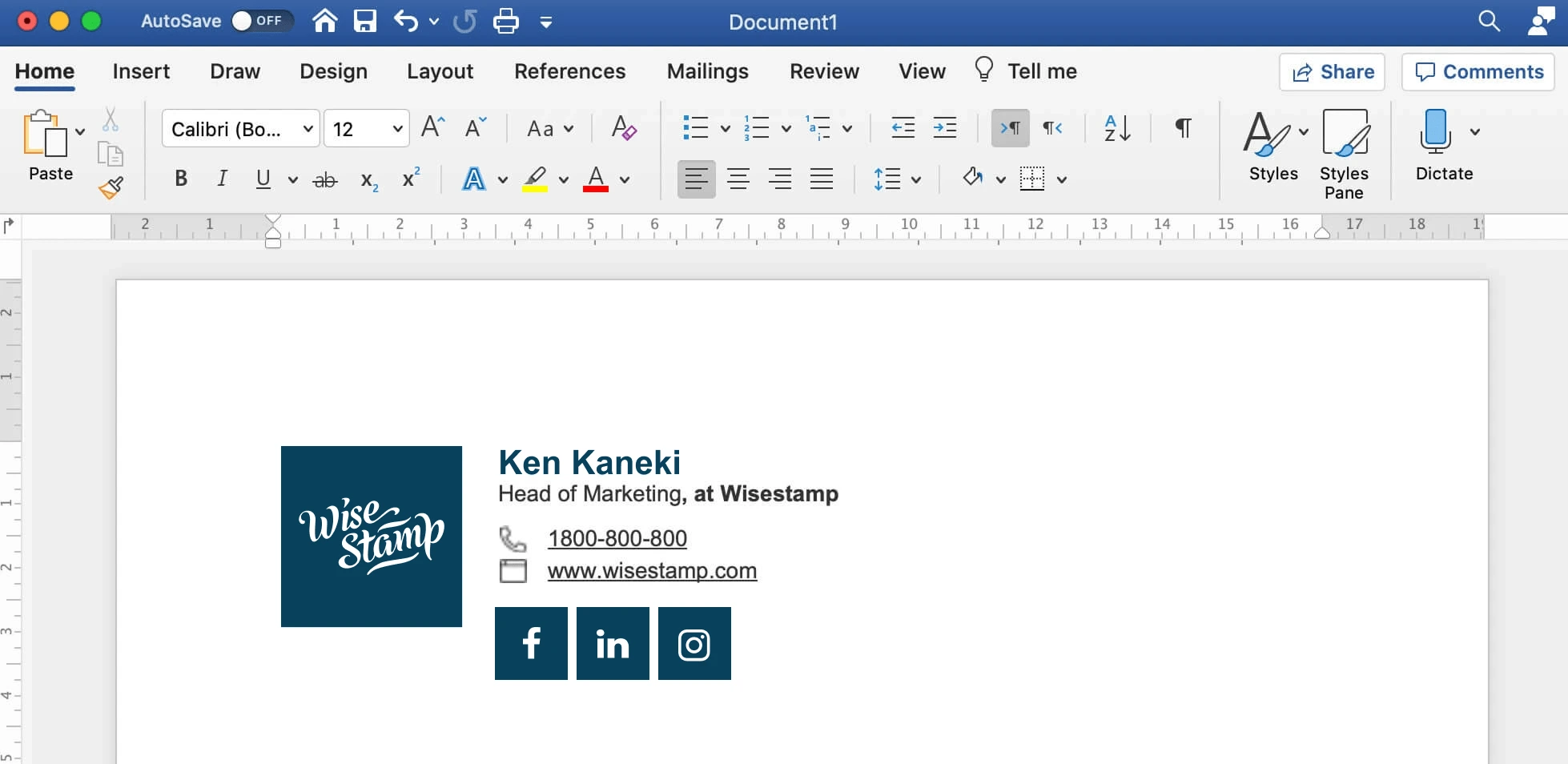
Paste Your Signature Into a Free HTML Editor for Cleaning
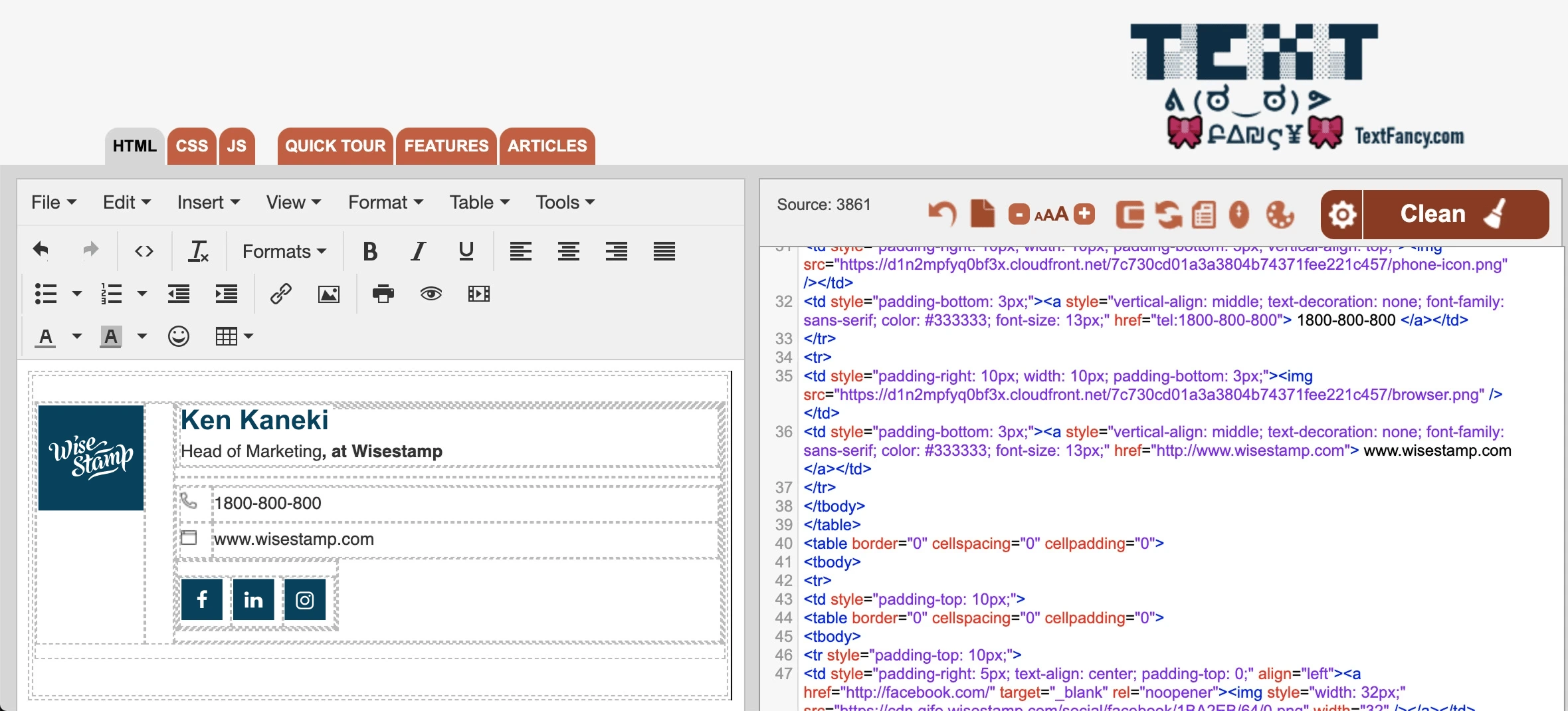
Styling Your HTML Signature
Edit your signature by styling and spacing it to your liking.
Transfer Your HTML Signature to Your Gmail Signature Editor
Highlight and copy your email signature from the left panel (note: not the raw HTML code on the right panel). Paste the signature in your Gmail email signature editor box. To navigate to the Gmail signature editor, open Gmail and click the “Gear icon” in the top right corner, and then “See all settings.” Scroll to the “Signature” section and click “+ Create new” or edit an existing signature.
Review Your New Signature
Go over your new Gmail HTML signature and make sure it appears as you intended. If not, make the necessary changes in the HTML editor and copy-paste the signature anew.
Save Your New Signature
Once you’re happy with the design and style of your HTML signature, scroll down and click “Save changes.”
Test Your New HTML Signature
Try composing a new email to ensure your professional email signature appears correctly.
Now that you understand how to add HTML email signatures in Gmail the long way, let’s see how you can get the same results (or even better) in much less time.
2. How to Add HTML Code in Gmail Signature (Automatic Installation)
The problem with hand-coding your Gmail HTML signature is that it’s very prone to errors. For instance, MS Word and Google Docs are notorious for adding invisible stuff in strings of code. These hidden characters are usually the cause of issues such as alignment problems and messed up images.
Plus, the need to read, re-read, and clean an HTML Gmail signature code makes this method time-consuming.
If you want to add an HTML signature to Gmail without this hassle, use WiseStamp. WiseStamp creates 100% responsive HTML signatures without the need for coding and technical knowledge.
Just sign up with your Gmail account and select your preferred email signature template. From here, all that’s left is to enter your personal details and design features like images, social media links, banners, and disclaimers.
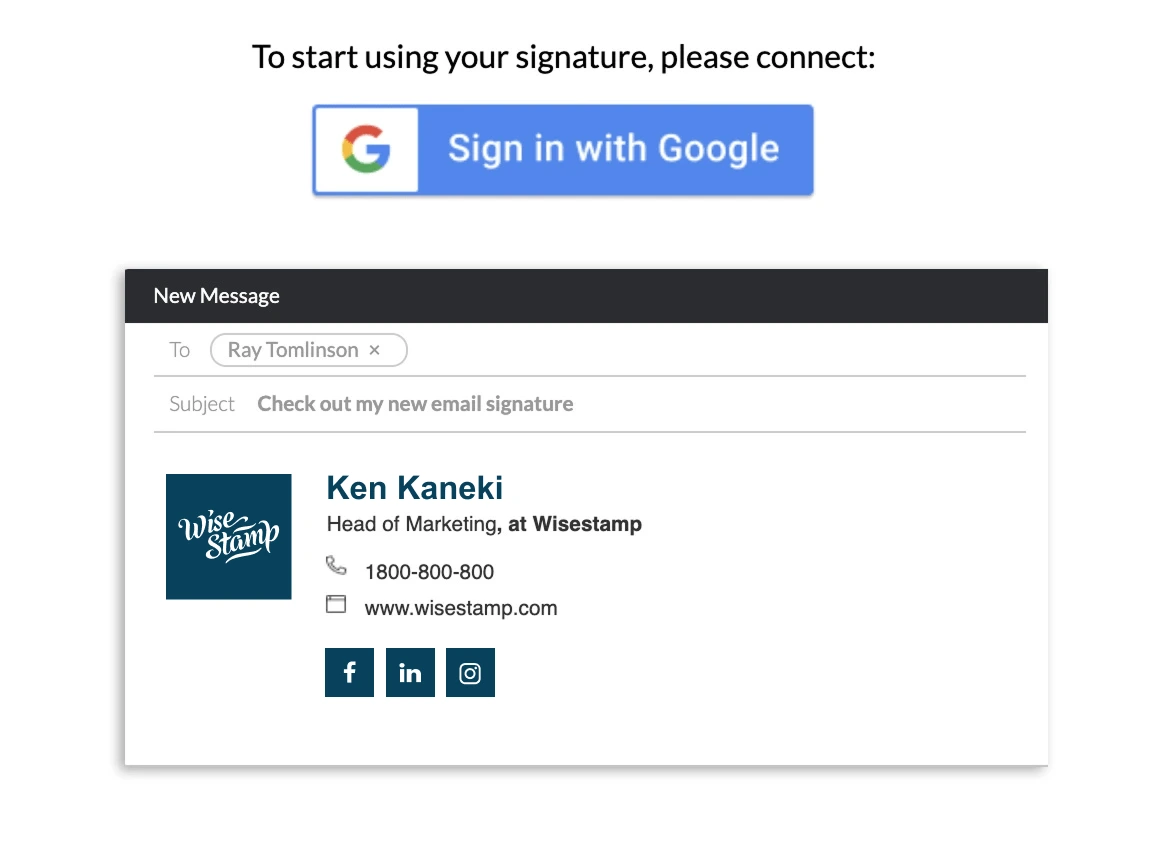
WiseStamp’s free signature builder will create your Gmail signature HTML in minutes and install it automatically in your Gmail account. You can also choose to export your signature as HTML and paste it into Gmail’s settings manually. Your choice.
To copy the HTML code for your WiseStamp email signature, go to the “My signatures” page, click “Install,” then click “HTML.” Use the “Copy” icon to copy the code.
Can I Add an HTML Email Signature on My Gmail Mobile App?
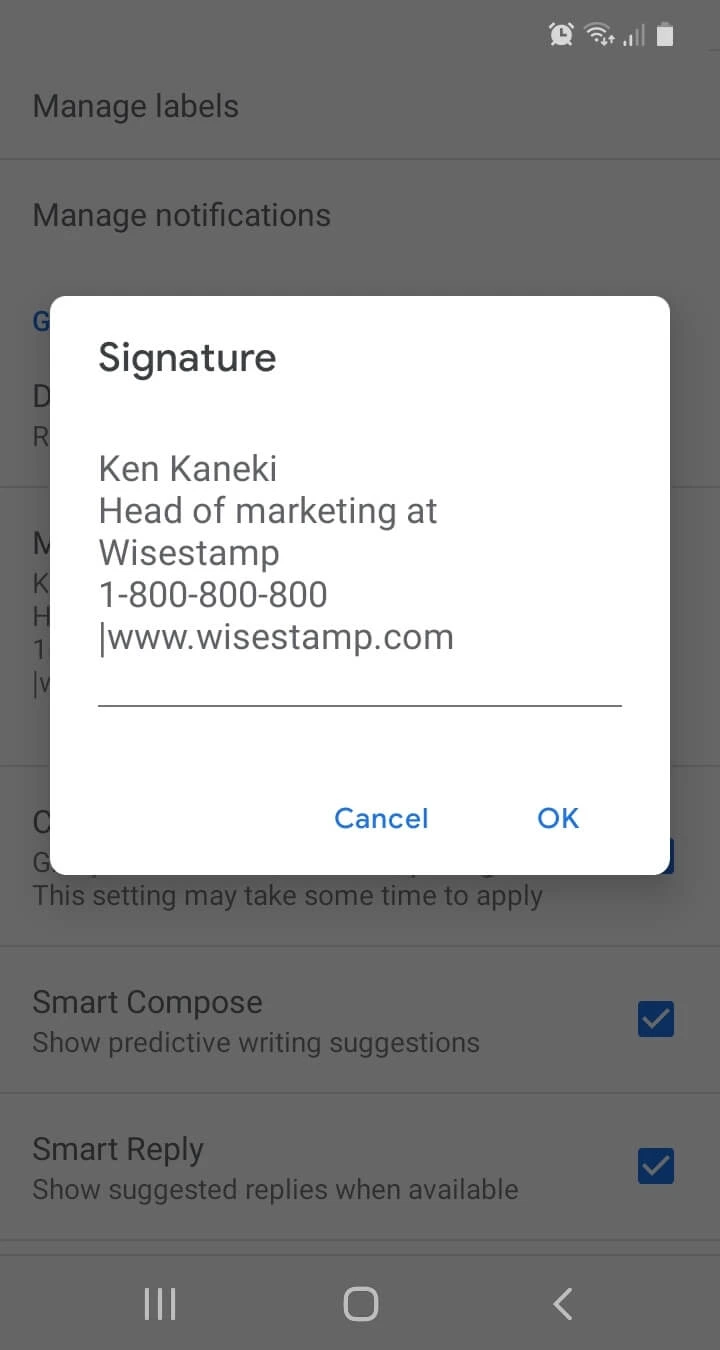
Unfortunately, Gmail mobile apps (Android and iOS) are basic and support plain text email but not rich text. That’s to say, you cannot insert HTML signatures in the Gmail app.
Your Gmail web and desktop signatures also won’t appear on mobile emails. You need to set a separate email signature within your Gmail mobile app. Read more on how to add a professional email signature in the Gmail mobile app.
Final Thoughts on Setting Up a Gmail HTML Signature
Coding is one way to add an HTML signature to Gmail if you already have the technical know-how. However, this process can be tedious and time-consuming.
If you want to create an HTML signature for Gmail fast without the headache of coding, WiseStamp is a superior option.
At WiseStamp, we combine over 17 years of experience with a real knack for design to ensure your Gmail HTML signature doesn’t just sign off. It stands out! \