Home / Guides / How to Design a Company Email Signature (2026)

How to Design a Company Email Signature (2026)

Learn email signature design best practices. What to include, dimensions, colors, fonts, and getting a consistent design on all devices and email platforms

Reading time: 11 min Author: amotz.harari@wisestamp.com Updated: April 27, 2026
how to design a company email signature

Short answer

What should be included in a company email signature?

A company email signature should include the employee’s full name, job title, company name, direct phone number, company logo, and website URL.

Optional additions include a LinkedIn icon and a CTA button or banner. In regulated industries, include a legal disclaimer. Avoid personal quotes, decorative fonts, and multiple competing CTAs.

Design a company signature →

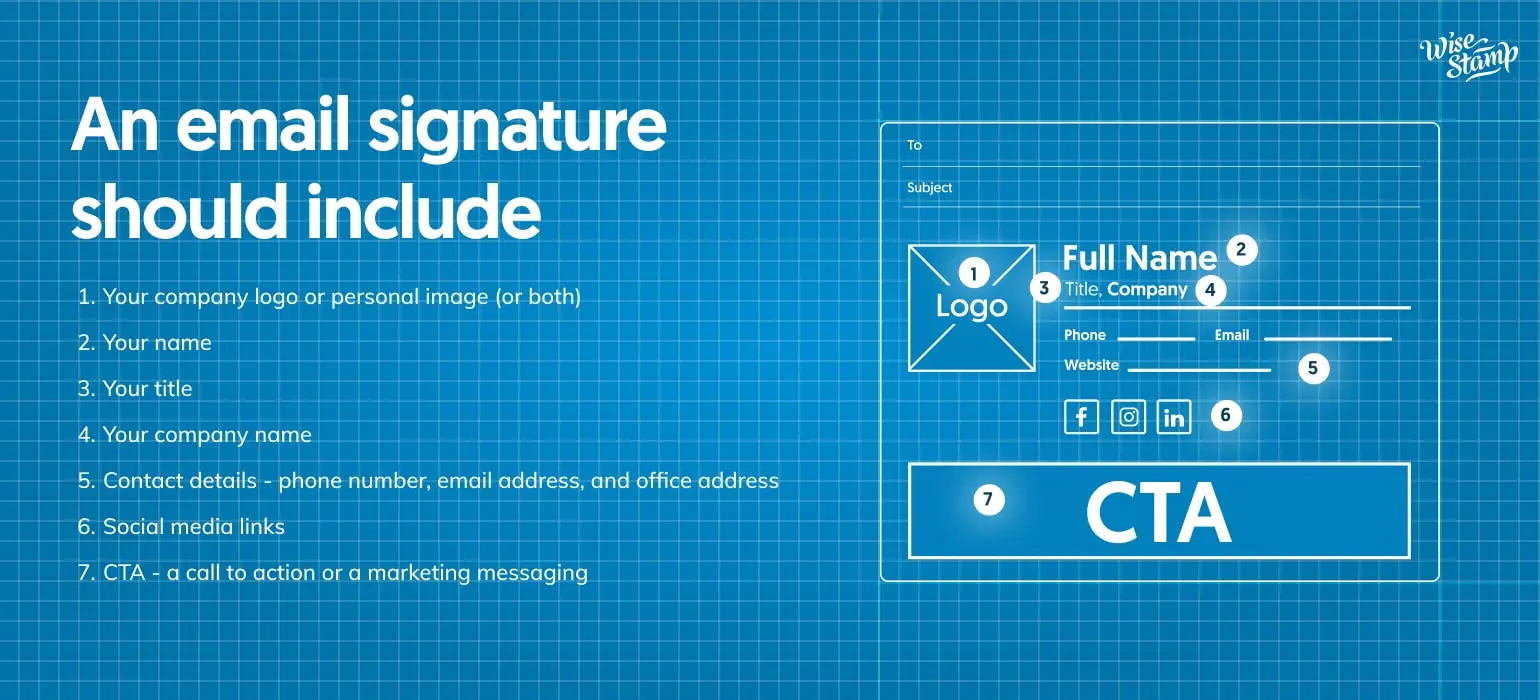
What an email signature should include

No Design Is Bad Design


Why inconsistent email signature design becomes a brand liability

A 500-person company sends roughly 250,000 emails a month. Each one carries a signature.

Left unmanaged, those signatures drift: wrong logos, outdated job titles, mismatched fonts, and off-brand personal additions.

78% of UK marketers call consistent branded signatures essential to company communications (Statista). Yet most companies have no technical system to enforce it.

What A Signature Includes


What does a well-designed company email signature include?

Email signature design starts with knowing what belongs and what doesn’t. A signature that tries to include everything ends up communicating nothing.

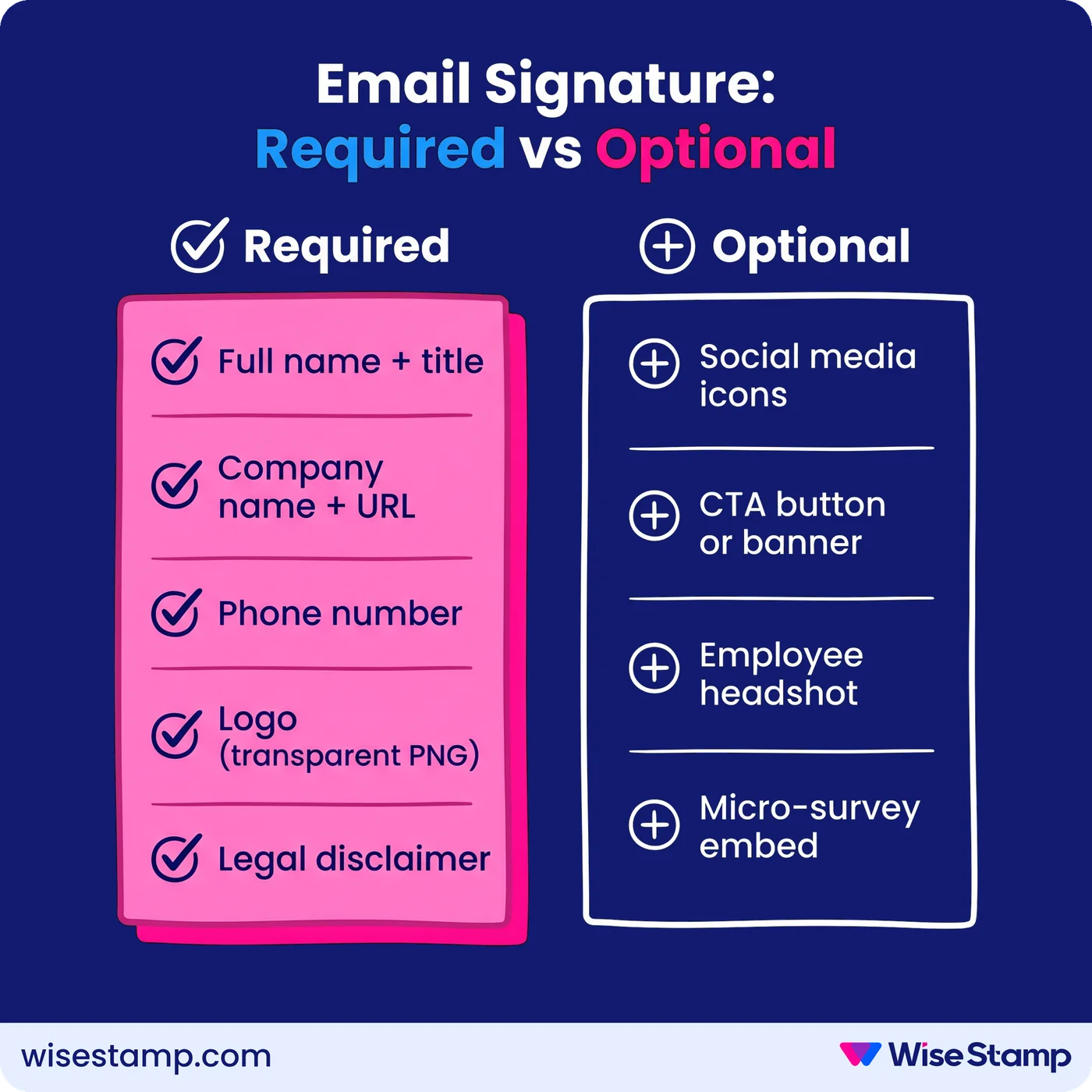
Required elements for every company email signature:

  • Full name and job title
  • Company name and website URL
  • Direct phone number (and mobile, if the role warrants it)
  • Company logo (current version, transparent PNG format)
  • Legal disclaimer (required in finance, healthcare, legal, and regulated industries)

Optional elements that add measurable value:

  • 1-2 social media icons (LinkedIn, X/Twitter, Instagram)
  • A CTA button or promotional banner (event invite, booking link, case study download)
  • Employee headshot (works well in client-facing and sales roles)
  • An NPS or CSAT micro-survey embed

What to leave out matters as much as what to include. Personal quotes, decorative fonts, and multiple banners all undermine the credibility the signature is supposed to build.

I saw one guy in a community forum put it plainly: “Everyone had different fonts, different layouts, different information. It looked completely unprofessional”.

Information hierarchy completes the design framework. Name and title lead; contact details follow; company assets (logo, social icons) come third; CTA last. Readers scan top to bottom.

Email Signature: Required vs Optional

Signature Layout


Which email signature layout should you choose?

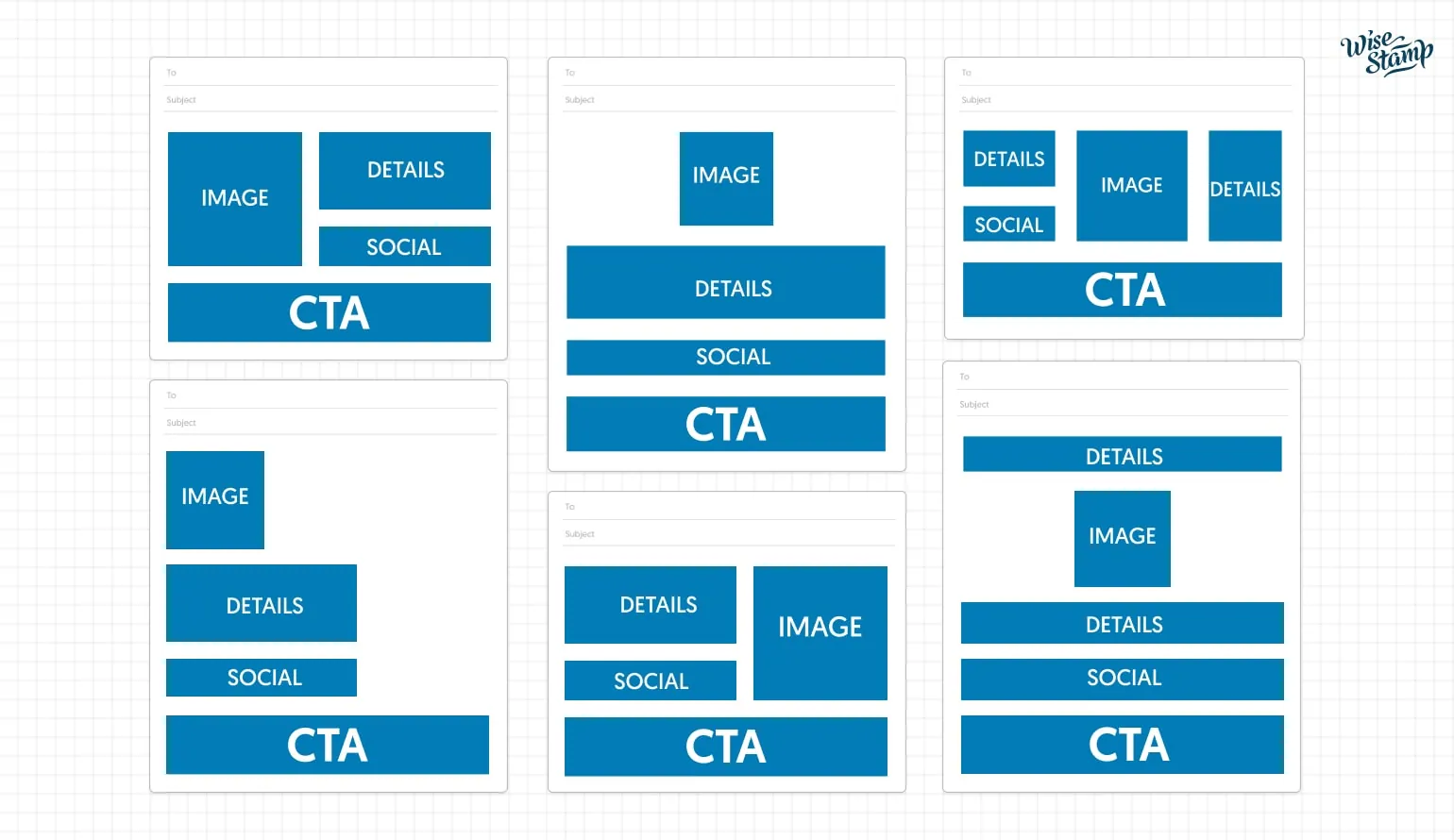
The image or logo should sit in a prominent position: top or to the left of the details block. Most recipients read left to right, so anchoring the brand mark on the left is the default.

Below the image and essential details, social icons and CTAs go last. This hierarchy ensures your most important identification information reaches the reader first, even on a quick scan.

Alignment matters as much as placement. When all elements share a common alignment axis, the signature reads as organized and intentional rather than assembled in a hurry.

Note:

WiseStamp’s Studio Editor offers multiple pre-built layout templates. Each arranges image, details, and CTA in a tested configuration you can customize to your brand.

Email signature layout options: image-left, image-top, and image-right arrangements

Logo Or Headshot


Should you use a company logo or employee headshot in the signature?

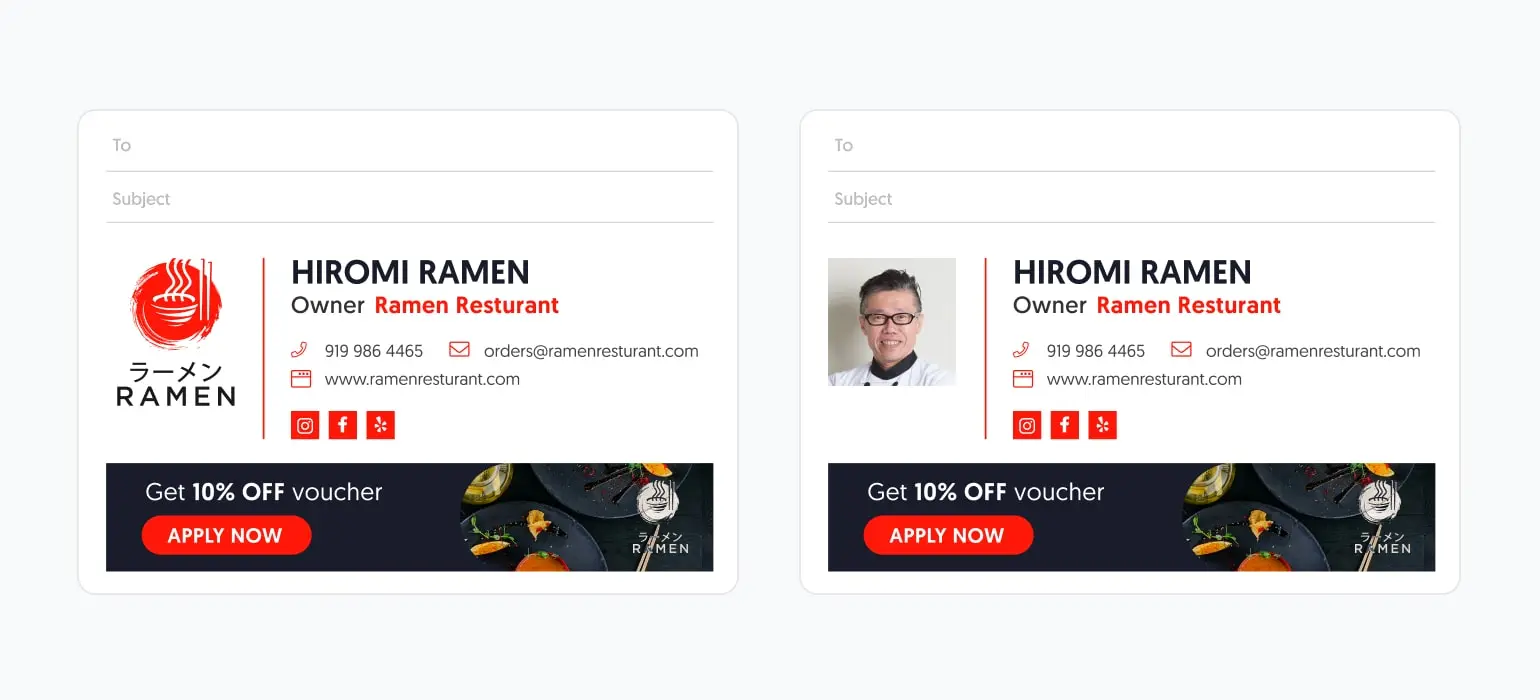
Both logo and employee headshot work. They serve different goals.

A company logo in the signature builds brand recognition. Every email from every employee reinforces the same visual identity without effort.

A professional employee headshot builds individual trust. It creates familiarity with the person behind the email, which is especially valuable in sales, account management, and client-facing roles.

For most organizations, the right answer is role-dependent. Lock the logo into every template; make the headshot an optional field for client-facing teams.

If both appear in one signature, they must be visually harmonious. A bright personal photo next to a dark minimal logo creates tension, not polish.

Email signature company logo versus employee headshot - which to include?

Design Best Practices


What design rules make company email signatures look professional?

Email signature design follows the same principles as any brand asset: restraint, consistency, and function over decoration.

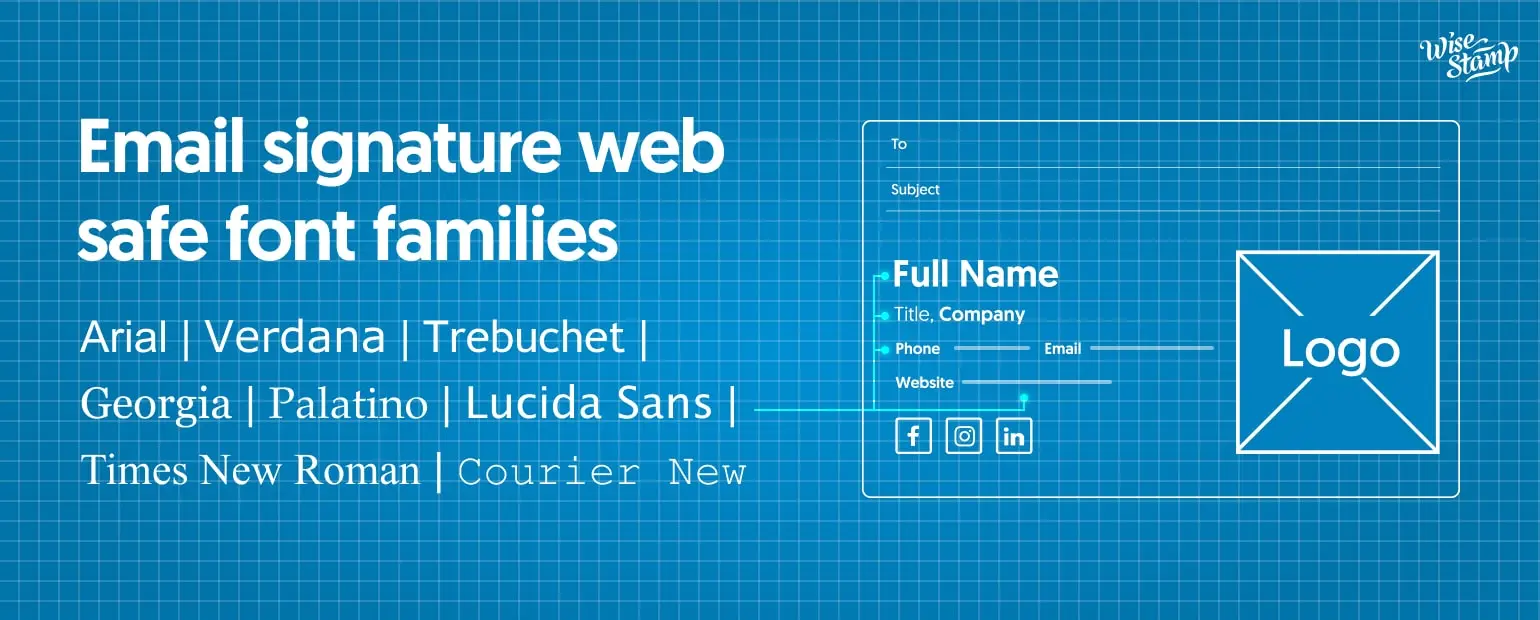
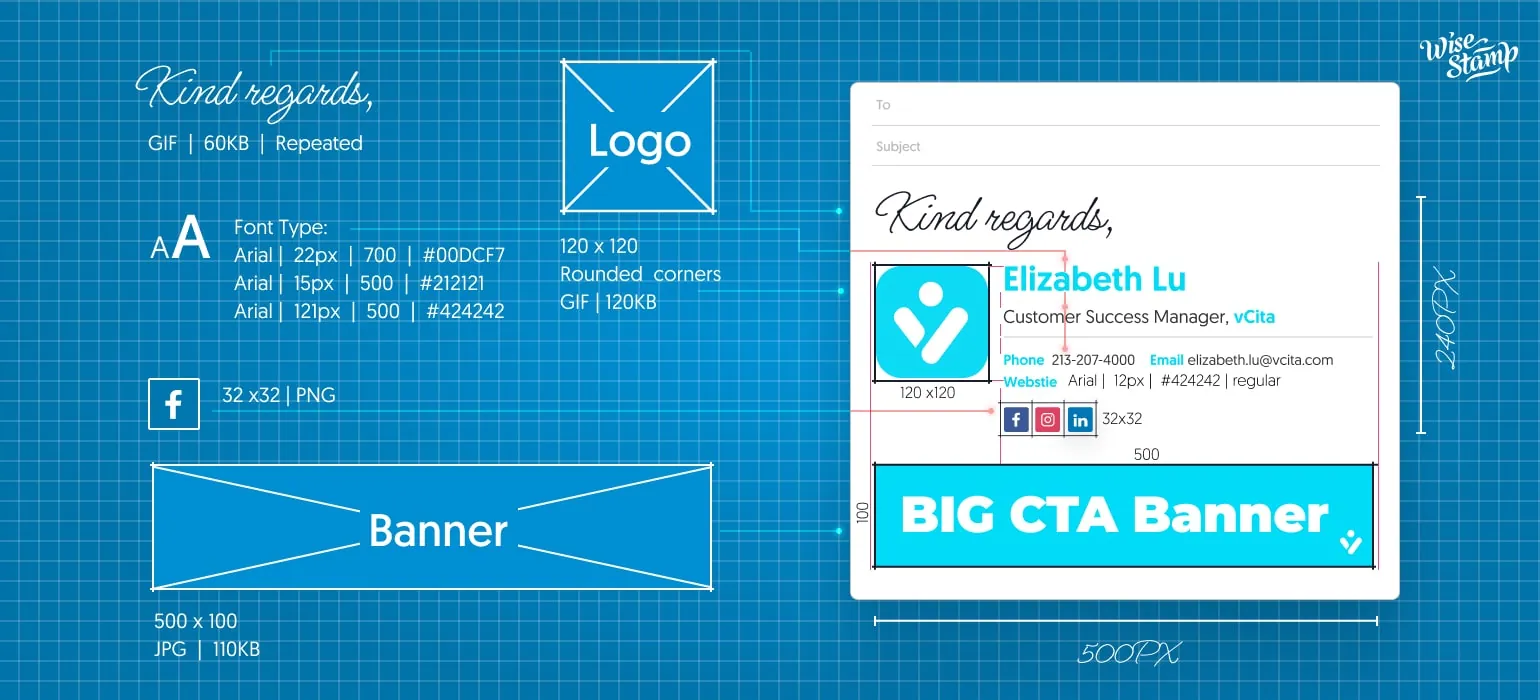
Font: Use 1 font family, matching your brand typeface where possible. If your brand font isn’t web-safe, fall back to one of these: Arial, Verdana, Trebuchet, Georgia, Palatino, Lucida Sans, Times New Roman, or Courier New.

They render reliably in Gmail, Outlook, and Apple Mail. Never mix more than 2 font weights.

If you use a custom brand font, define a web-safe fallback. On Outlook and any client that doesn’t have the font installed, the platform substitutes silently. A fallback that looks acceptable prevents that substitution from becoming a surprise.

Email signature web safe font families

Color: Stick to your brand primary and secondary colors. Use black or dark gray for body text. Avoid more than 2 accent colors in the signature block.

Note:

Do not use background colors or gradient fills on the signature container. Most email clients including Outlook do not support CSS background-image properties. A gradient that looks right in Gmail renders as a flat block or invisible in Outlook.

Whitespace: Add 8-10px padding between elements. A tight, cramped signature reads as amateurish regardless of how good the individual elements are. WiseStamp’s Studio Editor gives you per-element padding controls in the Layout tab.

Image And Logo Specs


What are the technical specifications for email signature images?

When preparing images for the signature template, these specs prevent the most common failures:

SpecRecommendation
File formatPNG (preferred), JPEG, or GIF
Max file size350KB per image
Max width200px per image
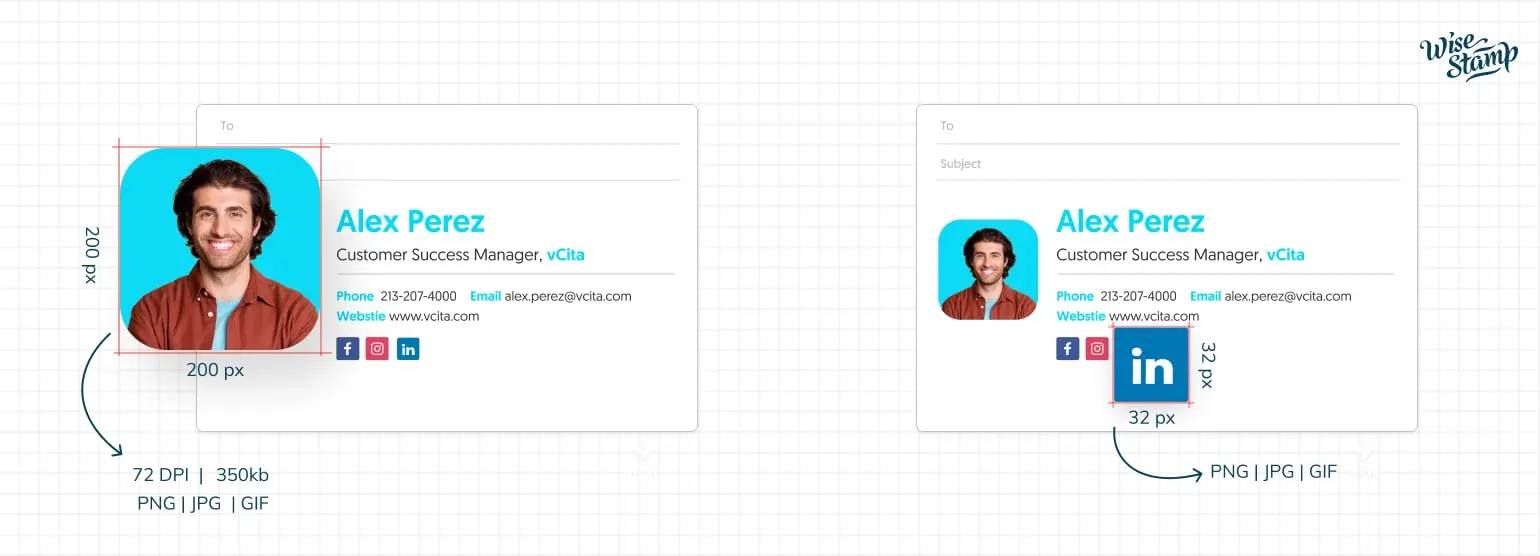
Resolution72 DPI standard; use a 2x-sized file for retina display sharpness

On high-resolution retina screens, a 72 DPI image at its natural size looks slightly soft. Uploading an image at 2x the display size (400px wide for a 200px slot) lets the browser downscale it to sharp output.

For social media icon sizes, keep icons at 32x32px in PNG, JPEG, or GIF format. Smaller keeps the signature lightweight; larger makes touch-tapping easier on mobile.

Email signature image specifications: 200px width, 72 DPI, 350KB max, PNG/JPG/GIF formats

Signature Size And Dimensions


What is the ideal size for a company email signature?

Keep the full signature between 500-600px wide. Signatures wider than 600px break in Outlook and overflow on narrow mobile screens.

Keep the total signature height between 90-250px for new outbound emails. Use a shorter version for replies and forwards to reduce noise in threaded conversations.

Logo width should sit between 150-200px. It scales down on mobile without losing quality.

Note:

Upload your logo as a transparent PNG. A white-background logo breaks in dark mode, affecting Gmail, Outlook for iOS, and Apple Mail users.

Email signature dimensions guide: 500-600px wide, 90-250px tall, 150-200px logo

Banners And CTAs


How do you use CTAs and banners effectively in company email signatures?

About 50% of businesses see a rise in email engagement after adding interactive elements to their signatures (Emailmonday). But that lift comes from focus.

A signature with 4 competing buttons produces none of it. For every CTA button or banner in the template, apply these rules:

  • State the action clearly (“Book a call”, not “Click here”)
  • Place it prominently so the eye reaches it naturally
  • Make the click-through destination obvious before the user clicks
  • Ensure it’s large enough to tap on mobile without hitting an adjacent link

One well-placed “Book a call” button or seasonal event banner consistently outperforms a cluttered signature. Banners must not exceed 600px wide. Run one at a time.

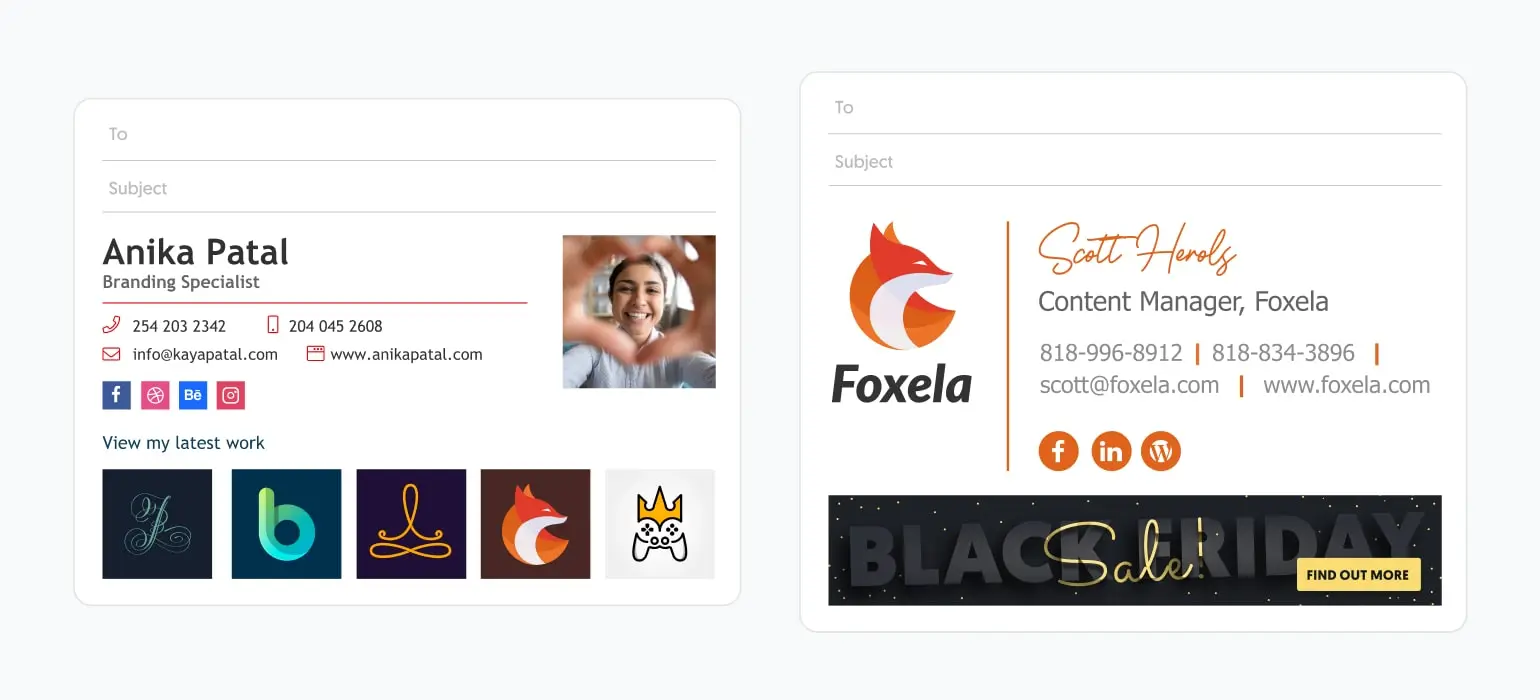
An image gallery works differently from a banner. A gallery showcases visual work. A banner drives a single action. Choose based on what your recipient should do next.

Email signature image gallery versus promotional banner - which to use?

Cross-Platform Signature Rendering


Why do email signatures look different in Outlook, Gmail, and on mobile?

Email clients handle HTML and CSS differently. A signature that looks perfect in Gmail can break in Outlook or render incorrectly on an iPhone.

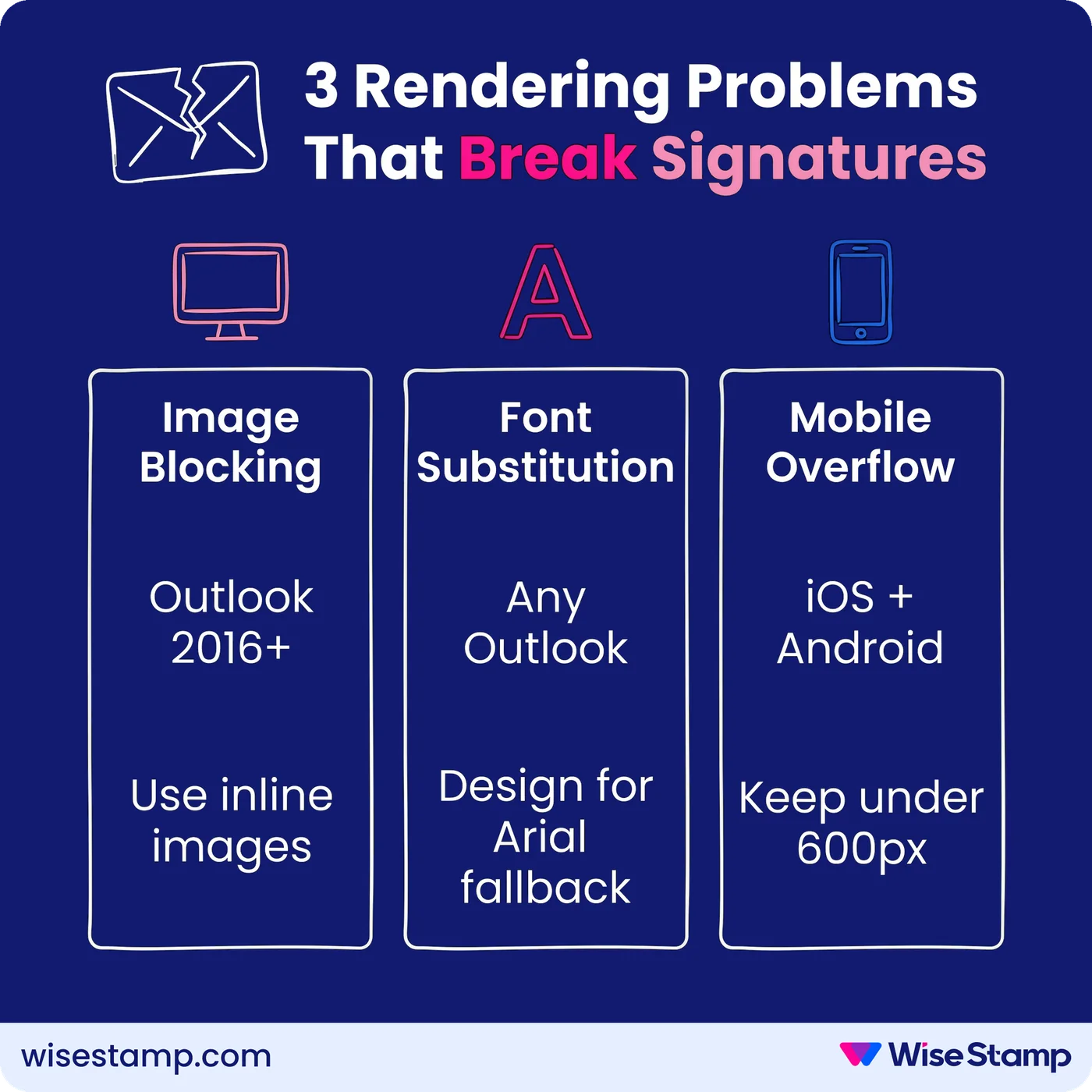
The 3 most common rendering problems are:

  • Image blocking: Outlook 2016 and later doesn’t always auto-load background images. Use inline images with defined width and height attributes, not CSS background-image properties.
  • Font substitution: If you specify a custom brand font, Outlook substitutes it with Times New Roman or Arial. Design signatures that look acceptable in those fallback fonts.
  • Mobile overflow: Signatures wider than 320px can overflow the viewport on iOS Mail and Android Gmail. A template constrained to 600px with responsive scaling prevents this.

Dark mode adds another rendering layer. Gmail, Outlook for iOS, and Apple Mail all implement it differently. Some invert image colors entirely. A transparent PNG logo with light-colored text becomes invisible on a dark background unless the logo has a visible border or stroke.

Rendering differences between clients are the main reason companies end up with signature chaos after a manual rollout. What looks right in your own client looks broken in someone else’s.

3 Rendering Problems That Break Signatures: Image Blocking, Font Substitution, Mobile Overflow

How do I ensure a consistent email signature design across all email platforms?

It is nearly impossible to ensure consistent signature design across all email platforms when managing your company email signatures manually.

All leading email signature management tools have cross-platform design provisioning. In WiseStamp, for example, the signature HTML is optimized to show perfectly on all platforms.

You, the user, are prevented from breaking away from technical constraints that would break the signature in Outlook, Gmail, Apple Mail, etc. But this all happens under the hood.

You can also preview your signature on all platforms before deployment.

WiseStamp’s Studio Editor includes a dark mode preview toggle. Check how your signature renders in light and dark before deploying.

The desktop and mobile preview toggles serve the same purpose: catch layout issues in the editor, not after the fact.

Mobile-Friendly Design


How do you make a company email signature mobile-friendly?

Over half of all email correspondence today is read on mobile devices. A signature that looks right on desktop and breaks on mobile is failing most of its recipients.

Two mobile-specific rules apply:

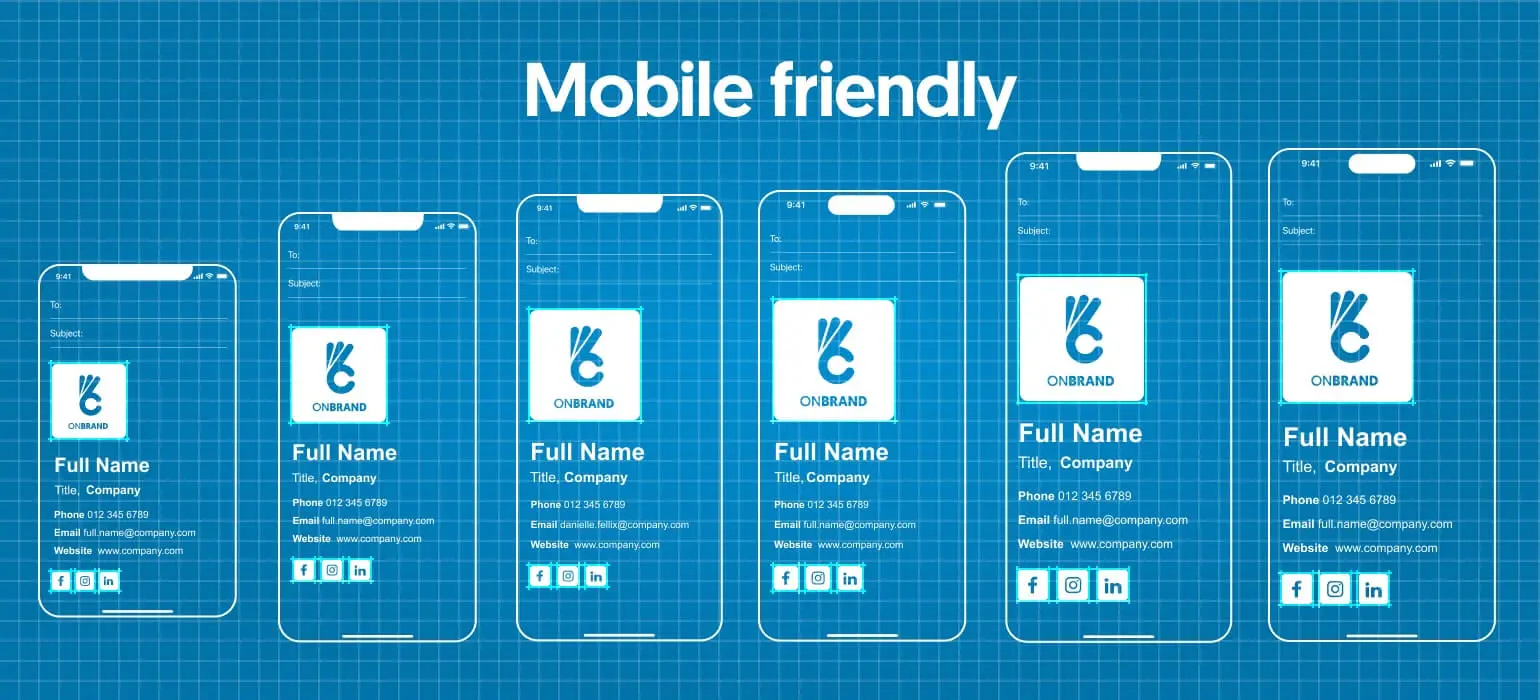
Scale to fit. Every image must remain visible and every text element must stay legible when scaled down to a 320px viewport. If your brand logo has fine type that’s already small, on mobile screens it may become unreadable. Always preview at mobile size before deploying.

Touch targets. Social media icons and CTA buttons are tapped, not clicked, on mobile. Space icons so users don’t accidentally tap the wrong link. No element should be closer than 8px to its neighbor.

Note:

WiseStamp’s Studio Editor includes desktop and mobile preview toggles. Check layout issues in the editor, not after the fact.

Mobile-friendly email signature scaling correctly across 6 different phone screen sizes

Signature Design Step-By-Step


How do I design and deploy a company email signature with WiseStamp?

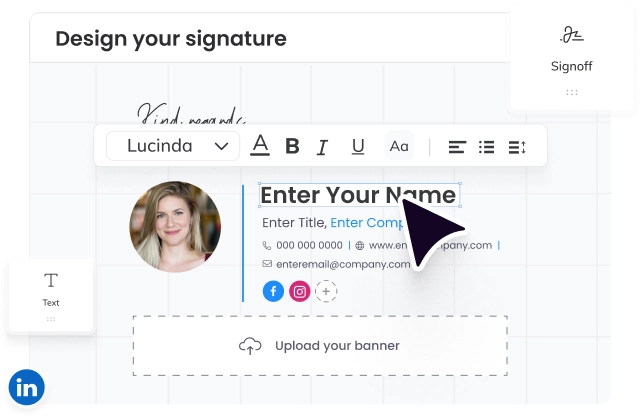
WiseStamp’s Studio Editor is a drag-and-drop canvas for building signature templates. You design once; every employee’s personal data (name, title, phone) auto-populates from your directory.

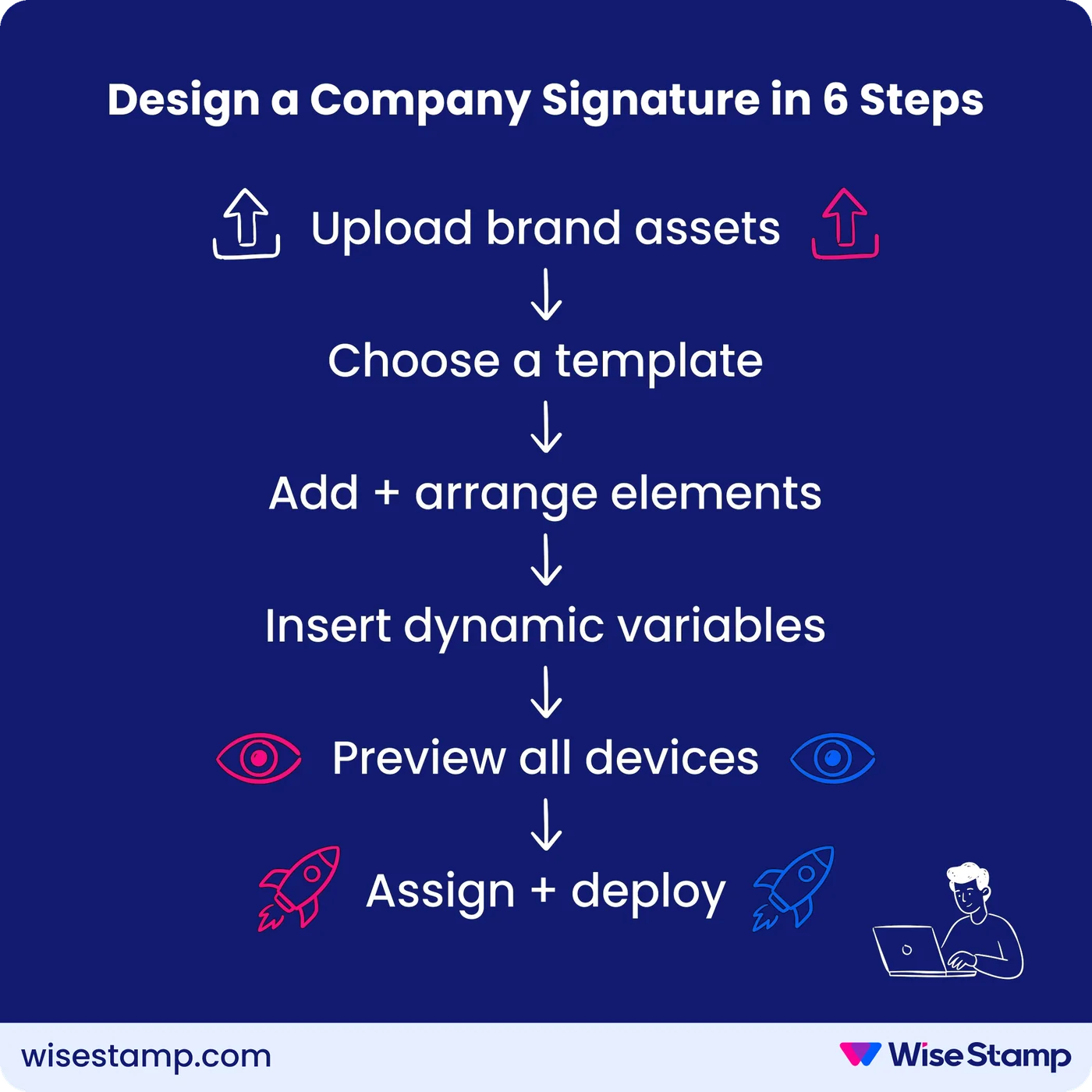
Step 1: Upload your brand assets

In WiseStamp, go to Company Variables and upload your current logo as a transparent PNG. Set your company name, website URL, and social links. These become reusable values that auto-populate across every signature template you create.

Step 2: Open Studio and choose your starting point

Studio gives you a blank canvas or a gallery of pre-built templates. Adapt it to your brand guidelines. Pick a layout that matches your hierarchy: name/title first, contact details second, logo and CTA last.

Step 3: Add and arrange elements

Use the left panel to drag in elements: text blocks, images, dividers, banners, and buttons. Place your company logo at the top or left. Add a custom CTA button with your brand color and link destination.

Step 4: Insert dynamic variables

Replace static name and title fields with dynamic variables. One template serves your entire company. If a field is empty, it hides automatically.

Step 5: Preview on desktop, mobile, and dark mode

Toggle all 3 preview modes to catch layout issues in the editor before the template reaches anyone’s inbox.

Step 6: Assign to employee groups and deploy

Organize employees into groups by department, location, or role. Assign your template to each group. Then deploy using the method that fits your email infrastructure.

How to deploy your email signature across Google Workspace

Google Workspace deployment uses WiseStamp’s Auto-Inject feature, which pushes signatures directly into Gmail without employees taking any action.

  1. A Super Admin installs the WiseStamp app from Google Marketplace.
  2. Enable daily directory sync in WiseStamp’s Sync & Automations settings. Employee data (name, title, department, photo) syncs from Google Workspace automatically.
  3. Place employees into groups and assign your template to each group.
  4. Activate employees. Auto-Inject pushes the signature into each employee’s Gmail settings. New hires receive their signature on day one, with no IT action required.
Design a Company Signature in 6 Steps: upload assets, choose template, add elements, insert variables, preview, deploy

Signature Design Consistency At Scale


How do I keep email signature design consistent across the whole company?

Email signature design drift is the gap between your approved template and the signatures employees actually send.

It opens the moment someone updates their own signature manually, skips a required field, or adds something that has no place in a company email.

What you need is one template, one standard, across every inbox, managed entirely by Marketing.

You can only get this using an email signature manager. This class of tools provides critical capabilities that give you full control over company signatures.

Role-Based Access Control (RBAC). Admins lock the elements that must stay consistent: logo, brand colors, legal disclaimers, and campaign banners. They unlock only the fields employees need to manage themselves: direct phone number, profile photo, pronouns.

Locked fields can’t be modified regardless of email client or device.

Employees manage permitted details through the Employee Hub, a self-service portal that shows each person their assigned signature and the fields they can edit. No IT ticket. No installation steps.

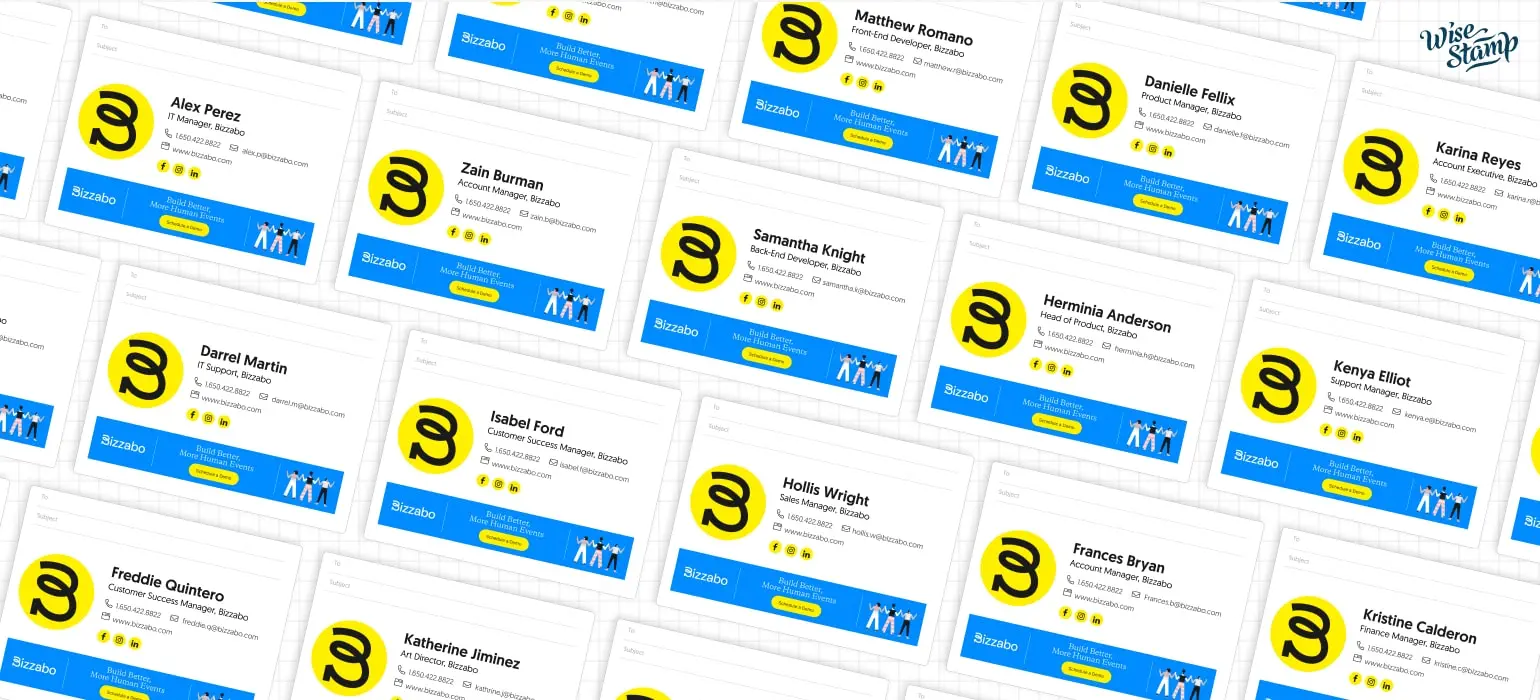
Amanda Gratz, Design Operations Manager at Bizzabo, told us how easy it is to deploy signatures company-wide using WiseStamp:

“We just send out a message to everyone saying: ‘hey, we’ve updated our email signatures for a new promotion, please click refresh.’ Everyone just clicks and it works!”

Also, you can schedule a promotional banner across all employee signatures for a defined time window using WiseStamp’s Email Signature Campaigns.

Set a start and end date, assign the campaign to the relevant groups. The banner appears on day one and disappears when the campaign ends. No IT ticket per update. No manual cleanup.

Company-wide email signature: every employee with the same branded Bizzabo template

Takeaway


What does a well-designed company email signature actually require?

Designing a company email signature that works across every inbox, device, and employee comes down to 5 things:

  • A clean, on-brand template with the right required elements and nothing else
  • Correct image formats (transparent PNG logos, 350KB max, 72 DPI plus 2x for retina, dark mode tested) to prevent rendering failures in Gmail, Outlook, and Apple Mail
  • Dynamic variables so one template serves every employee without hardcoded names or titles
  • Centralized deployment via Google Workspace or Microsoft 365, so the signature appears automatically without asking employees to copy-paste
  • RBAC and Employee Hub so brand elements stay locked while employees self-manage their permitted personal details

70% of professionals say a professional email signature increases their credibility (Campaign Monitor). The design work is a one-time investment. It pays off across every email your team sends.

Build your company email signature in WiseStamp

FAQ

What should be included in a company email signature?

A company email signature should include the employee’s full name, job title, company name, direct phone number, company logo, and website URL. Optional additions include social media icons (LinkedIn, X/Twitter) and a CTA button or banner. In regulated industries, include a legal disclaimer. Avoid personal quotes, decorative fonts, and multiple competing CTAs.

What is the ideal size for a company email signature?

Keep the signature width between 500-600px to prevent layout breakage in Outlook and overflow on mobile screens. Logo width should sit between 150-200px. Keep height under 200-250px for new outbound emails. Use a shorter version for replies and forwards.

What font should I use in a company email signature?

Use a web-safe font: Arial, Verdana, Trebuchet, Georgia, Palatino, Lucida Sans, Times New Roman, or Courier New. All render reliably in Gmail, Outlook, and Apple Mail. If your brand font isn’t web-safe, specify it as the primary and fall back to Arial or Helvetica. Never use more than 2 font weights.

How do I make a company email signature look the same on Outlook, Gmail, and mobile?

Use inline HTML with defined image dimensions, avoid CSS background-image properties, and keep your design width at or below 600px. Upload logos as transparent PNGs and test in dark mode before deploying. A platform like WiseStamp renders the same template consistently across Gmail, Outlook Desktop, Outlook Web, Apple Mail, and mobile.

How do I add a company logo to an email signature without it breaking in dark mode?

Upload your logo as a transparent PNG rather than a JPG or GIF. If your logo uses dark text or fine details that disappear on dark backgrounds, add a white stroke or subtle glow before upload. Test with the dark mode preview in your editor before deploying. Avoid fixed background colors on the signature block.

How do I deploy the same email signature design to all employees?

Use a centralized signature management platform. With WiseStamp, design one template in Studio, assign it to groups, and deploy via Google Workspace’s Auto-Inject or the Microsoft 365 Outlook Add-In (deployed via GPO or Intune). New hires get the signature automatically through daily directory sync with Google Workspace or Microsoft Entra ID.

How can marketing update company email signatures without filing IT tickets?

With role-based access control in WiseStamp, the Marketing role can create templates, manage campaign banners, and publish changes without touching integration settings. IT configures the directory sync and deployment connections once. Marketing owns all ongoing updates and campaign scheduling independently.

What is the difference between client-side and server-side email signature deployment?

Client-side deployment inserts the signature in the compose window via the Outlook Add-In, Chrome Extension, or Desktop App, so the sender sees it before sending. Server-side deployment applies the signature after the email leaves the mail server, guaranteeing coverage on any device without requiring software on employee devices. Hybrid mode combines both: client-side for desktop, server-side as a fallback for mobile and CRM-sent emails.