How to Fix Gmail Signature Not Showing
Gmail signature not showing in your email? Learn how to fix this issue in 3 minutes or less and start making a professional impression

How to fix it when Gmail signature is not showing?
There could be several reasons why your Gmail signature isn’t showing up. Here’s a breakdown of all possible causes along with ways to fix them.
1. Incorrect Signature settings
The first and foremost cause of the Gmail email signature not showing up is incorrect signature settings. Sometimes, users may forget to turn on the signature feature, or they may not have saved the changes properly.
How to check the Signature settings?
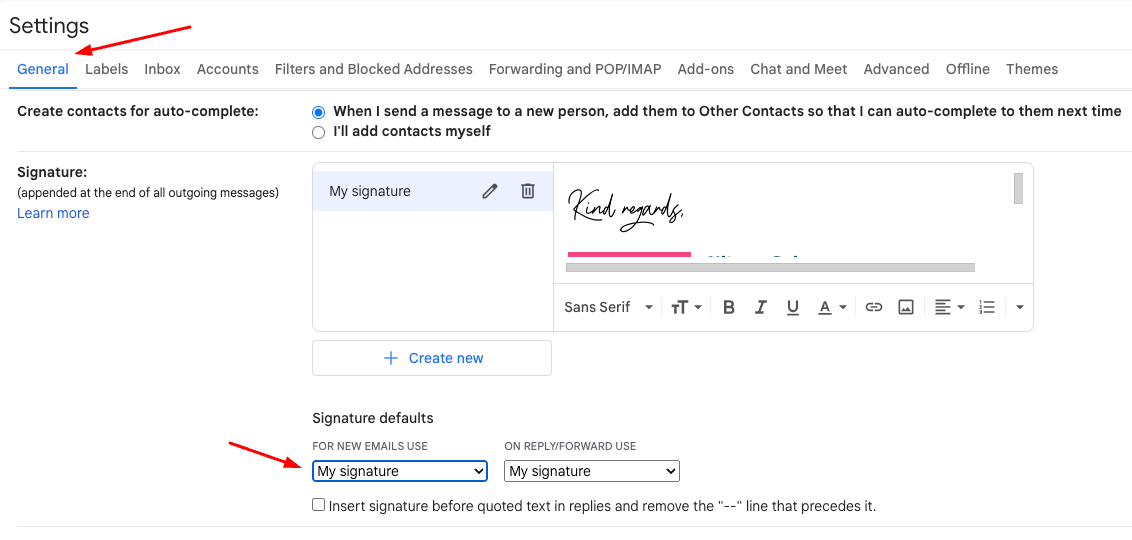
- Open Gmail and click on the Gear icon in the top right corner of your screen.
- Select “See all settings” from the drop-down menu.
- Scroll down to the “Signature” section.
- Make sure the signature feature is turned on, and the correct signature is selected.
2. Gmail composer is set to “No signature”
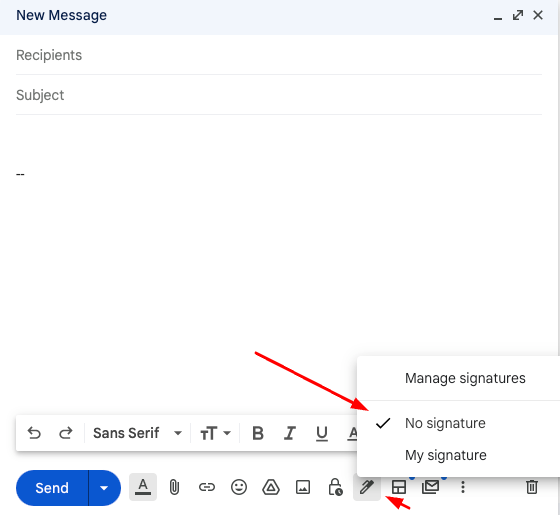
If your Gmail composer is set to “No Signature” it kinda goes without saying that you won’t see your signatures (-:
You can change it by following these steps:
- Click on the gear icon in the upper right corner to go to “Settings”.
- In the dropdown menu, click on “See all settings”.
- On the “Settings” page, click on the “General” tab.
- Scroll down to the “Signature” section. If it’s set to “No Signature”, select the option “My signature”
3. You didn’t add a default signature
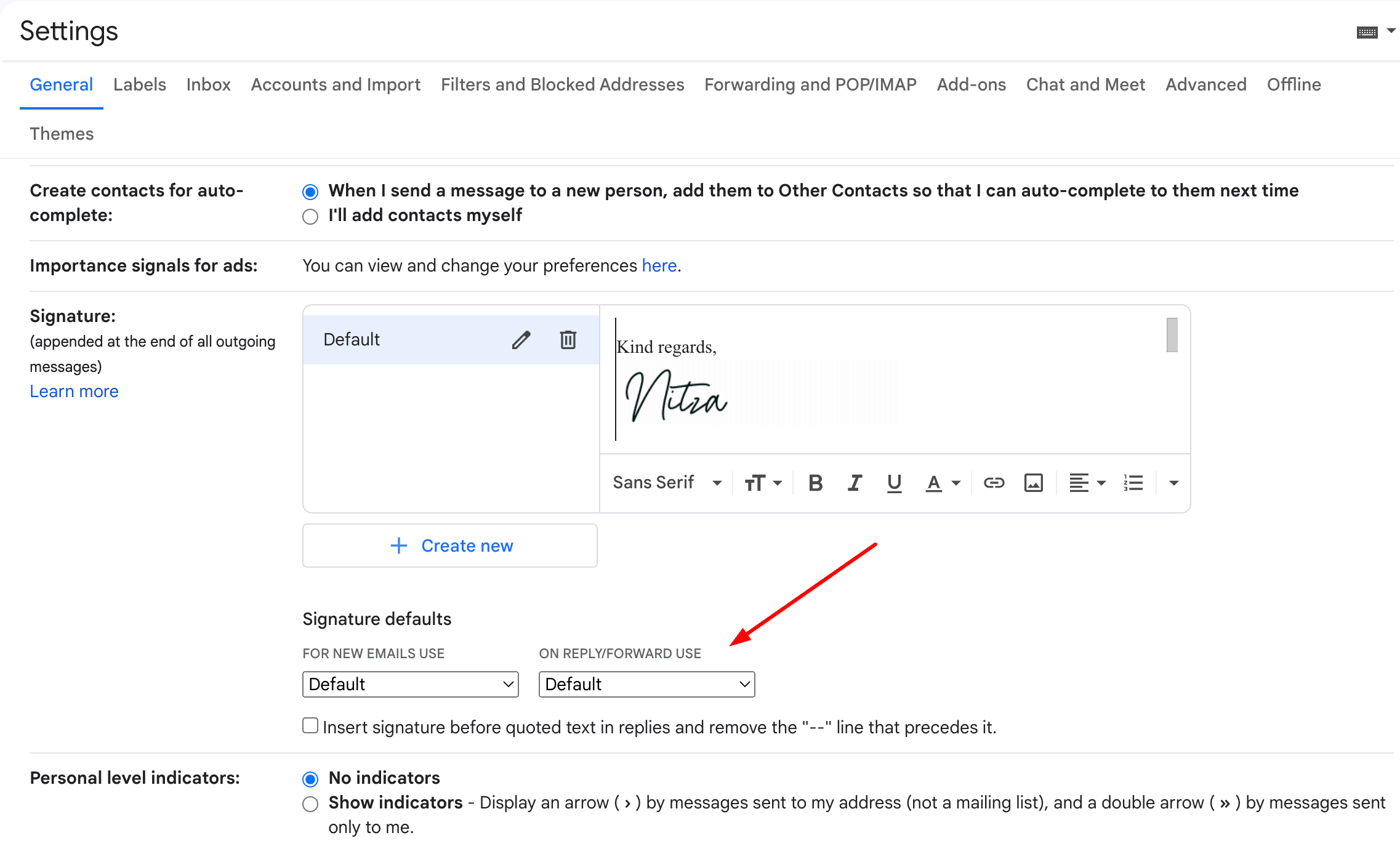
If you did not mark at least one signature as the default for your Gmail account, then your emails will not display a signature.
How to set your Gmail signature as the default?
- Go to the Gmail website and sign in to your account.
- Click on the gear icon in the top right corner and select “Settings” from the dropdown menu.
- Scroll down to the “Signature” section.
- Enter the text you want to appear in your signature in the text box.
- If desired, format your signature using the formatting options.
- Click the “Save Changes” button at the bottom of the page.
4. Browser or App issues
If your browser is not updated, or if there’s an issue with cookies and cache, it can interfere with Gmail’s functionality, including showing signatures.
To fix browser-related issues that might be causing your Gmail signature not to show:
- Update Browser: Ensure your browser is up-to-date. Usually, you can check this in the browser’s settings or help menu. If an update is available, install it and restart your browser.
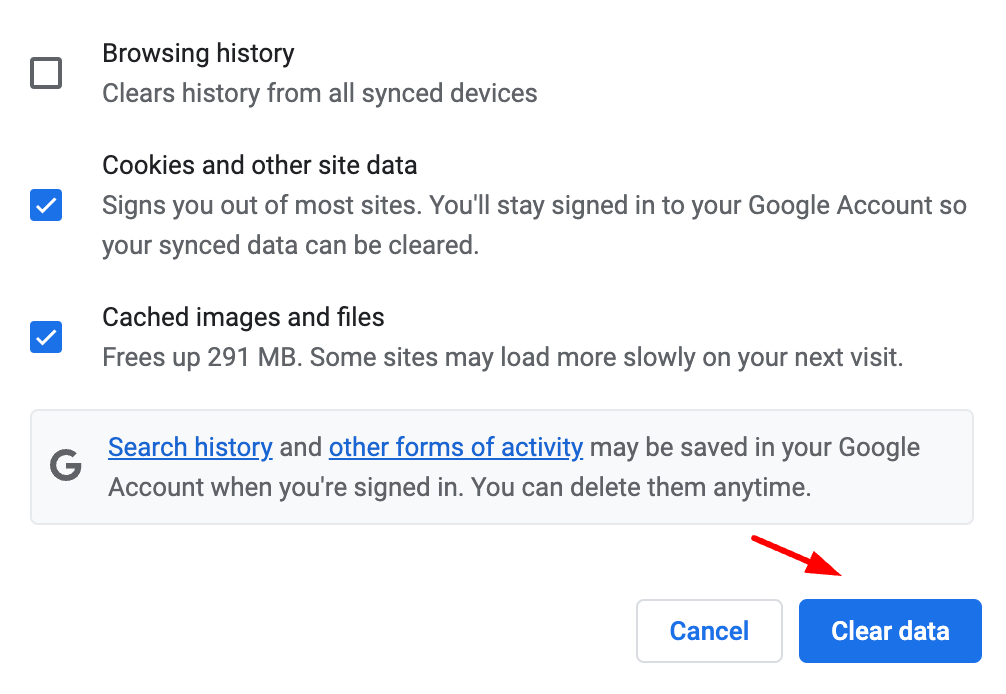
- Clear Cache and Cookies: Go to your browser’s settings, find the option to clear browsing data (usually under “Privacy and security” or similar), make sure to check the boxes for cookies and cache, and then clear the data. Remember that this might log you out of most websites.
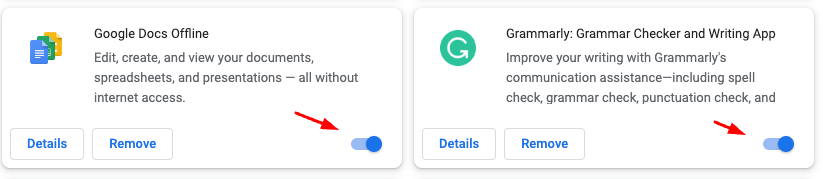
- Disable Extensions: If you have any browser extensions installed, they might be interfering with Gmail. Try disabling them one by one to see if this solves the problem. You can usually manage extensions in your browser’s settings.
- Try Another Browser: If none of the above steps work, try accessing Gmail in a different browser to see if the problem persists.
Remember to restart your browser or even your computer after each step to make sure changes take effect.
5. Gmail’s composer is set to plaintext
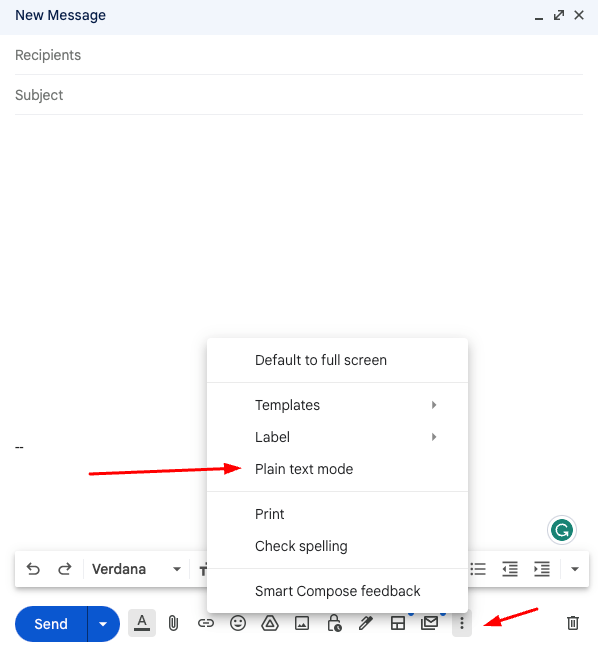
If your Gmail is set to “Plain Text Mode”, it will not support rich text features or images in your signature. Here’s how you can switch off “Plain Text Mode”
How to fix:
- Log into your Gmail account and click on “Compose” to start a new email.
- In the lower-right corner of the “New Message” window, click on the three dots (More options).
- If “Plain text mode” is checked, click on it to uncheck and disable this mode.
6. Incorrect Gmail signature format
If the signature has been formatted incorrectly, for instance, using unsupported HTML, it might not show up in the emails.
To correct issues related to signature formatting in Gmail, follow these steps:
- Log into your Gmail account and go to “Settings” by clicking the gear icon in the upper-right corner.
- Click on “See all settings”, then go to the “General” tab.
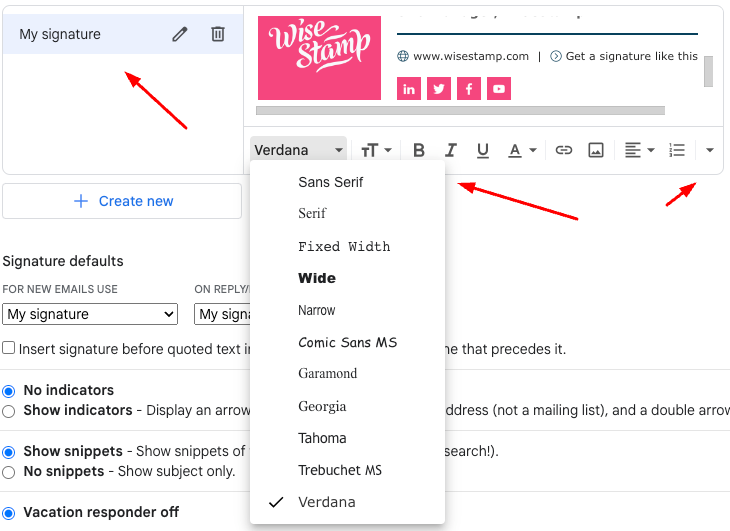
- Scroll down to the “Signature” section. Click on the signature that’s causing the problem to edit it.
- If your signature contains HTML elements, make sure they’re all supported by Gmail. Avoid complex HTML structures or CSS styles. Gmail best supports basic HTML tags like
<b>for bold,<i>for italic,<a>for links, and<img>for images. - If your Gmail signature contains images, ensure they’re hosted online and publicly accessible, then use the “Insert Image” button in the signature editor rather than directly pasting or dragging the image into the box.
- After correcting the signature, click “Save Changes” at the bottom of the page.
Remember that the appearance of your signature can vary depending on the email client used by the recipient, so it’s best to keep it simple and universally compatible.
7. Gmail signature too long
If you’re encountering the “The signature is too long” error in Gmail, it’s due to the character limit imposed on email signatures. Gmail has a maximum capacity of 10,000 characters for signatures, and this count includes all elements of the HTML code as well as plain text. Exceeding this limit triggers the error message when you attempt to save your signature. Here are detailed steps to efficiently manage and resolve this issue:
1- Minify Your Signature :
Start by simplifying your signature. “Minifying” involves reducing the length of your signature by eliminating any superfluous elements.
This includes:
Shortening Links: Use a link shortener like Bitly or TinyURL to convert long URLs into more concise versions.
Removing Redundant Text: Omit unnecessary details such as extensive disclaimers or verbose contact information.
Trimming Add-ons: Cut out any non-essential graphics, icons, or social media links that contribute to the bulk of the character count.
The rationale behind minifying is not merely to fit within Gmail’s character limit but also to enhance the clarity and professionalism of your email correspondence. A cleaner, more straightforward signature is less likely to distract or confuse the recipient.
2 – Use Mozilla Firefox for Copying and Pasting:
The process of copying and pasting your signature can sometimes add unwanted formatting or invisible characters, especially when done using certain web browsers. To avoid this:
3 – Clear the Signature Box Completely Before Inserting a New One:
It’s crucial to start with a clean slate when inserting a new signature to prevent any remnants of old signatures from contributing to the total character count.
- Select and Delete Existing Signature: Click inside the signature text box, use Ctrl + A (or Command + A on Mac) to select all existing content, and press delete. This action ensures that you are not leaving behind any invisible HTML code or stray characters that could take up part of your 10,000-character limit.
Troubleshooting for Gmail signatures not showing
The above-mentioned steps should be sufficient for solving 85% to 90% of Gmail signatures not showing up issues.
If, after completing the above steps, your Gmail signature is still not visible, you can try the following:
1. Conflicts with extensions or Add-Ons
Certain browser extensions or add-ons can interfere with Gmail and cause the signature not to appear.
To disable your browser extensions:
- Open your browser and click on the three-dot icon in the top right corner of your screen.
- Select “More tools” from the drop-down menu.
- Click on “Extensions.”
- Disable all extensions by toggling the switch off
2. Use incognito mode
Gmail Signature still not visible? Try using your browser in incognito mode.
To use your browser in incognito mode:
- For Google Chrome: Click the three dots in the top right corner of the browser. From the dropdown menu, select “New Incognito Window”. Alternatively, you can use the shortcut Ctrl+Shift+N (or Command+Shift+N on a Mac).
- For Mozilla Firefox: Click the three lines in the top right corner of the browser. From the dropdown menu, select “New Private Window”. Alternatively, you can use the shortcut Ctrl+Shift+P (or Command+Shift+P on a Mac).
- For Safari: Click “File” in the top left corner of the browser, then select “New Private Window”. Alternatively, you can use the shortcut Command+Shift+N.
Once in incognito or private mode, navigate to the Gmail website and log in to your account to check if your signature is now visible. This mode ensures that no extensions are active and no cookies or cache data are affecting your session, which could help if these were causing issues with your Gmail signature.
3. Check for Gmail app updates
If you are using the Gmail app, make sure that it is up to date.
To check for app updates:
- Open the Google Play Store or Apple App Store on your mobile device.
- Search for “Gmail” in the search bar.
- If an update is available, click on “Update.”
4. Contact Gmail support
If none of the above steps solves the issue, you may need to contact Gmail support for further assistance.
To contact Gmail support, follow these steps:
- Open Gmail and click on the Gear icon in the top right corner of your screen.
- Select “Help” from the drop-down menu.
- Click on “Contact Us” and follow the instructions provided.
What are the most common Gmail signature issues besides visibility?
- Signature not displaying correctly:
- Ensure that you have created and saved your signature correctly in the Gmail settings.
- Check if any formatting or HTML code in your signature is causing the issue. Simplify the formatting or remove any problematic code.
- Try using a different web browser or clearing your browser cache.
- Extra characters in signature:
- Double-check your signature in the Gmail settings to make sure there are no additional characters or spaces added.
- If you copied and pasted your signature from another source, try pasting it into a plain text editor (e.g., Notepad)
- Unable to format text in signature:
- Gmail’s signature editor has limited formatting options. If you need advanced formatting, consider creating your signature in a rich text editor.
- Signature is hidden by three dots in sent messages:
- If you want your signature to always appear expanded, consider shortening it or removing any unnecessary content.
- Issues with uploading an image: Click for Gmail signature image guide
Create a beautiful Email signature with the WiseStamp Signature generator
Your signature says A LOT about you. Creating a beautiful email signature is made easy with WiseStamp’s Email Signature Generator.
With this tool, you can design a professional and visually appealing signature that adds a touch of personalization to your emails.