Home / Guides / How to Set Up Org-Wide Email Signatures in Outlook Using PowerShell
Office 365
How to Set Up Org-Wide Email Signatures in Outlook Using PowerShell
Deploy standardized Outlook signatures org-wide using Exchange Online transport rules and PowerShell. Commands for IT admins, plus when scripting stops scaling.
Reading time:
8 min
Author: Amotz Harari
Updated: July 14, 2026
Short answer
How do you set up org-wide Outlook signatures using PowerShell?
Use New-TransportRule in Exchange Online with -ApplyHtmlDisclaimerText to append an HTML signature to all outbound emails server-side. For Outlook on the Web specifically, loop Set-MailboxMessageConfiguration across every mailbox. Both require the ExchangeOnlineManagement PowerShell module and Organization Management permissions.
Why unmanaged Outlook signatures are an IT liability at scale
Outlook signature management doesn’t fail suddenly. It fails gradually: one employee using Comic Sans, another with an outdated logo, a third with no signature at all.
By the time someone in Marketing notices, the damage is already in hundreds of sent emails.
One IT operations contact described spending “anywhere from 30 to 45 minutes on a call with each person” just to update a signature.
Multiply that across a growing org and you have a full-time job nobody actually hired for. PowerShell transport rules are the most direct way to stop it.
This is your step-by-step PowerShell commands for deploying consistent, centralized Outlook signatures across Microsoft 365 and Exchange Server, from transport rules to per-mailbox configuration.
PowerShell Methods Overview
What PowerShell methods work for Outlook org-wide signature deployment?
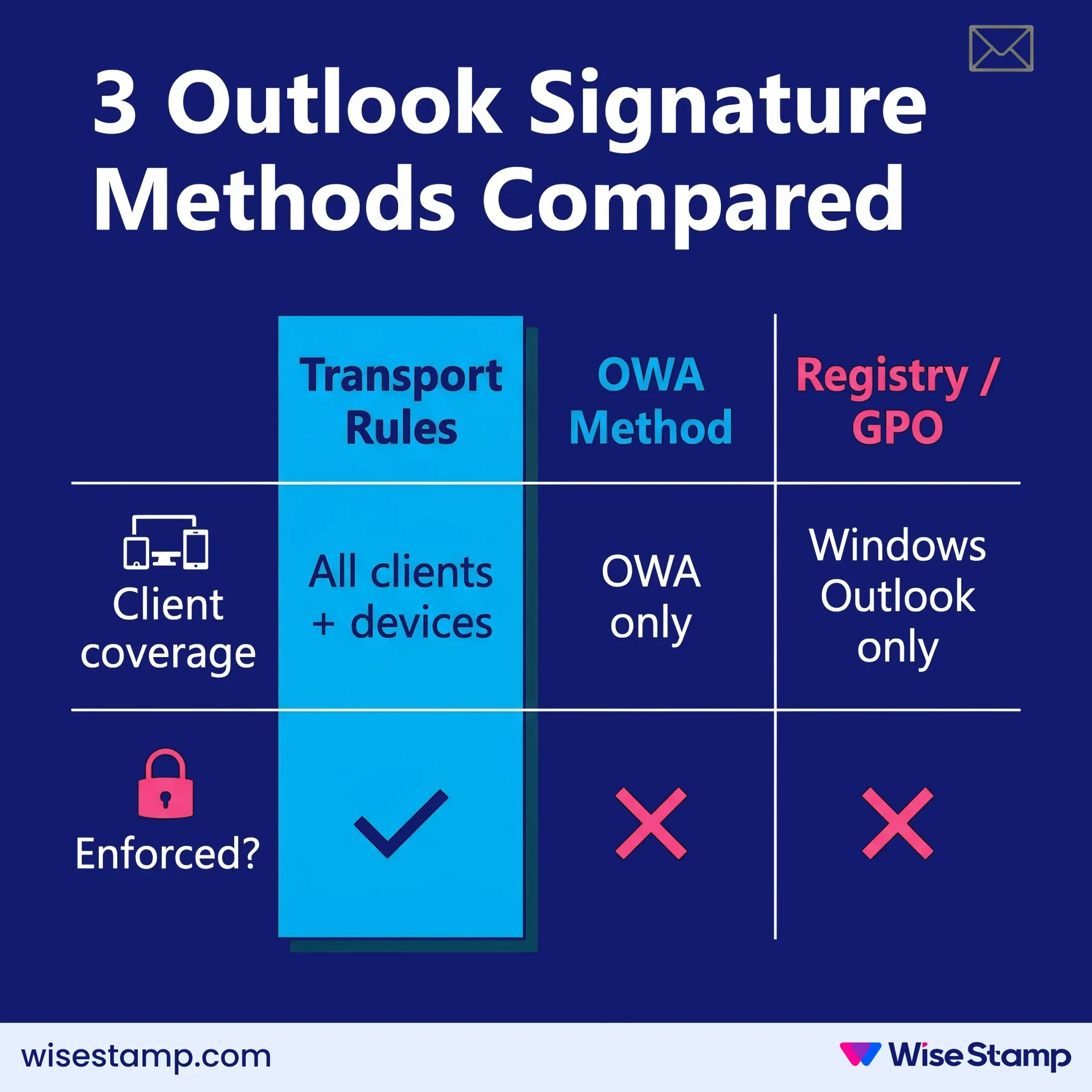
PowerShell gives IT teams 3 practical deployment approaches for Exchange-based environments. Each covers different scenarios:
Transport rules via New-TransportRule: Applies signatures server-side to outbound emails in Exchange Online or Exchange Server. Works across every email client and device without any employee action.
Set-MailboxMessageConfiguration: Pushes a signature into each mailbox’s Outlook on the Web (OWA) settings. Visible when composing, but only covers OWA, not Outlook Desktop.
Registry-based deployment via GPO: Places .htm and .txt signature files in each user’s Outlook Signatures folder through Group Policy. Covers Windows Outlook Desktop clients only.
For organizations that need universal coverage across all devices and email clients, transport rules are the starting point.
Transport Rules Step By Step
How do Exchange Online transport rules deploy org-wide Outlook signatures?
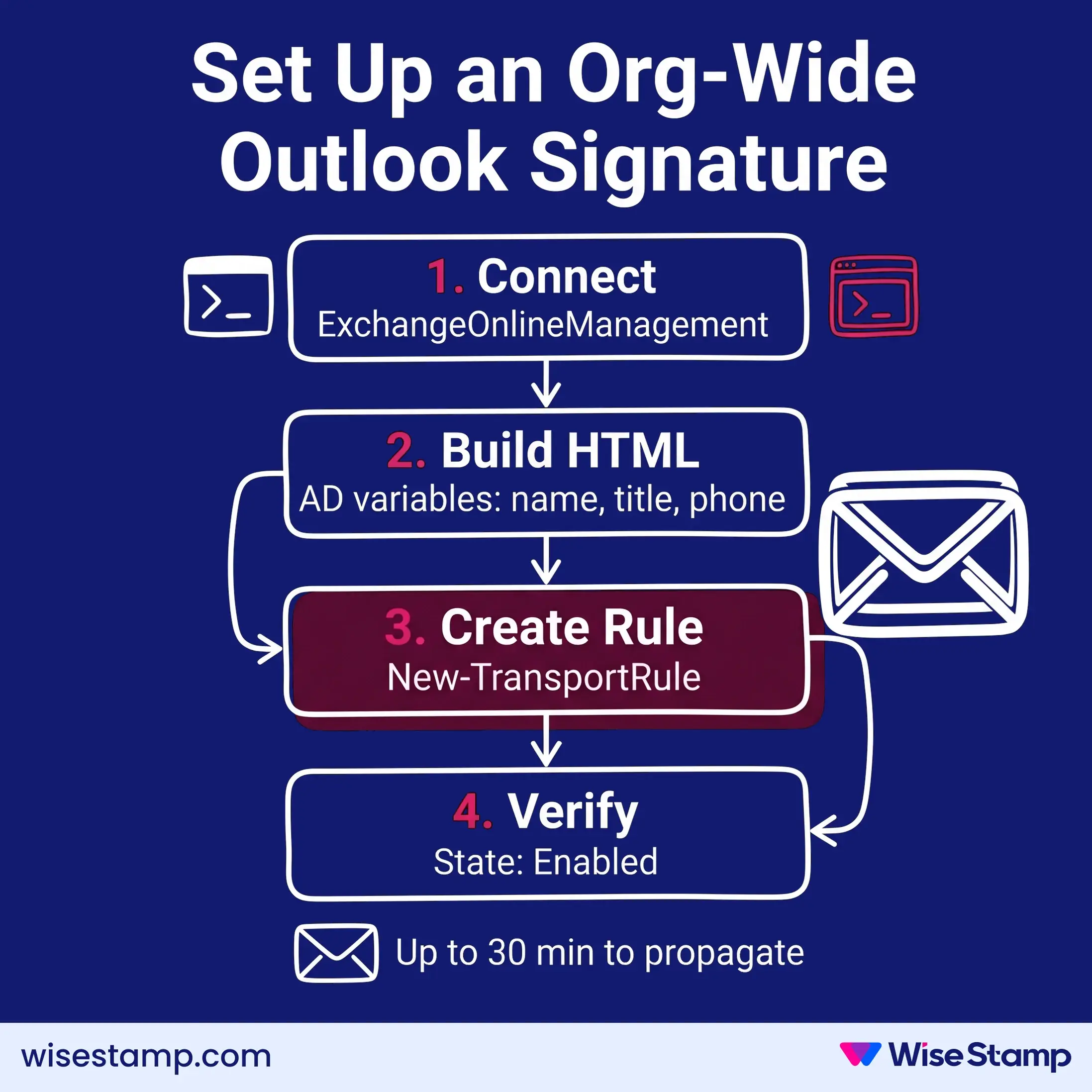
Exchange Online transport rules apply your HTML signature to outbound emails automatically at the mail server level, before delivery to the recipient. No employee action or device configuration required.
Exchange Online supports inline HTML and externally linked images. Keep the total under 5,000 characters. Embedded base64 images are not supported in transport rules.
-ApplyHtmlDisclaimerLocation Append: Adds the signature after the message body. Prepend puts it before — only useful for legal disclaimers where position matters.
-ApplyHtmlDisclaimerFallbackAction Wrap: If the message can’t accept HTML, it wraps the original and appends the disclaimer separately. Safer than Ignore or Reject.
-SentToScope NotInOrganization: Limits the rule to external recipients. Remove this if signatures should also appear on internal emails.
Confirm State is Enabled. Send a test email to an external address and check the result. Rules can take up to 30 minutes to propagate across all Exchange Online datacenters.
How to connect and run transport rules in Exchange Online
Exchange Online uses the ExchangeOnlineManagement PowerShell module, installed via Install-Module and connected via Connect-ExchangeOnline. All New-TransportRule cmdlets run in the cloud through Microsoft’s servers.
No on-premises infrastructure required. Microsoft 365 Business Standard and above support mail flow rules.
How to run transport rules in Exchange Server on-premises
Exchange Server on-premises uses the Exchange Management Shell (EMS), not the ExchangeOnlineManagement module. Run New-TransportRule from the EMS console directly on the server or via remote PowerShell. The cmdlet syntax is identical to Exchange Online.
In hybrid environments, create separate transport rules for cloud and on-premises mailboxes to prevent duplicate signatures.
OWA Mailbox Method
How does Set-MailboxMessageConfiguration set Outlook on the Web signatures per mailbox?
Set-MailboxMessageConfiguration sets a signature inside each mailbox’s OWA settings directly.
Unlike transport rules, the signature appears in the compose window before the email is sent. The tradeoff: it only covers Outlook on the Web, not Outlook Desktop or mobile.
Setting -AutoAddSignatureOnReply $false by default is worth doing. Without it, every reply in a thread carries the full signature and long email chains become unwieldy.
It’s a small decision that generates disproportionate complaints when left enabled.
One important constraint: Set-MailboxMessageConfiguration sets the default, but employees can override it in their own OWA settings. For enforced, unchangeable signatures, transport rules are the more reliable path.
Dynamic User Data In Signatures
What dynamic user data can PowerShell include in Outlook email signatures?
PowerShell transport rules and Set-MailboxMessageConfiguration both support AD attribute substitution variables, which pull live data from each sender’s Active Directory or Microsoft Entra ID profile when the rule fires.
Exchange Online and Exchange Server support 12 native substitution variables:
Variable
Active Directory attribute
%%DisplayName%%
Display Name
%%FirstName%%
First Name
%%LastName%%
Last Name
%%Title%%
Job Title
%%Department%%
Department
%%Company%%
Company
%%PhoneOffice%%
Office Phone
%%PhoneFax%%
Fax Number
%%City%%
City
%%StateOrProvince%%
State/Province
%%CountryOrRegion%%
Country
%%OfficeLocation%%
Office Location
These 12 variables cover the basics reliably. But if your signature design needs a LinkedIn URL, an employee headshot, a mobile number stored in a non-standard AD field, or any custom attribute, you’ll hit a wall quickly.
I saw one IT professional make this point clearly in a community forum: “Active Directory sync was critical. We didn’t want to manage user data in another system.”
WiseStamp’s directory integration with Microsoft Entra ID addresses this gap directly.
It maps any Entra ID attribute, including custom attributes and profile photos, to signature fields through an admin panel with daily automated sync. No scripting required after the initial connection.
Limitations of PowerShell Signatures
What PowerShell limitations affect Outlook signature management at scale?
PowerShell transport rules and Set-MailboxMessageConfiguration are reliable within their scope. But the constraints compound as organizations grow or as Marketing gets involved in signature updates:
Limitation
What it means in practice
No compose-time preview (transport rules)
Senders don’t see the signature when writing emails. They often add their own, creating double signatures.
OWA-only for Set-MailboxMessageConfiguration
Outlook Desktop and mobile clients are not covered by this method.
12 AD variables maximum
No headshots, LinkedIn URLs, mobile numbers from non-standard fields, or custom attributes.
No visual template editor
Every design change requires editing raw HTML in a script and re-deploying.
Script re-run required for each update
Signature changes require IT to run the loop across all mailboxes again.
Department targeting requires multiple rules
Scoping different signatures to different teams means separate transport rules per group.
No mobile enforcement
Neither method reliably controls signatures on iOS Mail, Android Gmail, or mobile Outlook.
One exchange admin described where this leads: “As the Exchange admin, I got stuck being the email signature designer and support desk.” That’s the natural endpoint of managing signatures entirely through PowerShell, especially once Marketing starts requesting updates on their own timeline.
For small organizations with simple, rarely changing designs and a technical IT team to maintain scripts, PowerShell is a workable solution. For anything beyond that, the maintenance cost usually outweighs the initial setup savings.
When PowerShell Isn’t Enough
When does PowerShell-based Outlook signature management stop scaling?
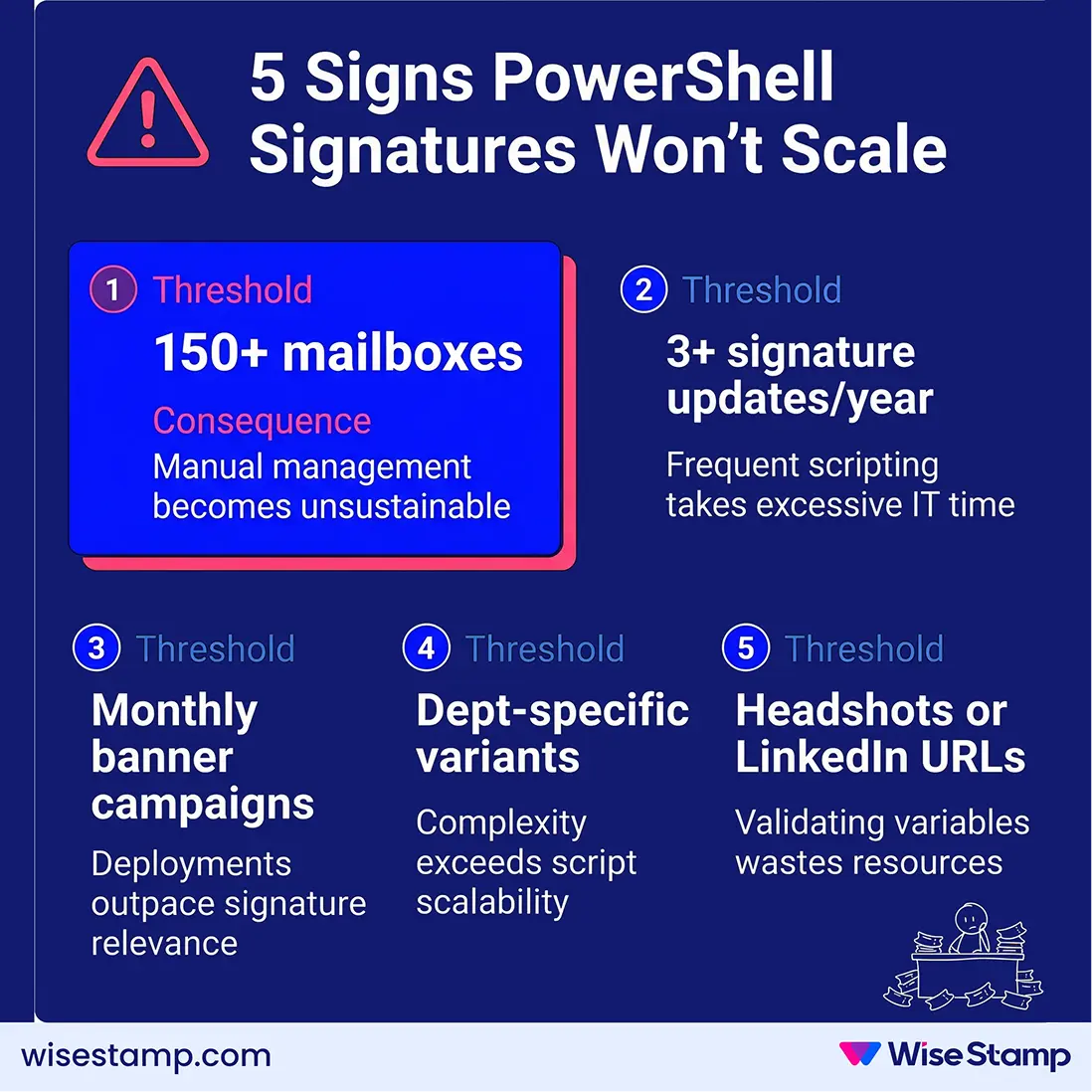
PowerShell stops scaling when any of these apply:
Org exceeds ~150 mailboxes — re-running the configuration loop on every update becomes an ongoing IT task, not a one-time setup
More than 2–3 signature changes per year — each Marketing request generates an IT ticket
Marketing runs banner campaigns — weekly or monthly creative rotations can’t be managed through scripts
Department-specific variants — each requires a separate transport rule to maintain
Headshots or LinkedIn URLs needed — not available in the 12 native AD substitution variables
WiseStamp closes this scaling gap. You deploy it via GPO or MDM (the same workflow you’d use for any centrally managed Outlook add-in), and your employees see their signature in the compose window before sending.
No double signatures, no support tickets asking where the signature went.
Marketing updates templates themselves through WiseStamp’s admin panel. When they swap a campaign banner or refresh the design, it publishes to every assigned mailbox on the next compose.
No IT ticket needed. Entra ID sync covers the full attribute set, including headshots and LinkedIn URLs, with no second system to maintain.
You set it up once. After that, it runs without you.
Takeaway
PowerShell transport rules – When to use it
Using New-TransportRule in Exchange Online are the most effective native method for org-wide Outlook signature deployment.
They cover every device and email client, require no employee action, and support dynamic substitution for the 12 standard Active Directory attributes.
For compose-window visibility in Outlook on the Web, pair transport rules with Set-MailboxMessageConfiguration for complete coverage.
When script maintenance overhead starts outweighing its value, platforms like WiseStamp handle Entra ID sync, visual template design, GPO-deployable Outlook Add-In deployment, and server-side coverage — so IT connects it once and steps out of the signature business entirely.
Transport rule signatures apply at the server level after an email leaves the sender’s device. Outlook Mobile, iOS Mail, and Android Gmail all receive the signature appended by the Exchange Online transport rule, regardless of which email client sent the original message.
Double signatures occur when a user has a signature enabled in Outlook or Outlook on the Web alongside an active transport rule. To prevent duplicate signatures:
Run Set-MailboxMessageConfiguration -AutoAddSignature $false across all mailboxes before enabling the transport rule
Confirm no Outlook Desktop signature is set for affected users
Use -ApplyHtmlDisclaimerFallbackAction Wrap for safer failure handling (does not prevent duplicates on its own)
Yes. Transport rules support the -FromMemberOf parameter to target members of a specific distribution group. Create a separate rule per department, each scoped to that department’s distribution group. Set a lower-priority catch-all rule to cover everyone not in a department-specific group.
Use Set-TransportRule with the same -ApplyHtmlDisclaimerText parameter pointing to the updated HTML string. The change applies immediately across Exchange Online:
Set-MailboxMessageConfiguration is available in Exchange Server 2010 and later versions. The cmdlet syntax is identical to Exchange Online. Run the command from the Exchange Management Shell rather than the ExchangeOnlineManagement PowerShell module, which only works with Exchange Online.
The Organization Management role in Exchange Online includes the necessary permissions to run Set-MailboxMessageConfiguration against other users’ mailboxes. Global Administrator in Microsoft 365 inherits this role. Users with only Recipient Management permissions can modify signature settings for mailboxes they manage.
Transport rules support externally hosted images via standard HTML <img src=”…”> tags linking to a publicly accessible URL. Base64-embedded images are not supported and cause the 5,000-character limit to be exceeded rapidly. Employee profile photos are not natively available as substitution variables in transport rule disclaimers.
Exchange Online limits the -ApplyHtmlDisclaimerText parameter to 5,000 characters. Simple name-and-title layouts with 1–2 externally linked images fit well within this limit. Complex multi-column designs with multiple rows, icons, and image references approach the limit quickly and may require simplification.
Transport rule signatures cannot be removed or altered by employees — the rule applies after the email leaves the sender’s mail client. Set-MailboxMessageConfiguration signatures are different: they set a default in Outlook on the Web, but employees can modify or disable their own OWA signature settings.
Create a separate transport rule for each department using the -FromMemberOf parameter, scoped to that department’s distribution group. Assign each rule a unique priority. Add a low-priority catch-all rule using -FromScope InOrganization to cover employees not in any department-specific group.
No. Exchange Online transport rules apply signatures to the outgoing email after it leaves the server — the copy stored in the sender’s Sent Items folder reflects the original message before the rule ran and does not include the appended signature.
Use Disable-TransportRule to turn the rule off temporarily without deleting it, or Remove-TransportRule to delete it permanently:
Set-MailboxMessageConfiguration works with shared mailboxes. Target the shared mailbox by its email address in the -Identity parameter. The configured signature applies when users send from that shared inbox via Outlook on the Web. Outlook Desktop access to shared mailboxes requires a separate deployment method.
Exchange Online transport rule changes typically propagate within 30 minutes. In some cases, propagation across all Exchange Online datacenters can take up to 60 minutes. Test the rule against a single mailbox first using -From to scope it to your own address before removing the condition and enabling it org-wide.
Table of Content
Deploy standardized email signatures company-wide in 24h