Home / Guides / Email Signature RBAC: IT Admin Setup Guide
Email Signature RBAC: IT Admin Setup Guide
Step-by-step RBAC setup for email signatures. Configure directory sync, admin roles, field locking, and SSO across Microsoft 365 and Google Workspace.
Reading time:
7 min
Author: Amotz Harari
Updated: August 25, 2026
Short answer
How does RBAC email signature management work?
RBAC email signature management assigns signature templates, editing rights, and admin access based on each user’s role, department, or group. Connected to Microsoft Entra ID or Google Workspace, a platform like WiseStamp maps each employee to the correct signature automatically — no manual assignment, no IT tickets per update.
Why unmanaged email signature permissions become an IT liability
Unmanaged email signature permissions leave compliance-sensitive fields open to any employee. Legal disclaimers disappear. Logos get swapped.
There’s no audit trail when a compliance review asks who changed what and when.
In enterprise organizations managing 400+ employees, WiseStamp user research found IT teams spending 30 to 45 minutes per person on signature support calls.
That time compounds weekly.
“IT was spending ridiculous amounts of time helping users update signatures. It was a total waste of resources.”
— IT Professional
More oversight doesn’t fix this. A permission structure that makes the right behavior automatic does.
RBAC Fundamentals
What does RBAC mean for email signature management?
RBAC in email signature management covers 2 distinct permission layers:
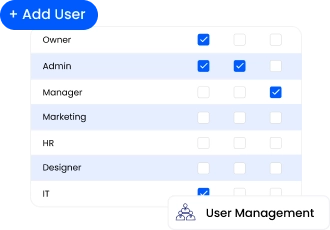
Admin roles — which team members (IT, Marketing, HR, Designer) can access which parts of the signature management platform
Employee permissions — which signature fields each employee can edit in their own profile
Most organizations manage one without the other. Treating both as part of a single access model is what makes signature governance durable and auditable.
Planning
What roles should you define before setting up RBAC signature controls?
Roles in a signature RBAC setup answer 2 planning questions before you touch any settings:
Which internal teams need platform admin access — and at what level?
Which signature fields should employees be able to edit themselves?
A typical implementation needs at least 4 admin roles: IT (directory integration, user lifecycle), Marketing (template design, campaigns), HR (employee data, group assignments), and Designer (template editing without access to employee PII).
The role structure you set here determines what anyone can change — and what requires an authorized request.
Directory Sync
How does directory sync automate role-based signature assignment?
Directory sync with Microsoft Entra ID (formerly Azure AD) or Google Workspace removes manual assignment entirely.
WiseStamp connects to your corporate directory, imports employee records, and maps each person to a signature group based on their department, organizational unit (OU), or Security Group.
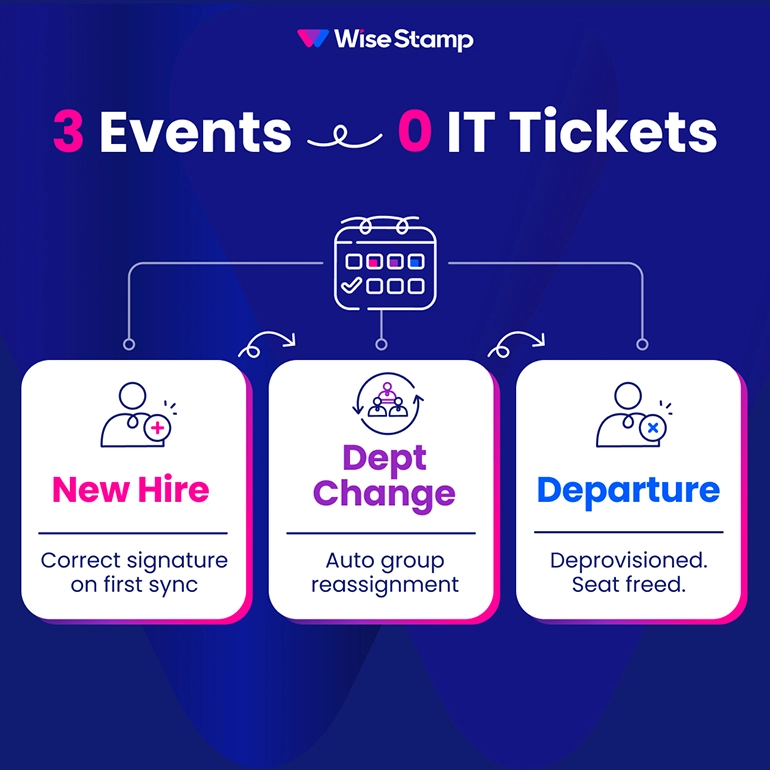
New hires get the correct signature on their first sync, with no ticket and no manual setup. Department changes trigger an automatic group reassignment. Departures deprovision the user and free the seat.
The daily sync runs on a schedule you configure. Manual sync is available on demand from the Employees page.
For organizations using non-standard field naming or alias email addresses, field-level mapping controls let you override the default directory-to-variable mapping per variable.
Admin Roles
How do you configure admin roles for email signature management?
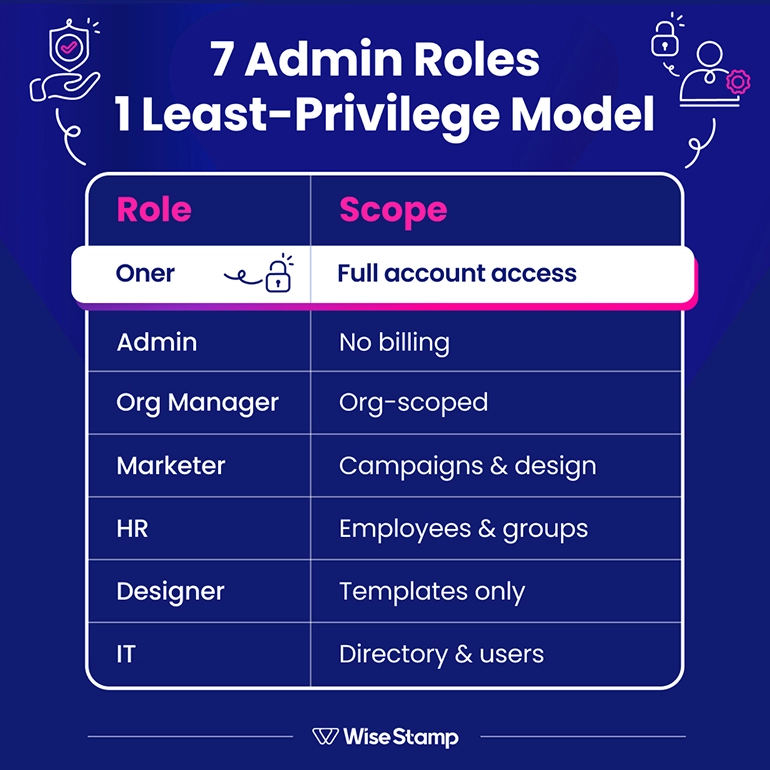
Admin roles in WiseStamp follow a least-privilege model across 7 roles:
Role
Access scope
Owner
Full account access; 1 per account
Admin
All access except billing
Organization Manager
All access except account-level settings; scopeable to specific orgs
Marketer
Campaigns, analytics, and signature design
HR
Employee details, group management, signature assignment
Designer
Signature editing and company data (employee data read-only)
IT
Employee management and organization management
Assign roles from the Account users page. Multiple team members can hold different roles at no extra cost.
A Marketer running campaigns has no access to directory sync settings. An IT admin configuring integrations can’t edit signature templates.
This separation is the structural backbone of your RBAC setup.
Signature Assignment
How do you map employee groups to the right signature templates?
Signature templates in WiseStamp are assigned at the group level, not per employee. Each group links to a specific set of templates — primary, reply, and forward.
The setup process:
Create groups that reflect your org structure (department, region, team, or any custom segmentation you need)
Assign signature templates to each group — primary for new emails, reply for threaded responses, forward for forwarded chains
Map employees to groups via directory sync (auto-grouped by department or Security Group) or manually in bulk via CSV
Configure auto-assignment so every new sync’d employee lands in the correct default group automatically
When a template changes, the update publishes to every member of the group instantly on save. No per-employee action.
Field Locking
How do you lock signature fields to enforce brand and compliance standards?
Signature fields in WiseStamp can be locked at the variable level, independently of admin roles. This is the governance layer that determines what employees can update in their own profile.
3 permission modes are available:
Allow editing of all fields — employees can update any detail in their profile
Allow editing of selected fields — employees can update personal details (phone, photo, pronouns) but not governed fields
Disallow all editing — the signature is fully controlled by admins; employees see a read-only view
Lock legal disclaimers, job titles, logos, and any compliance-required text. Leave personal contact details unlocked.
This gives employees a functional self-service experience through the Employee Hub while keeping compliance-sensitive content off-limits without IT involvement.
“WiseStamp lets you control groups/departments individually or give control of specific information to users.”
— Sarah S., Digital Marketing and Communications Manager
Deployment
How do you deploy role-assigned signatures across Outlook and Gmail?
Deployment in WiseStamp supports client-side, server-side, and hybrid modes. The right approach depends on your email infrastructure.
How to deploy RBAC-governed signatures across Google Workspace
Google Workspace deployment uses WiseStamp’s auto-inject feature. Once your directory sync is configured and groups are assigned:
Install the WiseStamp app from Google Workspace Marketplace (requires Super Admin)
Enable auto-inject per employee — WiseStamp pushes signatures directly into Gmail settings on activation
For iOS Gmail coverage, auto-inject handles mobile automatically
For server-side coverage (CRM-originated emails, shared inboxes), configure a compliance rule in Google Admin Console
Signatures deploy on activation with no action required from employees. The Gmail inject toggle can be enabled globally or per user from the Employees page.
How do SSO and SCIM reinforce email signature access governance?
SSO and SCIM are the connectors between your identity management infrastructure and WiseStamp’s admin access layer.
SSO via SAML 2.0 (supported with Okta, Microsoft Entra ID, Google Workspace, and OneLogin) ensures WiseStamp admins authenticate through your corporate identity provider.
No separate WiseStamp credentials to manage or rotate. When an admin is offboarded from Okta or Entra ID, their WiseStamp access is revoked automatically.
SCIM handles identity provisioning at the employee level — syncing user attributes in near-real time, rather than waiting for the scheduled daily sync.
This matters in organizations with frequent org changes or high headcount turnover.
Together, SSO and SCIM close the 2 most common RBAC gaps: orphaned admin accounts and stale employee signature assignments after role changes.
Audit and Monitoring
How do you audit email signature compliance after RBAC deployment?
Signature compliance auditing covers 3 areas: template rendering accuracy, employee data currency, and admin access scope.
For template rendering, use WiseStamp’s “Preview with employee” function before publishing.
It substitutes a specific employee’s real directory data into the live template.
That lets you validate output across desktop, mobile, and dark mode before anyone in the org sees the signature.
For data accuracy, run a manual sync after initial directory integration and review the Employees page for blank or incorrect variables.
WiseStamp’s audit logs track all changes to templates, employee records, and admin permissions — giving you a traceable change history for compliance reviews or internal audits.
For access control, review Account users quarterly.
Role assignments should reflect actual team structure: team members who’ve changed functions should have their roles updated, not accumulate permissions across old positions.
Takeaway
How to implement RBAC in email signature management?
RBAC email signature management works across 3 layers: admin role assignment, field-level permissions, and directory-driven group assignment.
Admin roles control who manages what, field-level permissions control what employees can edit, and group assignment determines which template reaches which person automatically.
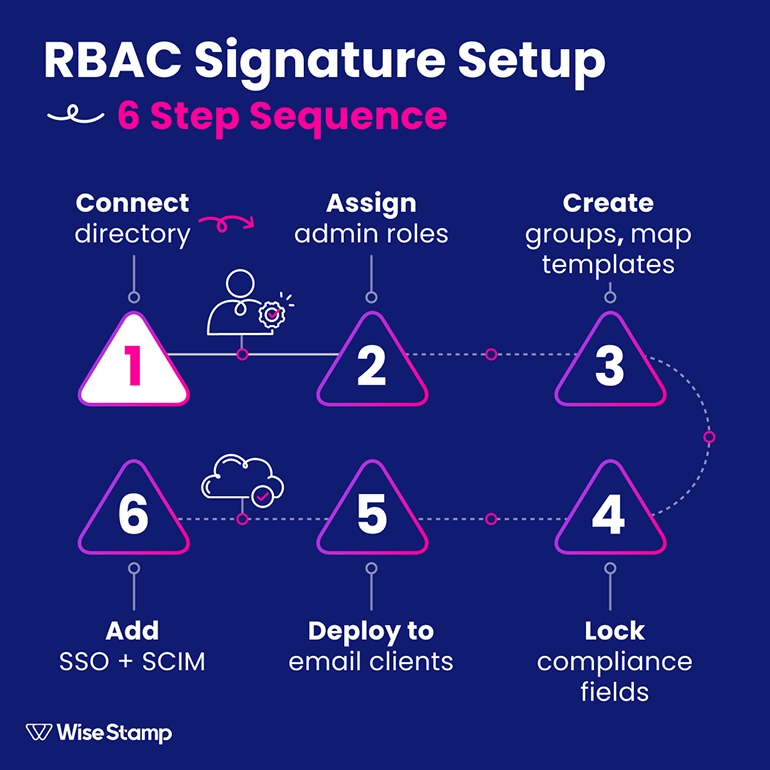
The implementation sequence:
Connect Microsoft Entra ID or Google Workspace for directory sync and auto-group assignment
Assign admin roles by function — IT, Marketing, HR, Designer — following least-privilege
Create employee groups and map the correct signature templates to each
Lock compliance-sensitive fields; unlock personal details for employee self-service through the Employee Hub
Deploy via auto-inject on Google Workspace or Outlook Add-In plus MDM/GPO on Microsoft 365
Add SSO via SAML 2.0 and SCIM to close the loop on admin access and identity-driven provisioning
Admin roles: which team members can access which platform areas
Field-level permissions: what employees can edit in their own profile
Managing both layers together makes signature governance durable and auditable.
Define roles around function before touching settings. A standard setup covers:
IT: directory integration and user lifecycle
Marketing: template design and campaigns
HR: employee data and group assignments
Designer: template editing without access to employee PII
Directory sync with Microsoft Entra ID or Google Workspace maps each employee to a signature group based on their department, OU, or Security Group.
According to WiseStamp user research, 65% of buyers cite manual admin burden as a top pain — directory sync eliminates it entirely.
WiseStamp provides 7 admin roles: Owner, Admin, Organization Manager, Marketer, HR, Designer, and IT.
Each role follows least-privilege: a Marketer has no access to directory sync settings and an IT admin cannot edit signature templates.
Multiple team members can hold roles at no extra cost.
Create groups by department, region, or team
Assign primary, reply, and forward templates to each group
Map employees via directory sync or CSV upload
Configure auto-assignment for new employees
Template updates publish instantly to all group members on save, with no per-employee action.
Signature fields are locked at the variable level, not per employee. 3 permission modes apply:
Allow all editing
Allow selected fields only (personal details like phone, photo)
Disallow all editing
Lock legal disclaimers, logos, and job titles. Leave contact details unlocked for employee self-service.
SSO via SAML 2.0, supported with Okta, Microsoft Entra ID, Google Workspace, and OneLogin, authenticates WiseStamp admins through your corporate identity provider.
SCIM syncs user attributes in near-real time. Together, SSO and SCIM eliminate orphaned admin accounts and stale signature assignments after role changes.
Verify compliance across 3 areas after deployment:
Template rendering: use “Preview with employee” to validate output before publishing
Data accuracy: run manual sync and review the Employees page for blank variables
Access control: review Account users quarterly and update roles that no longer reflect team structure
No. Each employee belongs to one group at a time in WiseStamp.
To serve multiple communication contexts, use multi-signature assignment within a single group.
Assign primary, reply, and forward templates to that group, covering different email types without requiring multiple group memberships.
When a directory sync runs after a department change, WiseStamp reassigns the employee to the new group based on their updated directory record.
The new group’s template deploys on the next sync. No admin action is required, and the change is logged in the audit trail.
WiseStamp supports shared inbox signature mapping, linking one or more signature templates to shared email addresses such as support@ or billing@.
Shared inbox mapping is configured within multi-signature options and is available on both the Outlook Add-In and Chrome Extension deployment modes.
Yes. WiseStamp supports multiple organizations within one account, each with its own domain, email provider, employees, and signature settings.
The Organization Manager role can be scoped to a specific organization.
In WiseStamp user research, multi-organization support generated 100% buyer excitement, the highest of any demonstrated capability.
WiseStamp’s 7-role admin system (Owner, Admin, Organization Manager, Marketer, HR, Designer, and IT) is available on Advanced and Enterprise plans. Field-level employee edit permissions are available across most plans. See the WiseStamp pricing page for current plan details.
WiseStamp’s daily directory sync handles automated provisioning through Microsoft Entra ID and Google Workspace.
SCIM integration adds near-real-time identity provisioning, closing the gap between scheduled sync cycles.
SCIM is most valuable for organizations with frequent role changes or high headcount turnover where daily sync creates stale data windows.
Server-side deployment prevents employee overrides on mobile. When configured, WiseStamp appends the correct signature at the mail server level, regardless of device or email client.
Employees cannot override server-side signatures. This works with Google Workspace and Microsoft Exchange, both on-premises and Exchange Online.
Table of Content
Deploy standardized email signatures company-wide in 24h