Home / Guides / How to Deploy Email Disclaimers in Office 365 Company-Wide

How to Deploy Email Disclaimers in Office 365 Company-Wide

Learn to configure company-wide disclaimers in Office 365 and avoid the gaps left by native mail flow rules, and Exchange Admin Center setup step-by-step

Reading time: 5 min Author: Amotz Harari Updated: May 14, 2026
how to add office 365 email disclaimer

Short answer

How do you deploy company-wide email disclaimers in Office 365?

Office 365 company-wide disclaimers deploy through Exchange Online mail flow rules.

  1. Go to the Exchange Admin Center
  2. Go to Mail flow > Rules > Apply disclaimers
  3. Configure the rule to apply to all messages
  4. Paste your disclaimer text or HTML, and set the fallback action to Wrap

Get expert advice on centralized email disclaimer management →

Disclaimer Compliance Risk


Why unmanaged Office 365 disclaimers put regulated organizations at risk

Unmanaged disclaimers create compliance gaps that are hard to explain in an audit.

In finance, legal, and healthcare, every outbound message typically must carry specific disclosures – not just most messages, all of them.

Relying on employees to self-manage creates a false sense of coverage.

“With hundreds of users, you simply cannot rely on people to keep their own signatures updated and consistent.”

Centralized enforcement through Exchange Online is the only reliable path.

Native Disclaimer Enforcement Method


How to deploy Office 365 disclaimers using the Exchange Admin Center or PowerShell

Office 365 provides 2 native paths for deploying company-wide disclaimers: the Exchange Admin Center GUI and PowerShell.

Both produce the same result – a server-side mail flow rule that appends your disclaimer to every outbound message.

How to deploy Office 365 disclaimers via the Exchange Admin Center

Exchange Admin Center is the no-script path. Start by signing in with an account that has Exchange Online administrator permissions.

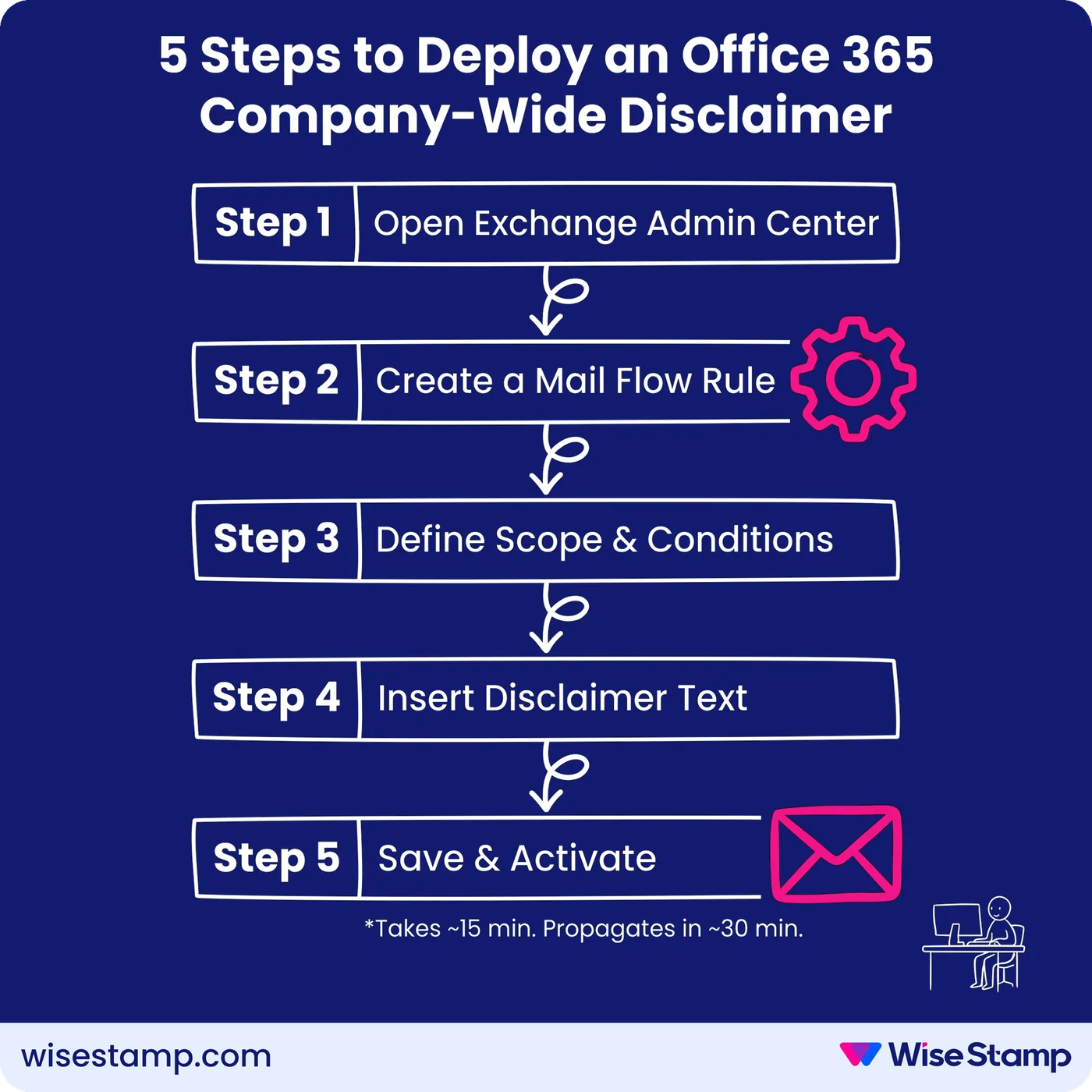
  1. Go to the Exchange Admin Center
  2. Navigate to Mail flow > Rules
  3. Click Add a rule and select Apply disclaimers
  4. Name the rule (e.g., “Company-Wide Legal Disclaimer”)
  5. Under Apply this rule if, select Apply to all messages
  6. Under Do the following, leave Append a disclaimer selected
  7. Click Enter text, paste your disclaimer (plain text or HTML), then click Save
  8. Click Select one for the fallback action and choose Wrap
  9. Add any exceptions (specific senders, recipients, internal-only messages)
  10. Under Rule mode, select Enforce to activate immediately
  11. Click Finish, then Done

Once the rule processes, Exchange Online applies it server-side on every qualifying outbound message. No action required from users.

5 Steps to Deploy an Office 365 Company-Wide Disclaimer

Native Method Limitations


What native Office 365 mail flow disclaimer rules cannot do?

Native Office 365 disclaimers work for what they were built to do: appending static text server-side to outbound messages.

But they come with hard limits that Microsoft acknowledges directly in its own documentation.

LimitationWhat it means in practice
Thread placementDisclaimers append to the very bottom of the entire email thread, not after each individual reply. In long conversations, the disclaimer ends up buried.
Sent Items visibilityUsers cannot see the applied disclaimer in their Sent Items folder. What they see they sent and what the recipient receives are different.
Image embeddingNative mail flow rules do not support embedded images. You can’t include a company logo.
Dynamic personalizationExchange Online does not dynamically insert per-user information – name, job title, department – into the disclaimer text. Every recipient gets the same static content.
Composed email previewUsers can’t see the disclaimer while composing a message. This often leads to double signatures when employees also maintain a local Outlook signature.

That last point causes real day-to-day problems. An IT admin in a community thread described it this way:

“Users couldn’t see the signature while composing, so they kept adding their own and breaking everything.”

When To Go Further


When does native Office 365 disclaimer management stop being enough?

Native disclaimers are sufficient for 1 job: a static legal footer on all outbound messages, consistently applied, with no user dependency. For small teams with basic needs, that’s a workable setup.

The native approach breaks down when you need any of the following:

  • Personalized disclaimers that include the sender’s name, title, or department (pulled dynamically from Azure Active Directory / Microsoft Entra ID)
  • Department-specific variations – your payment-collecting team needs different disclosures than your sales team
  • Proper reply thread placement – disclaimer appearing directly after each reply, not at the bottom of the entire conversation
  • HTML branding – company logo, formatted layout, or brand colors embedded in the disclaimer
  • Compliance audit trail – proof that disclaimers were applied consistently, surfaceable in an audit

Organizations in finance, legal, or healthcare routinely need several of these at once. The native tooling was never built for that scope.

Third-Party Disclaimer Solution


How can I set and forget Office 365 disclaimer automation using software?

Email disclaimer automation can become a one-and-done by using email disclaimer and signature management software.

The disclaimer manager integrates directly with Microsoft 365 and Microsoft Active Directory to handle what native Exchange mail flow rules can’t.

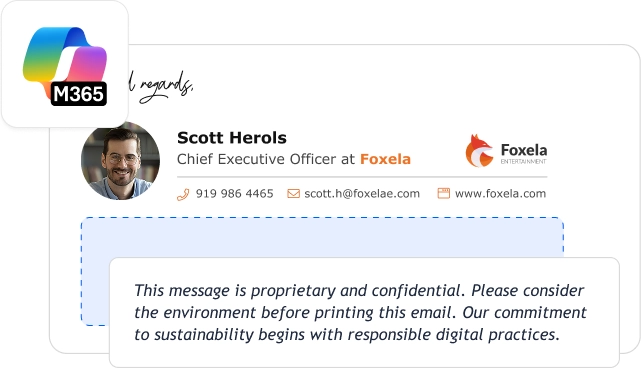
In WiseStamp, the setup syncs with your existing Active Directory automatically – pulling employee data like name, title, department, and phone number to generate personalized disclaimers and signatures for every employee.

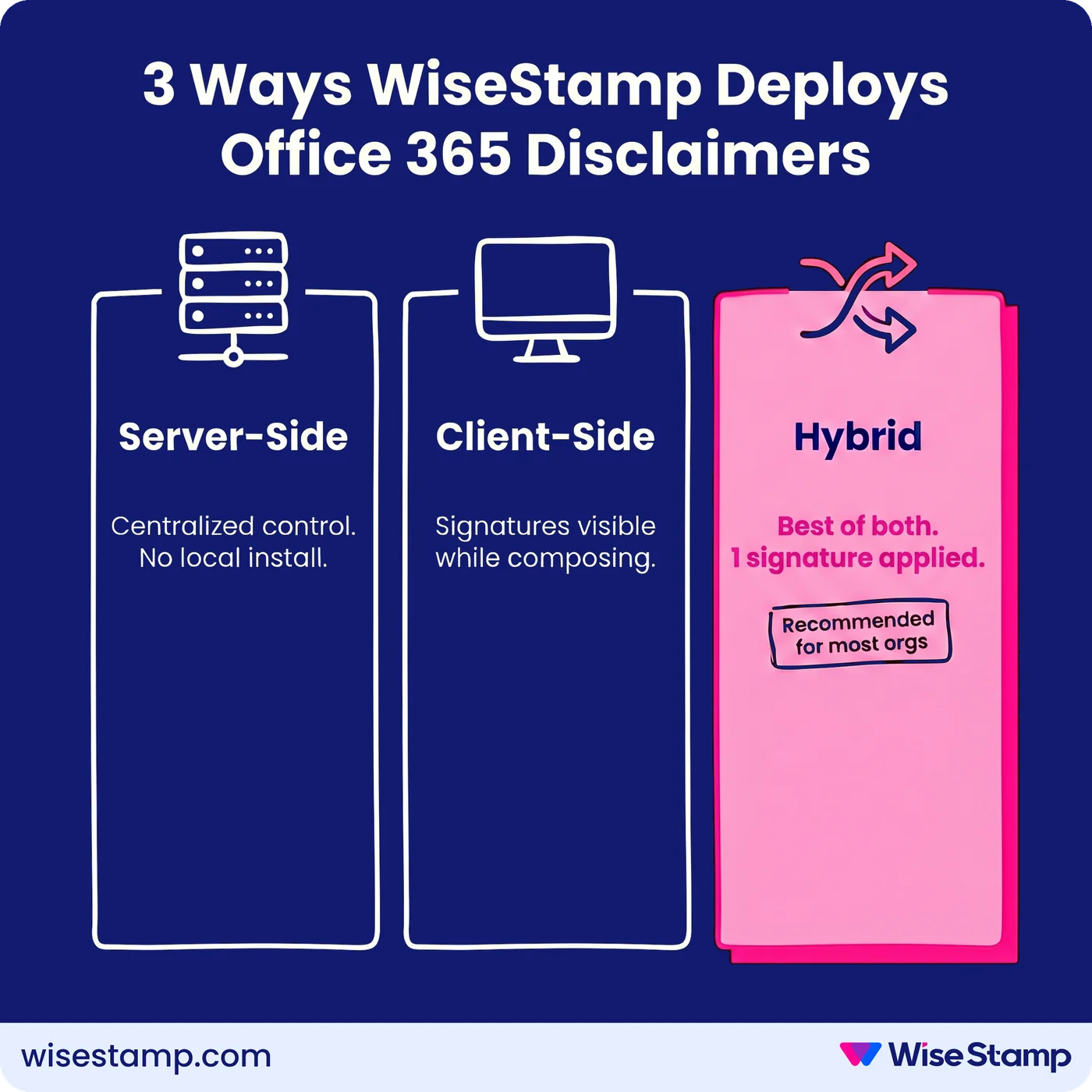
You can choose from 3 deployment modes for Exchange and Microsoft 365 environments:

  • Server-side: Applied at the server level via an Exchange connector. No local installs per device. Full admin control, consistent delivery from every client and device.
  • Client-side: Signatures deployed locally. Employees see their disclaimer while composing. Note: this mode doesn’t support mobile apps that don’t support add-ins.
  • Hybrid: Combines server-side and client-side. WiseStamp detects when both are present and ensures only 1 disclaimer is applied. Users see it while composing, and it’s delivered consistently from every device – including mobile.

WiseStamp is SOC 2 Type II, ISO 27001, and GDPR compliant, and is available on Microsoft AppSource.

We don’t read, store, or modify the content of your emails – only the user data needed to generate the disclaimer.

3 Ways WiseStamp Deploys Office 365 Disclaimers

Native Rules Vs Dedicated Tool


Native Office 365 disclaimers vs. a dedicated tool: how to decide

Native disclaimers and a dedicated platform serve different compliance scopes. Here’s how the 2 approaches stack up across the factors that matter to IT admins.

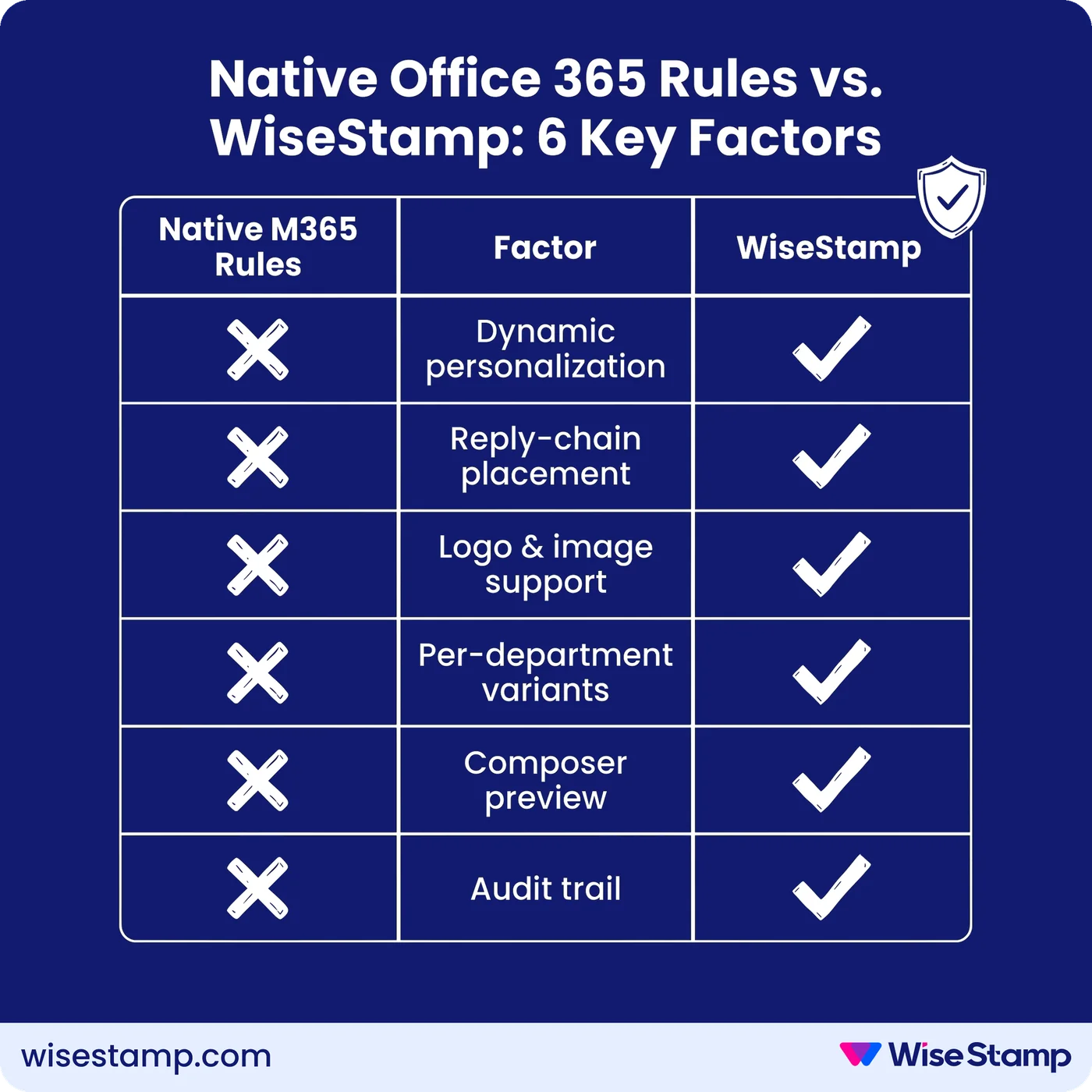
FactorNative Exchange mail flow rulesWiseStamp
Setup complexityLow – Exchange Admin Center or PowerShellLow – guided setup with Active Directory sync
Dynamic personalization (name, title, department)NoYes – pulled from Azure AD
Correct reply thread placementNo – bottom of thread onlyYes
Image and logo supportNoYes
Department-specific disclaimer variantsPartial – requires separate rules per groupYes – managed from a single admin console
User preview while composingNoYes (hybrid mode)
Compliance audit trailNoYes
Mobile device compatibilityServer-side applies to all clientsAll modes; hybrid covers mobile consistently
CostIncluded in Microsoft 365Separate subscription

If you need a basic static footer on all outbound messages, Exchange mail flow rules are the right call – fast to set up, no additional cost, no new vendor.

If you need personalization, proper placement, branded HTML, or audit-ready compliance reporting, a dedicated platform pays for itself quickly in the compliance risk it removes and the IT overhead it eliminates.

Native Office 365 Rules vs. WiseStamp: 6 Key Factors

Takeaway


How should I deploy email disclaimers in Office 365?

Office 365 deploys company-wide disclaimers through Exchange Online mail flow rules, configurable in the Exchange Admin Center or via the New-TransportRule PowerShell cmdlet.

Native rules cover static text reliably, but can’t personalize per user, embed images, or place disclaimers correctly in reply threads.

For organizations with compliance requirements, regulated-industry obligations, or multi-department disclaimer needs, a dedicated disclaimer management software that connects to Microsoft 365 and Active Directory to handle the full job – without ongoing IT maintenance.

Get expert advice on company-wide disclaimer automation and enforcement →

FAQ

How do you deploy company-wide disclaimers in Office 365?

Office 365 company-wide disclaimers deploy through Exchange Online mail flow rules. In the Exchange Admin Center, navigate to Mail flow > Rules > Apply disclaimers, set the rule to apply to all messages, paste your disclaimer text or HTML, and set the fallback action to Wrap.

Can Office 365 disclaimers include dynamic user information like job title?

Native Office 365 Exchange mail flow rules cannot dynamically insert per-user information such as name, title, or department. All recipients receive the same static disclaimer text. Dynamic personalization requires a third-party tool like WiseStamp, which syncs with Active Directory to populate user-specific fields automatically.

Why does my Office 365 disclaimer appear at the bottom of the thread instead of after each reply?

Native Exchange Online mail flow rules append disclaimers to the very end of the full email thread, not after each individual reply. This is a documented limitation of the native approach. Correct per-reply placement requires a dedicated signature management platform, as there is no configuration option in Exchange Admin Center that changes this behavior.

Can I add a company logo or image to an Office 365 disclaimer via Exchange mail flow rules?

No. Native Exchange Online mail flow rules do not support embedded images. You can include plain text or HTML, but image rendering is not possible through the native disclaimer tool. Logo and HTML branding require a third-party platform like WiseStamp.

Do I need a Global Admin role to set up Exchange Online mail flow rules for disclaimers?

You need Exchange Administrator permissions, not necessarily Global Admin. Any account with the Exchange Admin role assigned in Microsoft 365 can create and manage mail flow rules in the Exchange Admin Center.

How do Office 365 disclaimer rules handle encrypted emails?

When a disclaimer cannot be applied due to encryption or another mail setting, Exchange Online uses the fallback action you configure. The recommended fallback is Wrap, which places the original message inside a new envelope and applies the disclaimer to the outer message. This ensures the disclaimer is delivered without breaking encryption.

Can I apply different Office 365 disclaimers to different departments?

You can create separate mail flow rules with different conditions – for example, rules that apply only to senders in a specific Microsoft 365 group or With a specific email domain. Managing this at scale through separate Exchange rules becomes complex. Dedicated platforms like WiseStamp handle multi-department disclaimer variants from a single admin console.

How do I exclude specific users from a company-wide Office 365 disclaimer rule?

In the Exchange Admin Center, add an exception to your mail flow rule. Under “Except if,” you can exclude specific senders, sender groups, or email addresses. In PowerShell, use the -ExceptIfSentTo or -ExceptIfFrom parameters in the New-TransportRule or Set-TransportRule cmdlet.

How long does a new Exchange Online mail flow rule take to take effect?

New Exchange Online transport rules typically activate within a few minutes of being saved and enabled, though Microsoft documentation notes changes can take up to 30 minutes to fully propagate across all data centers.

What happens to Office 365 disclaimers when someone sends from a mobile device?

Server-side Exchange mail flow rules apply regardless of the sending device – mobile, desktop, or web. The disclaimer is appended at the server level after the message leaves the client. Client-side approaches such as Outlook add-ins do not apply to mobile apps that do not support add-ins.

Can Office 365 mail flow disclaimer rules apply to incoming messages?

Yes. Exchange Online mail flow rules can be configured to apply to incoming messages, outgoing messages, or both. The most common setup for legal disclaimers is outbound only, but inbound disclaimer rules are possible by adjusting the rule conditions.

Does WiseStamp work with Exchange on-premises, or only Exchange Online?

WiseStamp supports both Exchange Online (Microsoft 365) and Microsoft Exchange on-premises environments. For Exchange on-premises, server-side deployment uses a connector installed on the Exchange server. For Exchange Online, WiseStamp connects via the Exchange Admin Center integration.

How does WiseStamp deploy disclaimers differently from native Office 365 rules?

WiseStamp syncs with Active Directory to personalize disclaimers per user, places disclaimers correctly after each reply in a thread, supports embedded logos and HTML branding, and provides a compliance audit trail. It offers 3 deployment modes: server-side (no per-device installs), client-side (user sees disclaimer while composing), and hybrid (both combined). Native Exchange rules support none of these capabilities.

Can users see Office 365 disclaimers in their Sent Items folder?

No. Disclaimers applied via Exchange Online mail flow rules do not appear in the sender’s Sent Items folder. Users see the message as they composed it. The disclaimer is visible only to the recipient. This is a documented limitation of the native approach; third-party tools address this in client-side or hybrid deployment modes.

Is there a character limit for Office 365 disclaimer text?

Yes. Exchange Online disclaimer text is limited to 5,000 characters, including HTML markup. For most legal disclaimers and signature text, this is sufficient. If your HTML is close to the limit, minifying the markup by removing unnecessary whitespace and comments creates headroom.