How to Set Up Azure AD Email Signatures Integration
Learn how to connect Entra ID to email signatures automatically. Compare Exchange rules, PowerShell, & a signature software native AD sync
Short answer
How do you integrate Azure Active Directory with email signatures?
Azure Active Directory (Microsoft Entra ID) integrates with email signatures through 3 methods: Exchange Online transport rules, PowerShell scripting, or a third-party platform like WiseStamp. WiseStamp’s Entra ID sync pulls employee data daily and deploys personalized signatures to every Outlook mailbox automatically.
The problem
Why unmanaged Azure AD and email signatures become an IT liability
Azure AD and email signature management are one of those IT responsibilities that starts small and compounds fast.
New hires send emails for weeks without a signature. Employees who left last quarter still have their name in every forwarded thread.
A marketing rebrand request turns into a 200-ticket IT queue. Meanwhile, Azure AD already stores every employee record you need.
The problem is connecting it to every inbox automatically, and keeping it current without building something you’ll maintain forever.
What it does
What Azure Active Directory email signature integration actually means
Azure Active Directory (now officially Microsoft Entra ID) is Microsoft’s cloud-based identity and access management service.
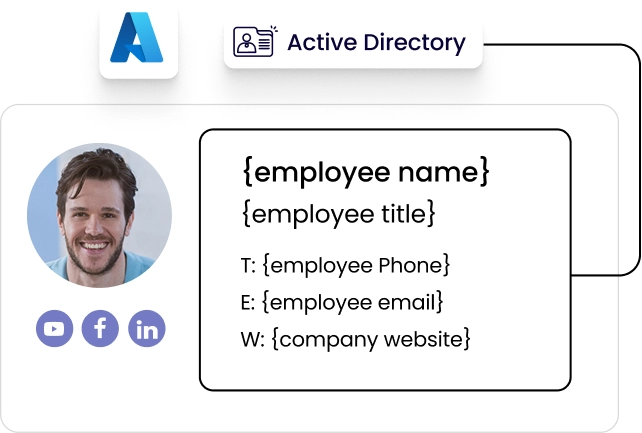
It stores authoritative employee records: full name, job title, department, phone number, mobile, email address, and profile photo.
Email signature integration is the process of reading those records and using them to populate and deploy HTML signatures to each employee’s mailbox automatically.
No employee self-configuration. No copy-paste instructions from the IT wiki.
When integration runs correctly, a new hire’s signature is ready before they send their first email. When it syncs daily, a title change on Monday appears in the signature by Tuesday.
Your options
What are the 3 main methods for connecting Azure AD to email signatures?
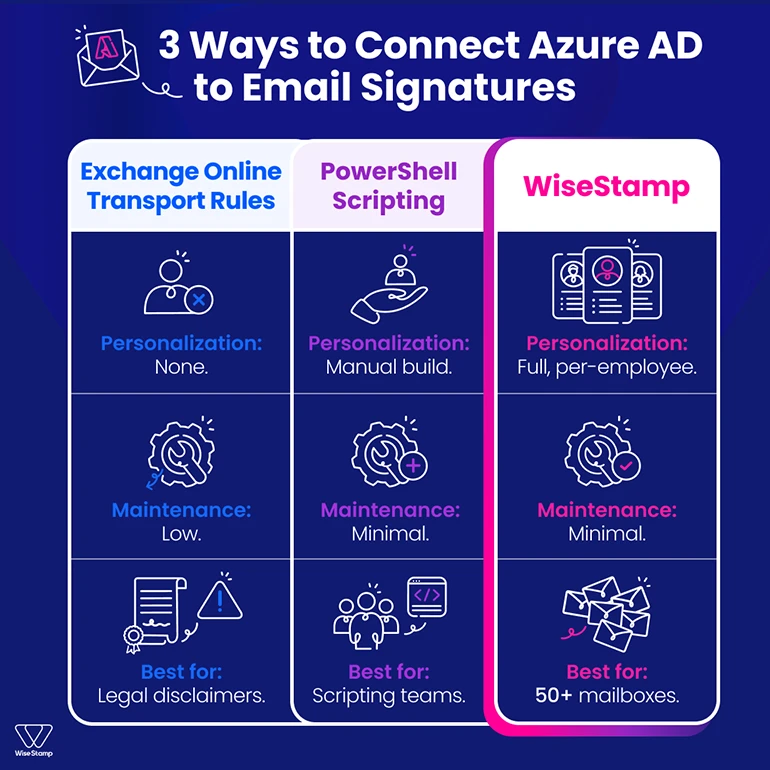
3 integration paths exist. Each carries a different complexity ceiling, maintenance burden, and capability range.
| Method | Per-user personalization | Ongoing maintenance | Branding control | Best for |
|---|---|---|---|---|
| Exchange Online transport rules | None (static only) | Low | Minimal | Legal disclaimers only |
| PowerShell scripting | Yes (if built correctly) | High | Limited | Teams with scripting resources |
| WiseStamp (third-party platform) | Full, per-employee | Minimal after setup | Centralized | Automation + brand governance |
The right choice depends on what you actually need from signatures – legal compliance only, personalized branding, or both.
Native approach
How do Exchange Online transport rules handle email signatures?
Exchange Online transport rules (also called mail flow rules) append HTML or plain text to outgoing messages at the server level, before delivery. They apply organization-wide and require no client-side installation.
The limitation is personalization. Transport rules operate on static content. They don’t pull individual employee attributes from Azure AD natively.
You can add a consistent legal disclaimer to every outbound email.
But you can’t pull each sender’s unique name, title, and phone from Entra ID without custom conditional logic that’s fragile and expensive to maintain.
For branded, per-employee signatures at any meaningful scale, transport rules alone don’t get the job done.
Scripting approach
How does PowerShell-based Azure AD signature automation work?
PowerShell scripts can query Microsoft Graph API to retrieve employee attributes from Azure AD and write HTML signature files to each user’s Outlook profile via registry or roaming profile settings.
This approach delivers real per-employee personalization but it carries significant requirements.
PowerShell-based Azure AD signature requirements:
- Scripting expertise to build, test, and maintain
- A deployment mechanism (Group Policy, Microsoft Intune, or similar) to distribute to client devices
- Separate handling for Outlook Web App, mobile, and non-domain-joined endpoints
- Ongoing updates as Microsoft Graph API or Outlook client behavior changes
I’ve come across IT administrators online who describe this path vividly.
One put it this way: “We used to do it manually and it was a pain… still get nightmares about it.” PowerShell is a step up from manual. But you own it, indefinitely.
Azure AD integration
How does the Microsoft Entra ID integration work?
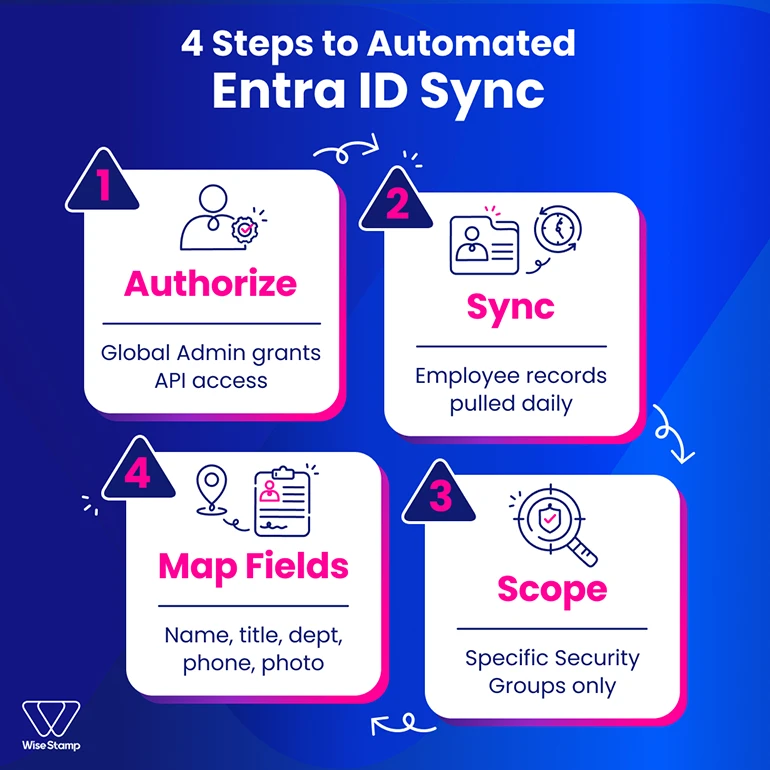
WiseStamp connects to Microsoft Entra ID via Microsoft API with a one-time setup. A Global Admin grants permissions in Entra ID, and from that point, WiseStamp syncs employee records on a daily automated schedule.
Setup takes minutes. No scripting.
No custom connector configuration. WiseStamp pulls employee records and maps them to signature template variables: name, job title, department, phone number, and profile photo.
For enterprise organizations, Microsoft Security Group scoping limits the sync to specific groups rather than importing the entire directory.
Field-level control gives IT precise authority over which attributes update from Azure AD and which are managed manually in WiseStamp. A per-field daily sync toggle handles the mix without any scripting.
Outlook deployment
How do Azure AD-synced signatures get deployed to Outlook?
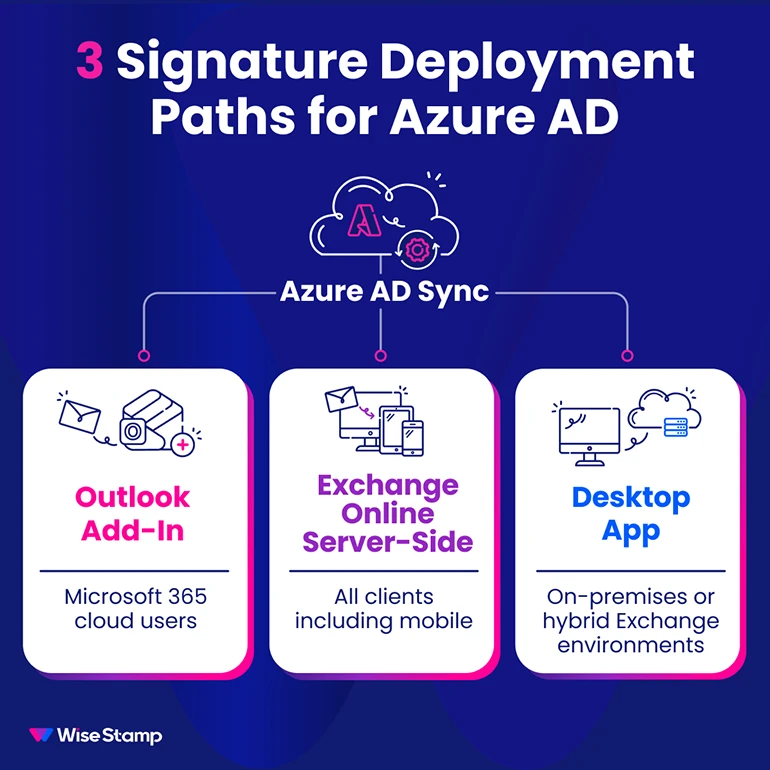
WiseStamp deploys signatures to Outlook and Microsoft 365 through 3 mechanisms:
- Outlook Add-In: Centrally deployed via the Microsoft 365 admin center using the integrated apps feature. No individual employee install required.
- Exchange Online server-side: A mail flow rule applies signatures post-send, covering all clients including mobile and Outlook Web App.
- Desktop App: For on-premises Exchange or hybrid Exchange environments.
I’ve heard IT decision-makers describe what they actually need here: “We want it to be centrally managed by our IT team – so we don’t have to have everybody individually doing installs on their local device.”
The centralized Outlook Add-In deployment handles exactly that.
IT deploys it once from the Microsoft 365 admin center and the Add-In appears in every Outlook instance across the organization.
Lifecycle management
How does Azure AD sync handle new hires and employee departures?
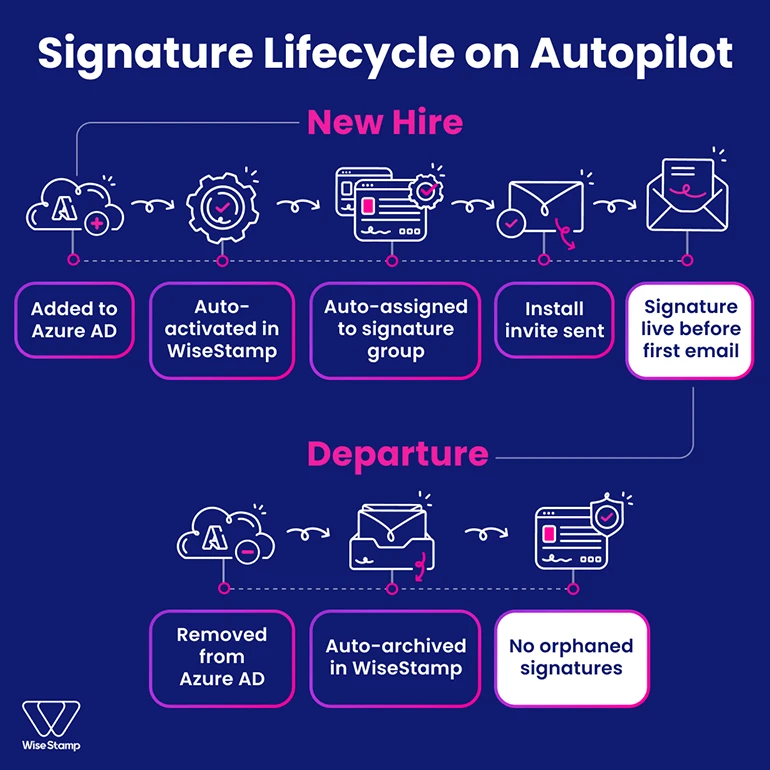
Azure AD sync handles employee lifecycle transitions automatically when WiseStamp’s automation settings are configured. Every sync event can trigger a sequence of actions.
For new hires: auto-activate, auto-assign to a default signature group, and auto-send an install invite. Their branded signature is live before they send their first email, with no IT ticket.
For departures: when a user is removed from Azure AD, WiseStamp can automatically archive or remove them from the system. No orphaned signatures. No former employees showing up in the footer of forwarded threads.
Security controls
What security and governance controls apply to a signature manager’s Azure AD integration?
Entra ID integration operates inside an enterprise security architecture.
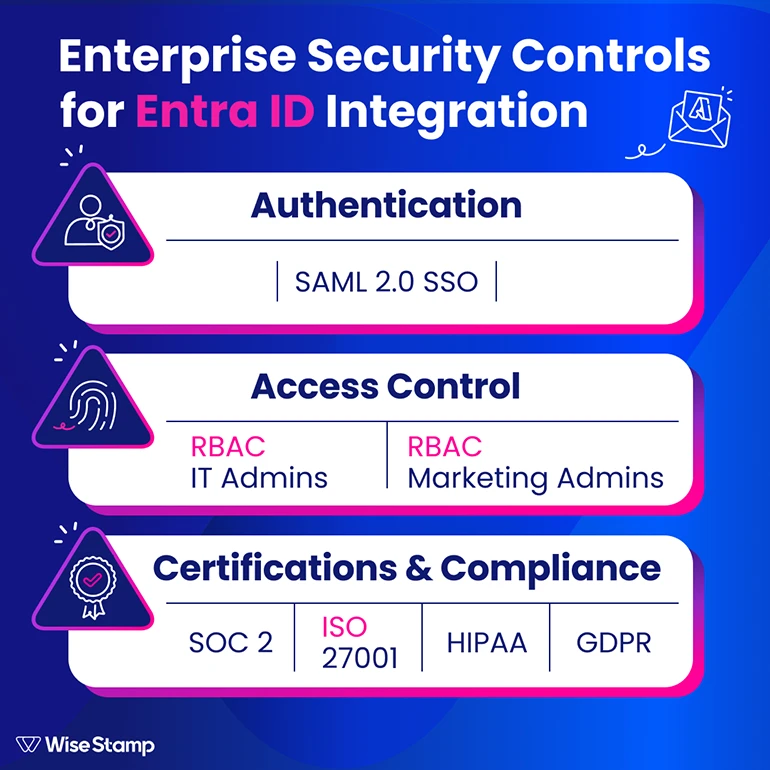
Admin authentication runs through SSO using SAML 2.0, with Microsoft Entra ID supported as an identity provider alongside Okta and OneLogin.
Role-based access control (RBAC) separates IT and Marketing clearly. IT admins manage integrations and employee lifecycle settings. Marketing admins manage signature templates and campaigns.
Neither role can access what belongs to the other.
This is how it works using WiseStamp. Other tools may have slightly different approaches.
WiseStamp holds SOC 2 and ISO 27001 certifications and does not read, store, or access email content at any point. For regulated industries, HIPAA and GDPR compliance documentation is available for security review.
Whichever tool you ultimately choose to work with, make sure it holds these critical certifications.
How to choose
How do Exchange Online rules, PowerShell, and email signature software compare on long-term manageability?
Exchange Online transport rules and PowerShell were not built for signature management at scale, while signature management software was built exactly for signature automation at scale.
Exchange Online transport rules can produce signatures, but maintaining personalized, on-brand signatures across a changing employee population accumulates technical debt that compounds over time.
Email signature management software gives IT the architecture to automate organizational signatures at scale.
IT connects it once. Marketing manages templates from that point forward. Signatures stay current through daily sync, with no scripting required.
One thing I hear consistently from IT professionals who’ve evaluated this space is that the directory connection is non-negotiable. “Active Directory sync was critical. We didn’t want to manage user data in another system”.
That captures it.
The data already exists in Azure AD. Integration should be a one-time configuration, not a recurring maintenance task.
For organizations managing 50+ Microsoft 365 mailboxes with any expectation of personalization and brand governance, WiseStamp’s native Entra ID integration removes the maintenance loop entirely.
Takeaway
The right way to connect Azure Active Directory to email signatures
Azure Active Directory (Microsoft Entra ID) connects to email signatures through Exchange Online transport rules, PowerShell scripting, or a dedicated signature manager like WiseStamp.
When to use transport rules, PowerShell, or dedicated signature management software:
- Transport rules handle static disclaimers at low complexity.
- PowerShell handles per-employee personalization but requires sustained maintenance.
- Email signature software handles both – it adds brand governance, employee lifecycle automation, and daily Entra ID sync with minimal IT overhead after a one-time setup.
For organizations that need personalized, governed signatures across Microsoft 365, the practical path is a native Entra ID integration that runs on autopilot.
Get a technical walkthrough of how WiseStamp connects to Microsoft Entra ID