Home / Guides / How to Populate Outlook Signatures from Azure AD and Entra ID
How to Populate Outlook Signatures from Azure AD and Entra ID
Learn how to automatically populate Outlook signatures from Active Directory or Microsoft Entra ID. Step-by-step setup for IT admins using directory sync
Reading time:
7 min
Author: Amotz Harari
Updated: August 25, 2026
Short answer
How to automatically populate Outlook signatures from Active Directory or Entra ID?
Connect an Office 365 signature management software to Microsoft Entra ID (formerly Azure AD) or on-premises Active Directory.
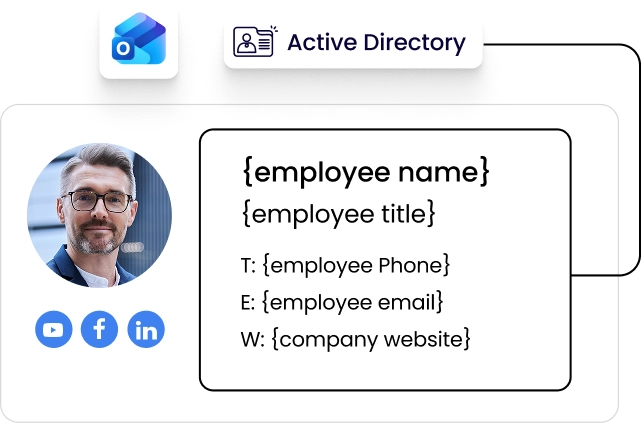
The software reads employee attributes (name, title, department, phone number), auto-populates your signature templates, and deploys them across Outlook desktop, Outlook Web App, Exchange Online, and mobile.
End the cycle of manual Outlook signature updates across your organization
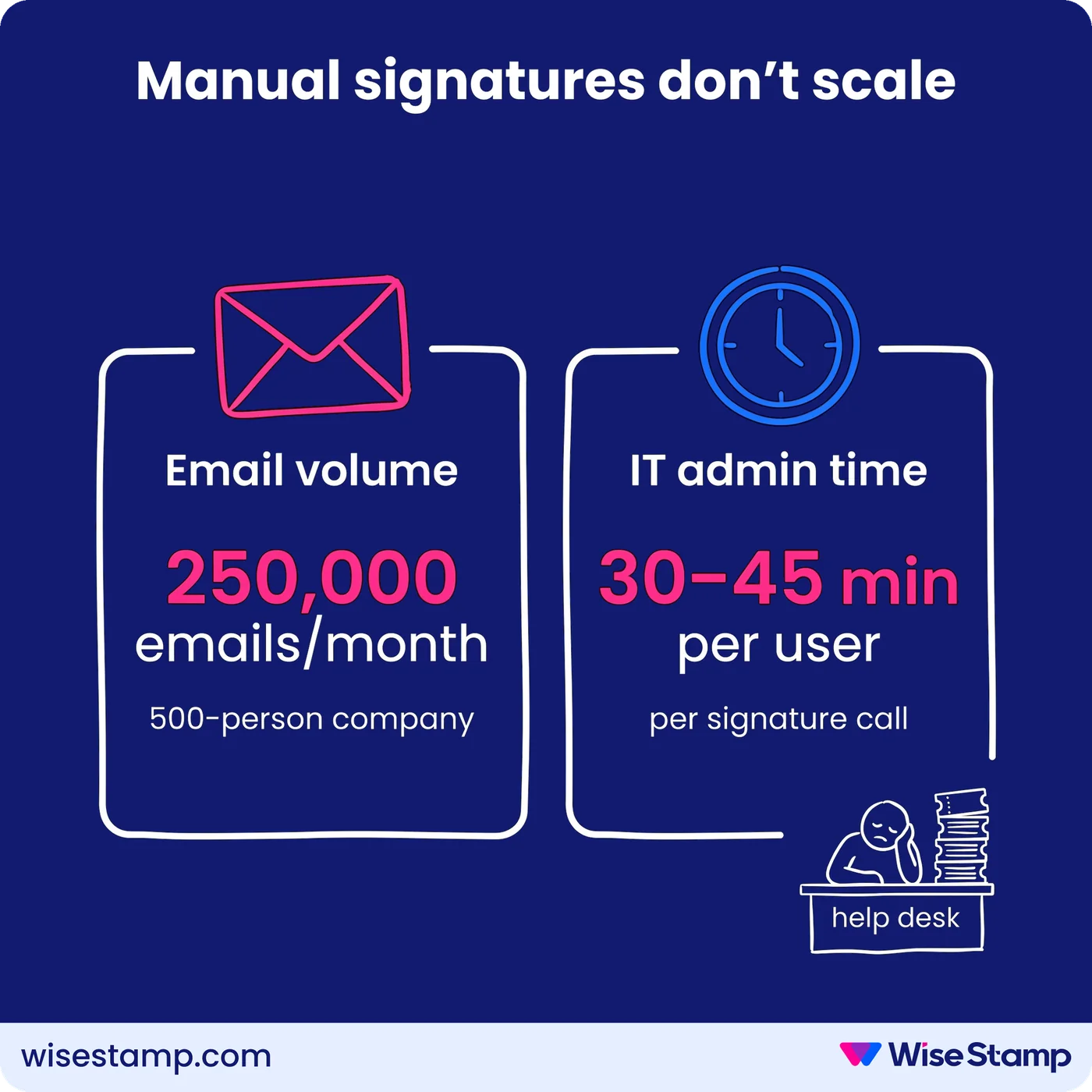
IT admins in companies that manage their email signatures manually are constantly burdened with IT tickets in an attempt to bring order to signature chaos.
The larger the org the worse it gets. It’s a support queue that never empties.
“IT definitely spends anywhere from 30 minutes to 45 minutes on a call with these people, with each person.”
One IT operations contact.
With each new hire, role change, or (god forbid) a rebrand, the manual approach becomes harder. It simply doesn’t scale.
The only exit from that loop is connecting signatures directly to the directory you’re already maintaining.
Active Directory Fields
What employee data does Active Directory or Entra ID hold for Outlook signature templates?
Active Directory and Microsoft Entra ID store precisely the attributes your email signature templates need.
When you connect a signature platform to your directory, these fields are read directly and used to auto-populate each employee’s signature:
`displayName` — full name as it appears in directory
`jobTitle` — position or role
`department` — team or business unit
`telephoneNumber` and `mobile` — direct line and mobile number
`mail` — primary email address
`officeLocation` — office name or branch
`manager` — direct manager (useful for department-level signature rules)
The data already lives in your directory. You don’t create a parallel database of employee information just to manage signatures.
When someone gets promoted, changes departments, or joins from an acquisition, their signature updates automatically on the next directory sync — because the source of truth is the same system you already use to manage identity.
Native Outlook Limitations
Why do native Exchange mail flow rules fall short of true Active Directory signature sync?
Native Microsoft 365 tools for organization-wide signatures were not built to replace proper AD-connected signature management. They were built for disclaimers, and that distinction matters.
The Exchange Admin Center (EAC) lets you create mail flow rules that append a “disclaimer” to outgoing messages.
But these rules add content to the bottom of the entire email thread — not after each individual reply. Employees can’t see the appended text while composing, and it doesn’t appear in their Sent Items.
“Signatures cannot be added right under the most recent replies and forwards. They are used at the very bottom of the conversation, which makes them ineffective in longer email threads.”
Microsoft’s own documentation.
Mail flow rules support a limited set of dynamic fields. You can use `%%DisplayName%%` and `%%Title%%`, but rendering depends on how consistently those fields are populated in Exchange.
Gaps in AD data produce gaps in the output — which means you’re still troubleshooting per-user signature problems.
Outlook Mobile is a separate issue entirely. Outlook on iOS and Android stores signatures locally on the device.
Microsoft has no native mechanism to sync a server-side template to the mobile compose window.
Employees either manage their own mobile signature manually or rely on a server-side solution that appends after send.
The native tools are not a substitute for directory-connected signature management. They’re a workaround that transfers the maintenance burden from employees to admins.
How does Active Directory-integrated email signature management work in practice?
Active Directory-integrated signature management connects your identity directory to a signature platform via a secure API or connector, then handles design, assignment, and deployment as a unified pipeline.
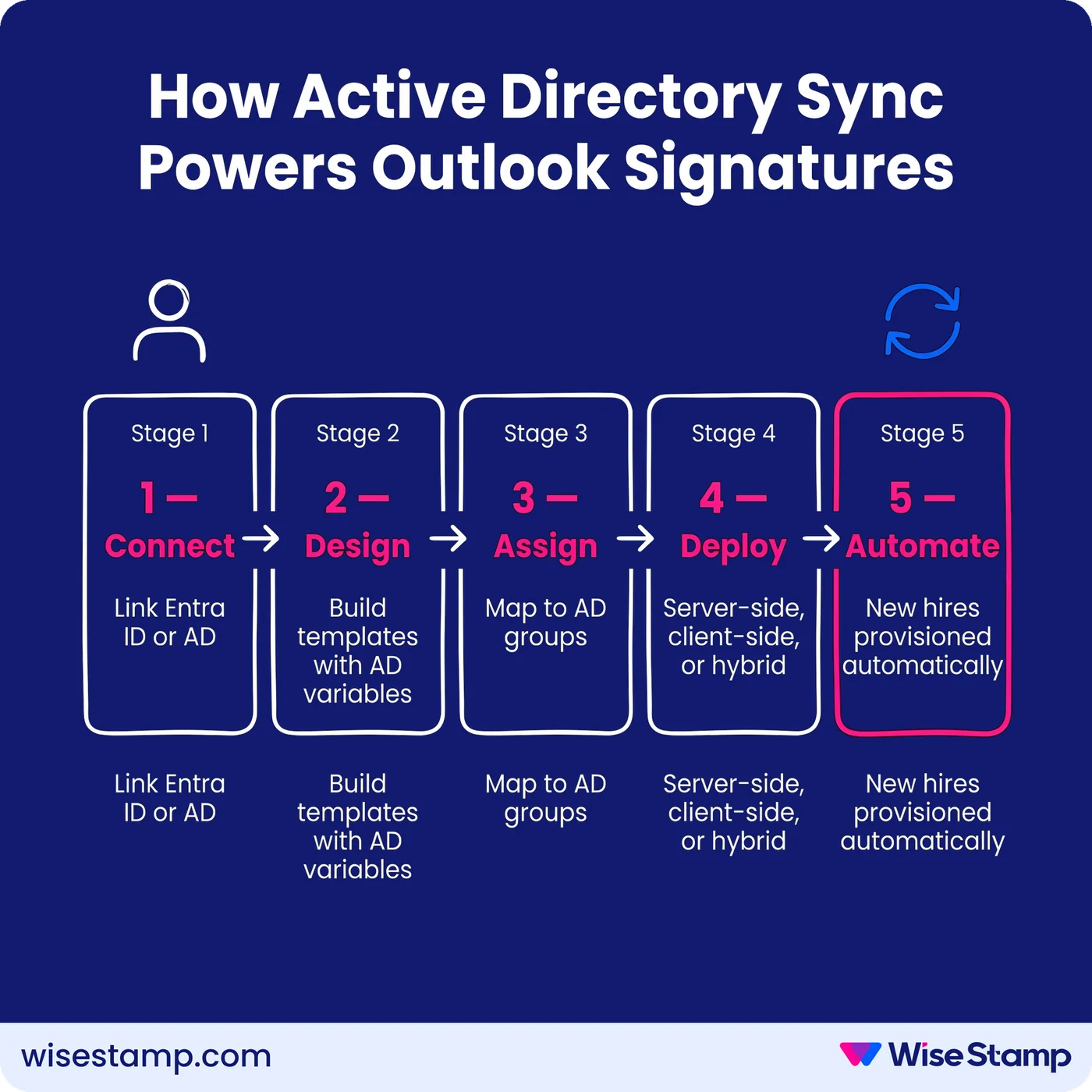
The flow looks like this:
The signature platform authenticates against Microsoft Entra ID or on-premises Active Directory with admin consent
It reads your user directory on a scheduled sync or delta sync
Employee attributes auto-populate your signature templates
Templates are assigned to users individually or by AD security group
Signatures deploy via your chosen method: server-side, client-side, or hybrid
I’ve heard IT admins describe the moment this clicks — and it consistently sounds the same.
“Active Directory sync was critical. We didn’t want to manage user data in another system.”
One system admin.
That’s the design principle. The directory is the source of truth. The signature platform reads it and acts on it. You stop maintaining signatures and start treating them like infrastructure.
Setup Steps
How do you set up automatic Outlook signature population with WiseStamp and Active Directory?
Setting up WiseStamp with Active Directory or Microsoft Entra ID follows a 5-step process that most IT admins complete in under an hour.
Step 1: Connect WiseStamp to Entra ID or on-premises Active Directory
Sign in to WiseStamp as a global admin and connect your Microsoft 365 tenant. WiseStamp requests the permissions needed to read your directory and pull user attributes.
Only a global admin can authorize this consent — a deliberate security control that prevents unauthorized apps from accessing internal systems.
WiseStamp does not read, store, or alter email content or recipients.
Step 2: Design your signature templates with dynamic variable fields
Use WiseStamp’s Studio Editor to build your signature templates. Insert dynamic variables — {{name}}, {{title}}, {{department}}, {{phone}} — as placeholders that auto-fill from AD on each sync.
You control the brand elements: logo, colors, fonts, social links, and any required legal disclaimers. Employees don’t configure any of this.
Step 3: Map signature templates to Active Directory groups
Assign templates to users individually or by AD security group. A department-based mapping works well for most organizations.
It means, everyone in Sales gets the Sales template with the relevant CTA. Everyone in Legal gets the Legal template with enforced disclaimers.
And when someone moves to a different group in Active Directory, their signature updates automatically on the next sync.
Step 4: Choose your deployment method
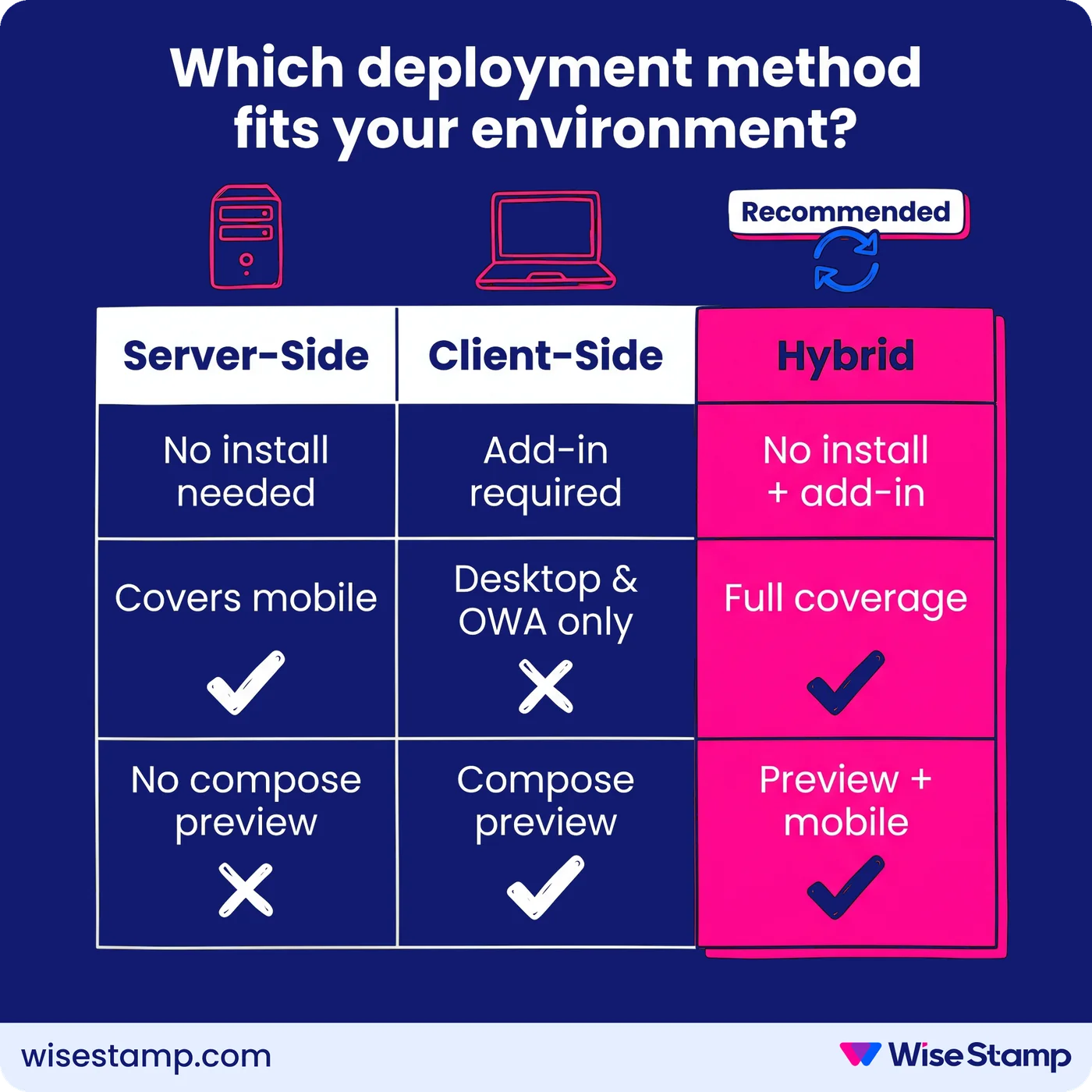
WiseStamp supports 3 deployment configurations. Which one fits your environment depends on how your Outlook clients are distributed and whether compose-time visibility matters more than coverage.
Server-side Outlook signature deployment via Exchange Online connector
Server-side deployment runs at the server level with no local install required on end-user machines.
WiseStamp installs a connector on your Exchange Server or Exchange Online environment.
When a user sends an email, WiseStamp intercepts it at the mail flow level and appends the correct, personalized signature before delivery.
Works automatically across every device and client, including Outlook Mobile
Users do not see the signature in the compose window unless a client-side add-in is also deployed
Prevents signature duplication by checking for existing signatures before appending
Best for: environments where centralized enforcement matters more than compose-time preview
Client-side Outlook signature deployment via Outlook add-in
Client-side deployment uses an Outlook add-in to inject the signature directly into the compose window.
WiseStamp pulls the user’s personalized signature from the platform and inserts it automatically when they open a new compose window in Outlook desktop or Outlook Web App.
Users see their exact signature while composing
Signatures appear in Sent Items
Requires the add-in deployed across all Outlook desktop and OWA instances via Microsoft 365 admin center
Does not natively support Outlook Mobile apps
Best for: environments where compose-time preview and Sent Items visibility are priorities
Hybrid Outlook signature deployment for mixed-device environments
Hybrid mode combines server-side and client-side deployment. WiseStamp detects which method is active and ensures only one signature is applied per email, preventing duplication.
Users on Outlook desktop and OWA see their signature while composing (client-side component)
Emails sent from Outlook Mobile or any client without the add-in receive the signature via server-side append
Recommended for organizations with a mix of desktop, web, and mobile Outlook users
Best for: most mid-market and enterprise deployments with mixed-device workforces
Step 5: Test and go live
Send test emails from Outlook desktop, OWA, and a mobile device. Confirm the signature renders correctly on each client.
Verify that an Active Directory group change updates the correct user’s signature on the next sync cycle. Once confirmed, enable the deployment for all users.
New Hire Provisioning
How does Active Directory sync handle new hire provisioning and role changes automatically?
Automatic new-hire provisioning is one of the most consistently praised outcomes of AD-connected signature management.
When a new user is created in Active Directory or Entra ID, WiseStamp picks them up on the next directory sync and assigns them a signature based on their group membership.
No ticket needed. No manual step.
“I do not have to set up new users. It happens automatically once they are created.”
The Director of IT & Logistics at one mid-market company.
Role changes flow through the same sync. Move a user to a different security group in Active Directory — a promotion, a department transfer, a new regional assignment. And their signature template updates automatically.
You maintain one system (your identity directory) and signatures stay current without any additional administration.
Offboarding is handled centrally. Deprovisioning a user in Entra ID removes them from WiseStamp’s active roster.
Takeaway
Automatically populating Outlook signatures from Active Directory and Entra ID
Automatically populating Outlook signatures from Active Directory or Microsoft Entra ID requires a directory-connected signature management platform.
Native Microsoft 365 tools — Exchange Admin Center disclaimers and mail flow rules — are not built for true AD sync.
They have documented limitations around signature placement in email threads, compose-time visibility, and mobile compatibility.
The correct approach:
Connect WiseStamp to Entra ID or on-premises Active Directory with global admin consent
Build signature templates with dynamic variable fields mapped to AD attributes
Assign templates to users by individual or Active Directory security group
Deploy via server-side (Exchange connector), client-side (Outlook add-in), or hybrid mode — based on your client environment
Let AD sync handle new-hire provisioning, role changes, and offboarding automatically
Directory sync eliminates the manual work of maintaining employee information in a second system. IT stops being the signature helpdesk. Signatures become infrastructure — provisioned from Active Directory, deployed automatically, and auditable on demand.
Not in any practical sense. Microsoft 365’s native mail flow rules support a limited set of AD attributes (%%DisplayName%%, %%Title%%, %%Department%%) but apply them as server-side disclaimers that append to the bottom of email threads — not as individual signatures under each reply. Users cannot see them while composing, they don’t appear in Sent Items, and they don’t work on Outlook Mobile. A third-party platform such as WiseStamp is required for genuine AD-connected signature management with real per-user personalization.
The most commonly used fields are displayName (full name), jobTitle (title), department, telephoneNumber, mobile, mail (email address), officeLocation, and manager. WiseStamp maps these attributes directly to dynamic variables in your signature templates. When the directory sync runs, each employee’s template is auto-filled with their current data from Active Directory or Microsoft Entra ID.
Outlook Mobile does not support native server-side signature sync in the compose window. Microsoft stores mobile signatures locally on the device. However, server-side deployment (via Exchange connector) appends the correct signature to outgoing messages after send, regardless of the device. For organizations where compose-time visibility on mobile matters, hybrid deployment — which combines server-side and client-side (add-in) methods — is the recommended approach.
Server-side deployment works at the Exchange or Exchange Online level. Signatures are appended to outgoing emails after send with no local install required. It covers every client and device automatically. Client-side deployment uses an Outlook add-in to inject the signature into the compose window — users see it while writing and in Sent Items, but the add-in must be deployed across all Outlook instances. Hybrid mode combines both approaches, giving desktop users compose-time visibility while mobile and other clients receive signatures via server-side append.
When a new user is created in Active Directory or Microsoft Entra ID and assigned to the correct security group, WiseStamp picks them up on the next directory sync. Their signature is generated from their AD attributes and assigned automatically — no ticket, no manual step. The new employee’s first outbound email carries the correct, on-brand signature.
Yfs. WiseStamp allows you to map any number of signature templates to any AD security group, department, or organizational unit. Sales can receive a template with a calendar booking CTA. Legal can receive a template with enforced regulatory disclaimers. Regional teams can receive templates with local office addresses and phone numbers. When a user changes group membership in Active Directory, their signature template updates on the next sync.
No. WiseStamp’s admin setup does not require PowerShell scripting, Exchange transport rule configuration, or developer knowledge. The connection to Entra ID or Active Directory is established through an OAuth consent flow in the WiseStamp admin dashboard — a global admin authorizes the required read permissions and the platform handles the rest. Most IT admins complete the initial setup in under an hour.
WiseStamp runs a scheduled directory sync against Active Directory or Entra ID. When a user’s group membership, title, or department changes in the directory, their signature template assignment and populated fields update on the next sync cycle. If the role change moves them to a different security group, they automatically receive the template mapped to that group. No manual action is required from IT.
Table of Content
Deploy standardized email signatures company-wide in 24h